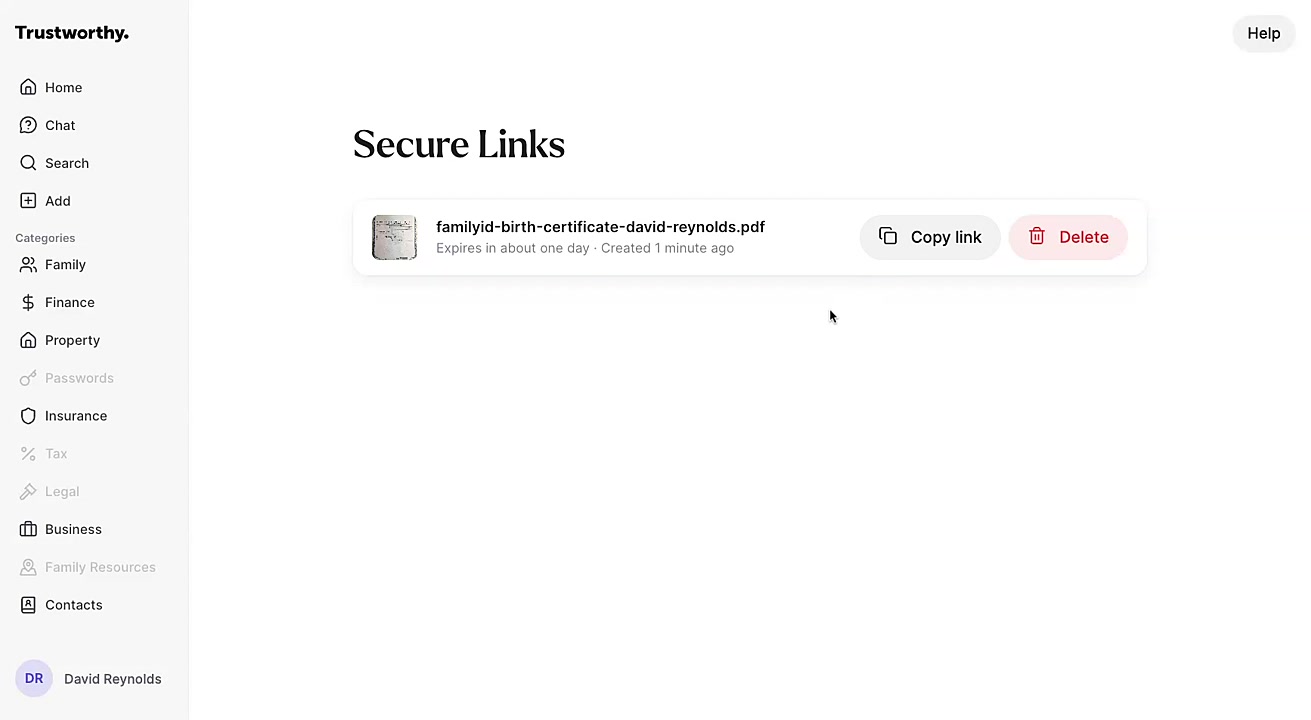
Sharing Documents via SecureLinks
Using SecureLinks allows you to share important information from your Trustworthy vault with controlled, temporary access. This feature is ideal for providing documents to trusted contacts for a limited time, ensuring your information remains secure.
You can manage all active links and revoke access from a single, centralized location in your account settings. You will need to have a file uploaded to your Trustworthy vault to complete these steps.
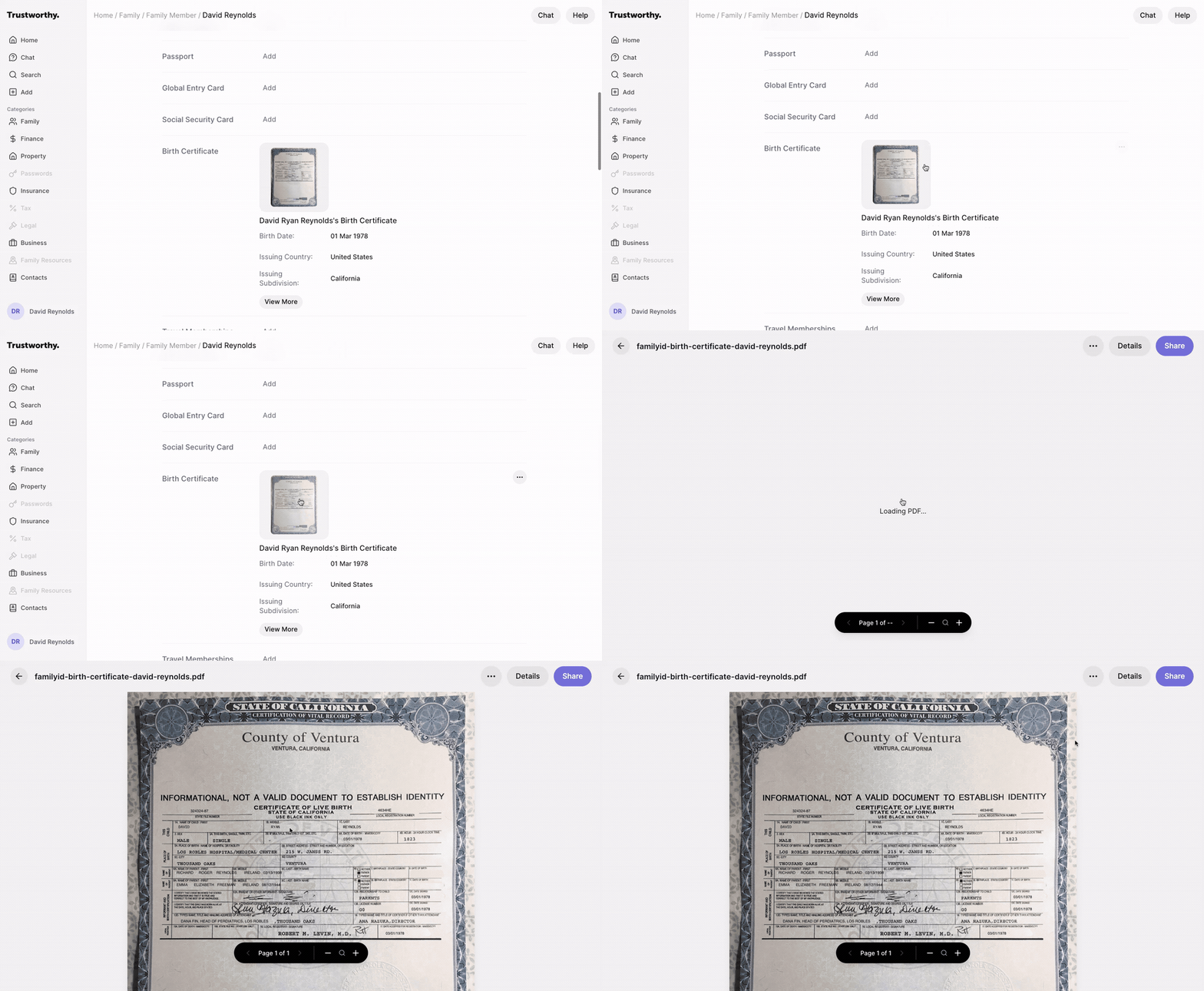
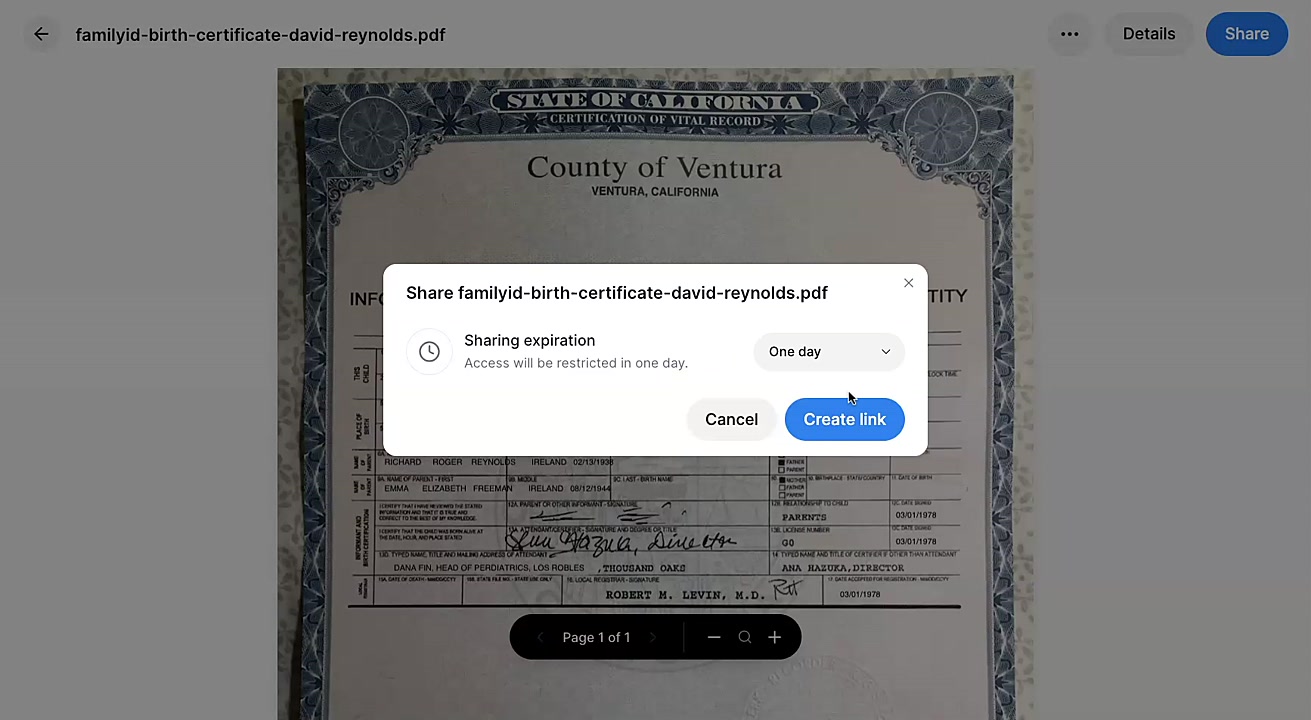
Navigate to the file you wish to share and click on it to open the document preview viewer.
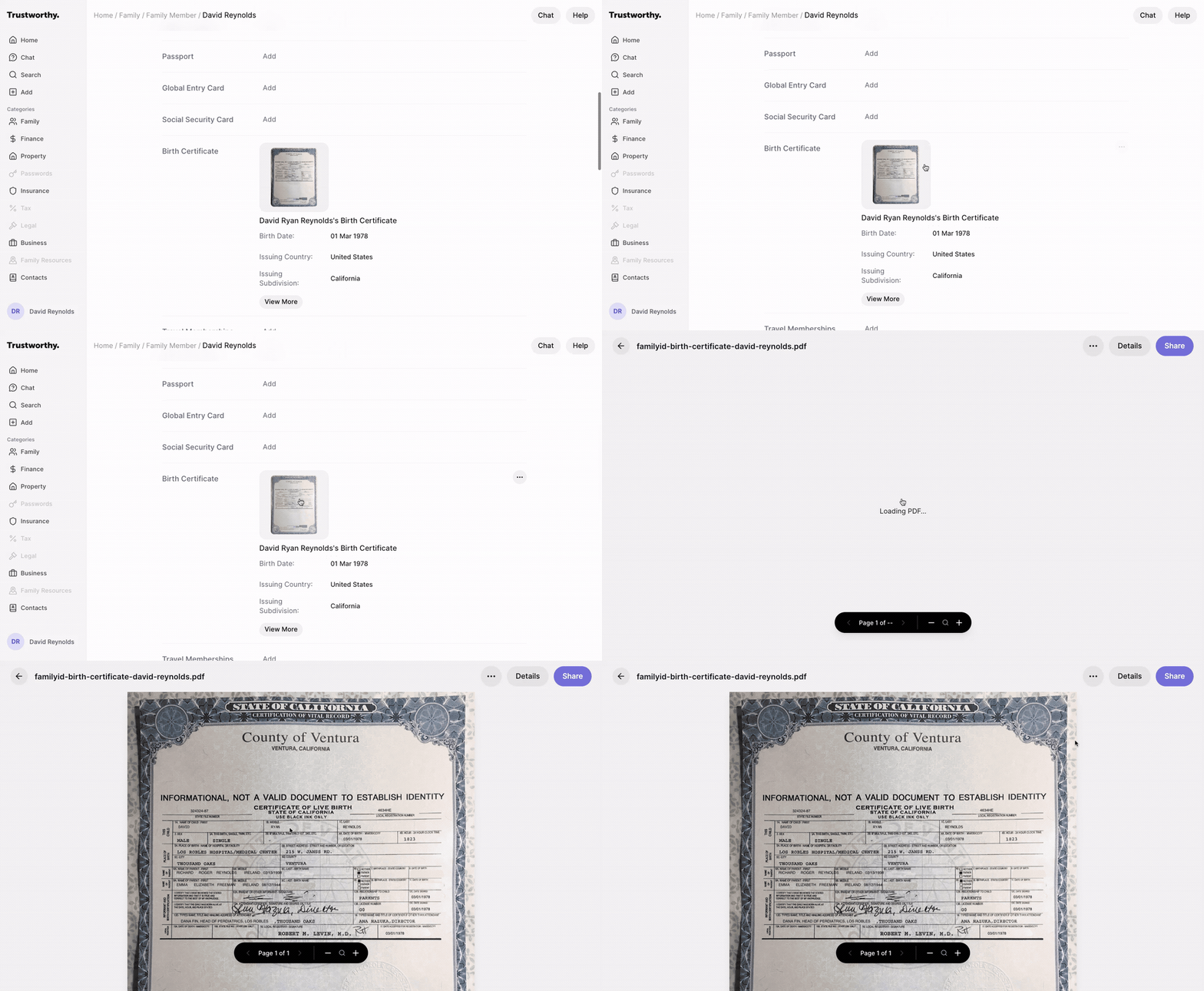
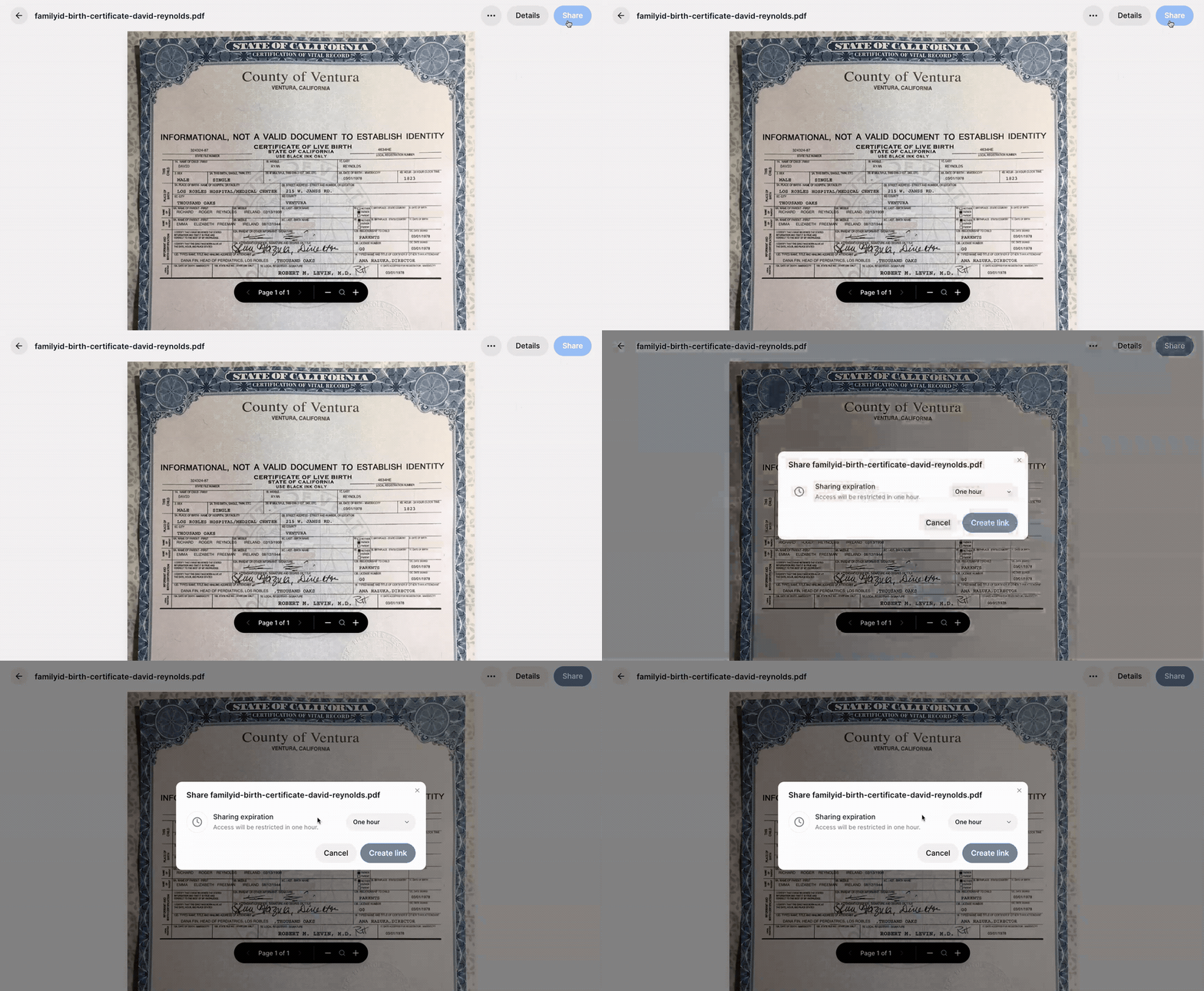
Click the Share button in the top-right corner of the screen.
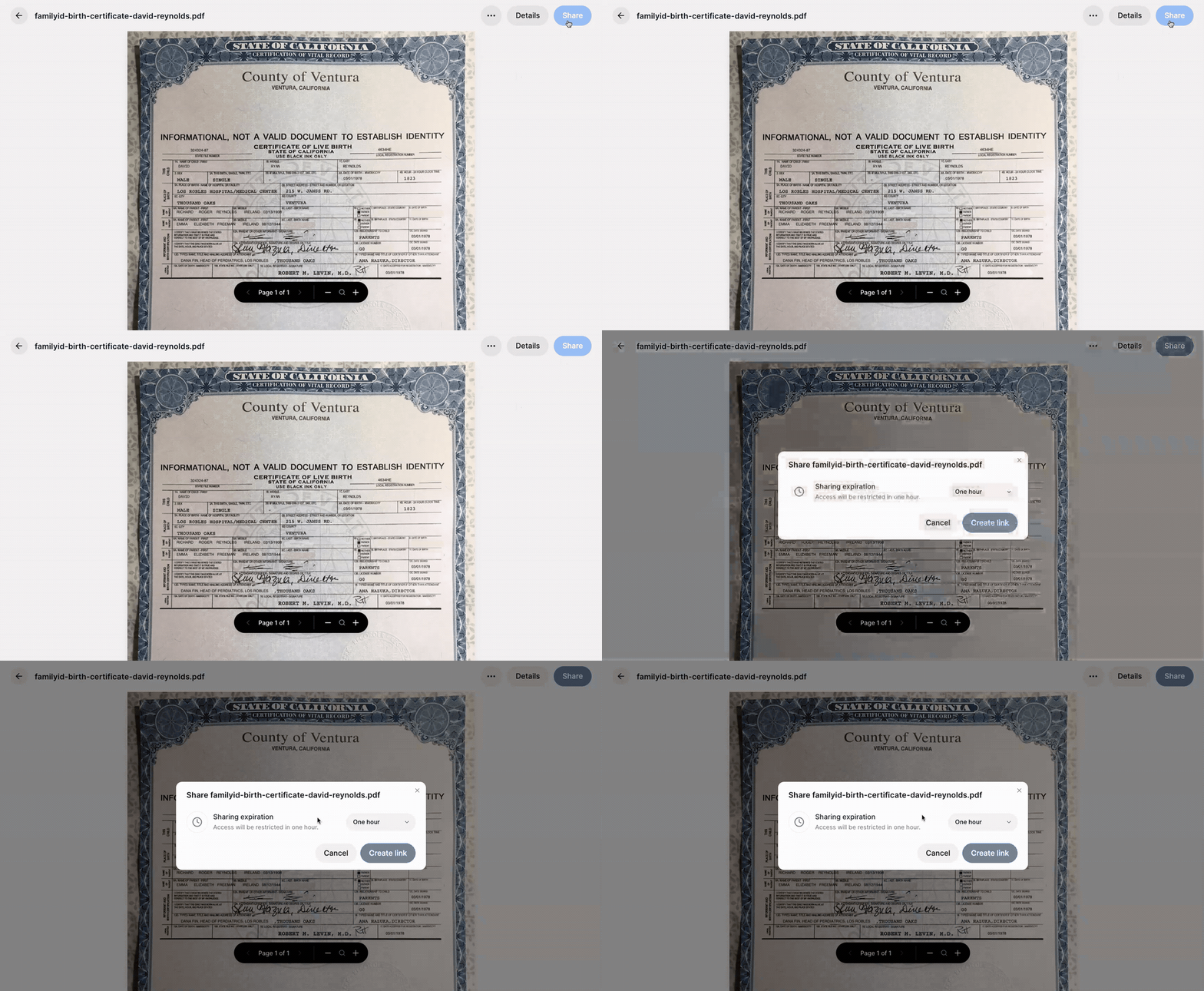
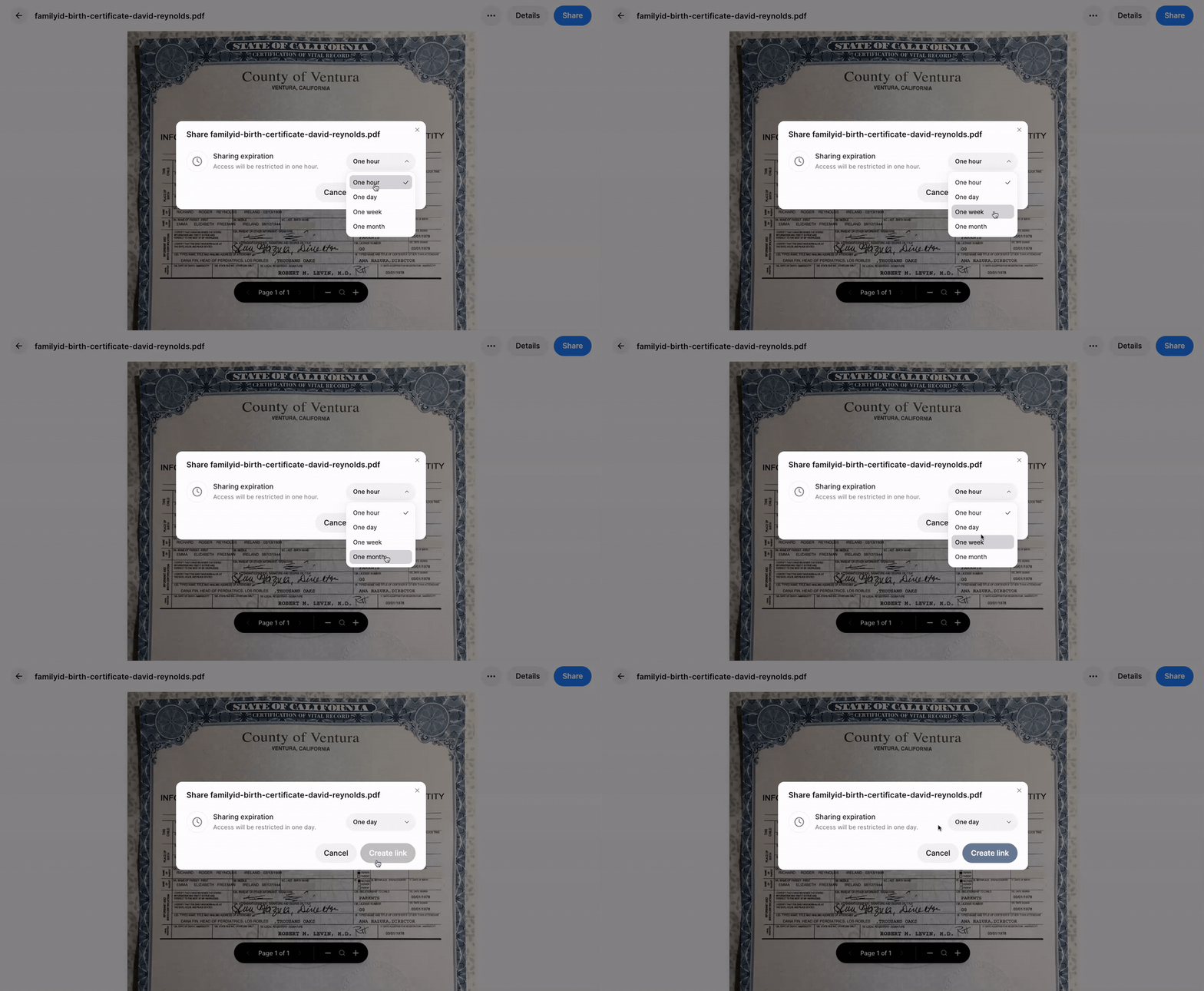
In the "Share" pop-up, click the dropdown menu to select a Sharing expiration period. You can choose from one hour, one day, one week, or one month.
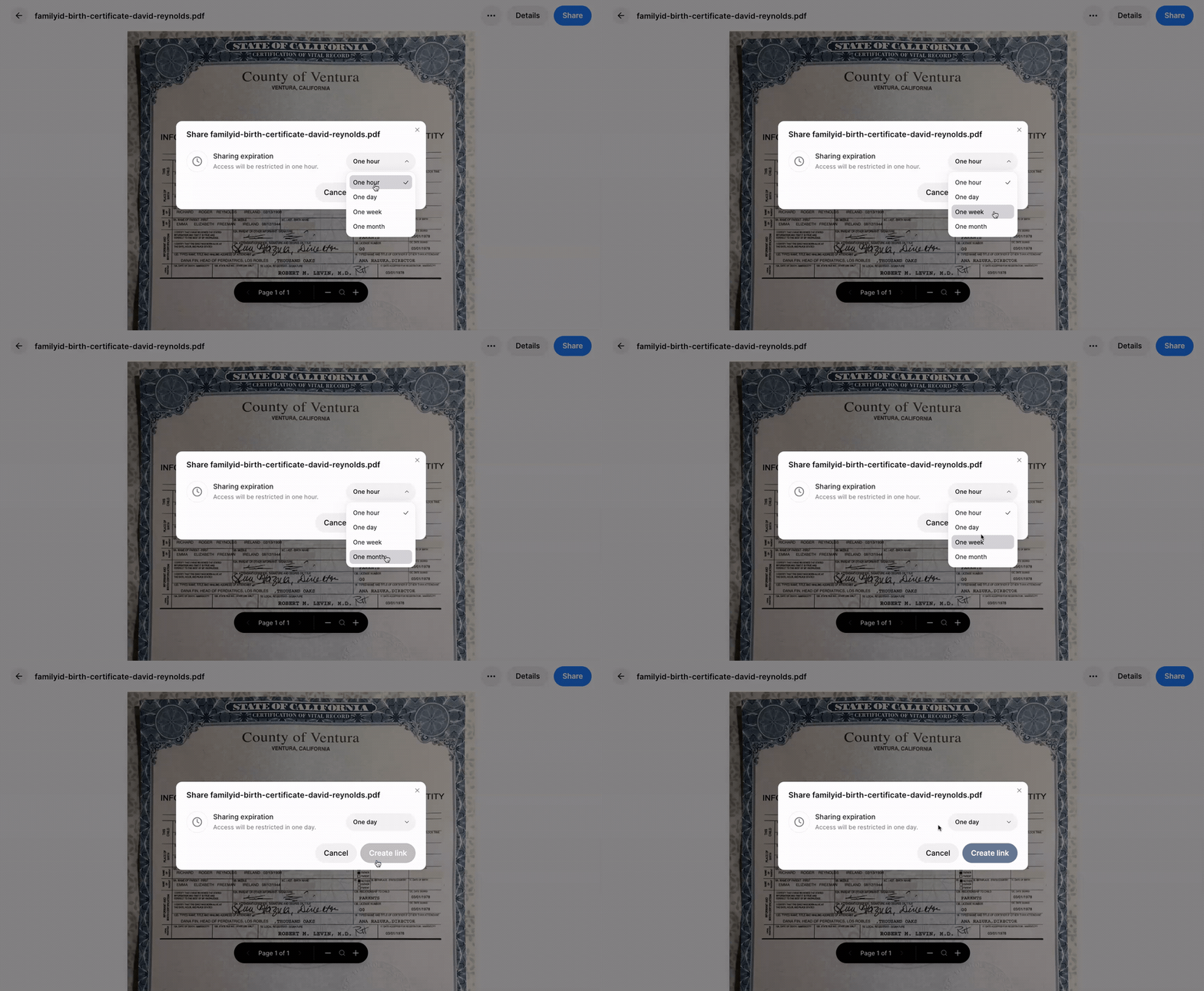
Click the Create link button.
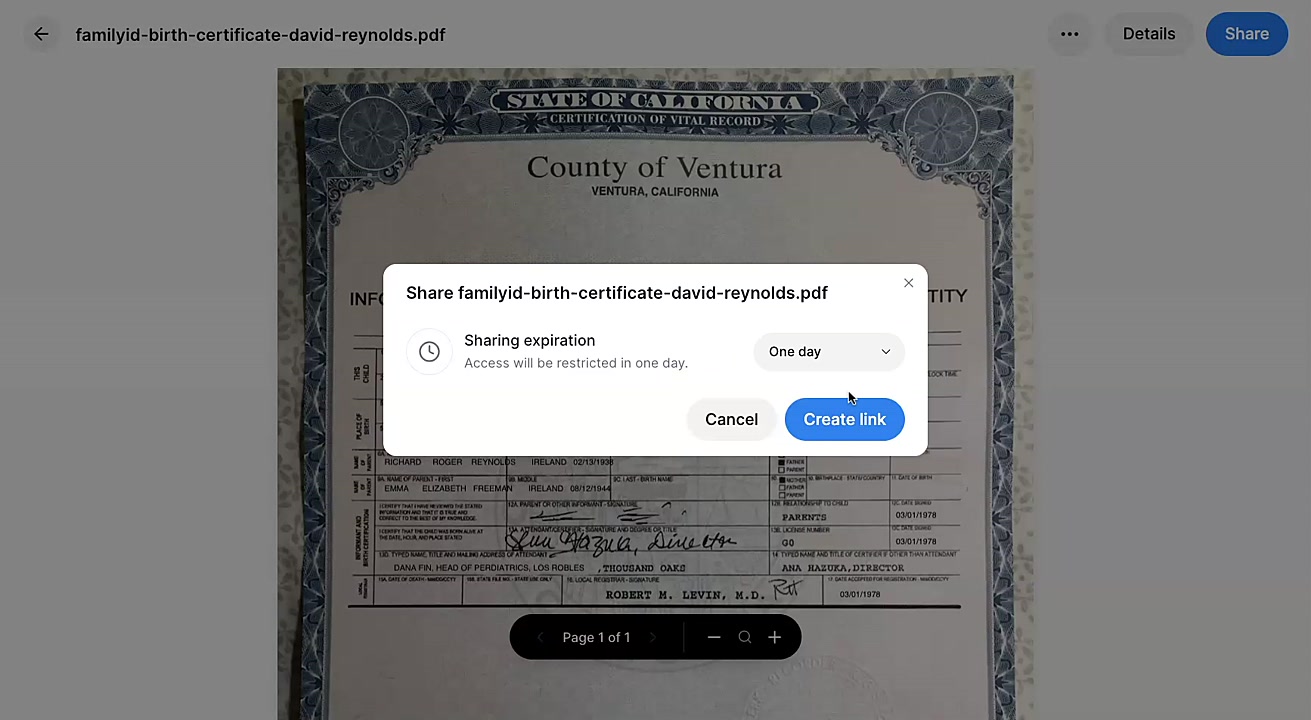
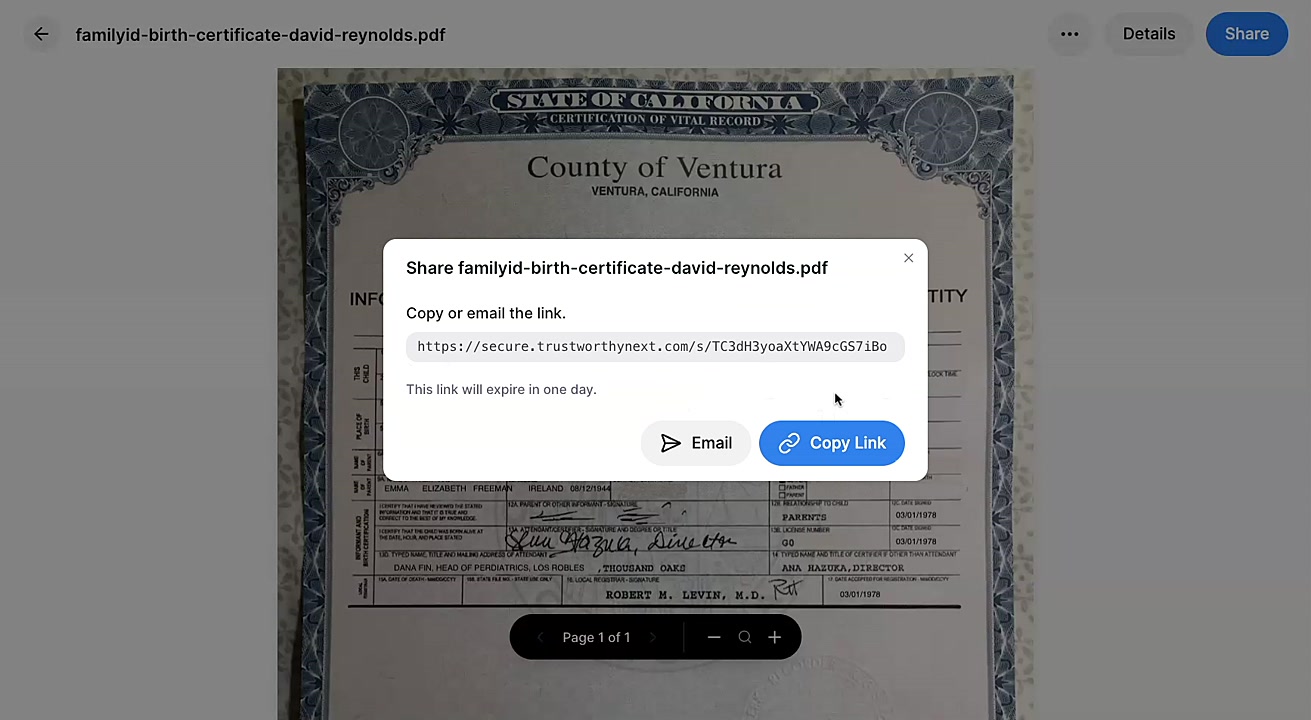
Click Copy Link to copy the secure URL to your clipboard. You can now paste this link into an email or message to share it. Click Email to open your system's default email and share the link that way.
How to Manage Your SecureLinks
You can view all of your active SecureLinks, copy them again, or revoke access at any time.
Click on your name in the bottom-left corner of the navigation panel to open the account menu. Select SecureLinks from the menu.
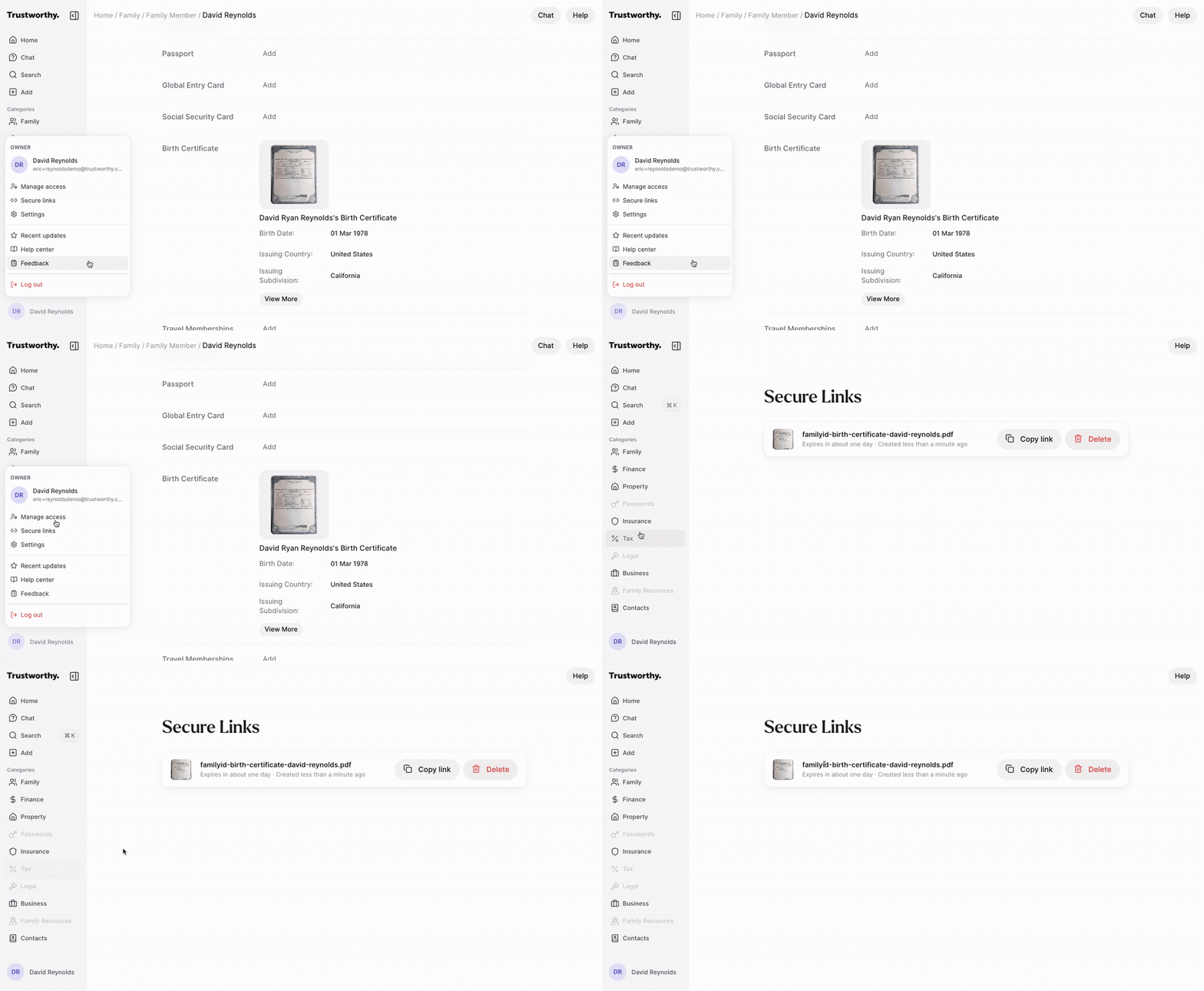
On the SecureLinks page, you will see a list of all active links. From here you can:
Click Copy link to copy the URL again.
Click Delete to permanently revoke access to the file. A confirmation pop-up will appear.