Collaboration: Adding Household Members & Trusted Contacts
Collaborators are trusted individuals, like family members or financial advisors, who you can invite to help manage your Trustworthy account. This guide shows you how to invite a collaborator and configure their specific access level. If you want to give someone the ability to see only certain documents, files, or categories — instead of your whole account — use the Partial access level and choose exactly what to share.
Add a Collaborator. You can add Collaborators in two ways:
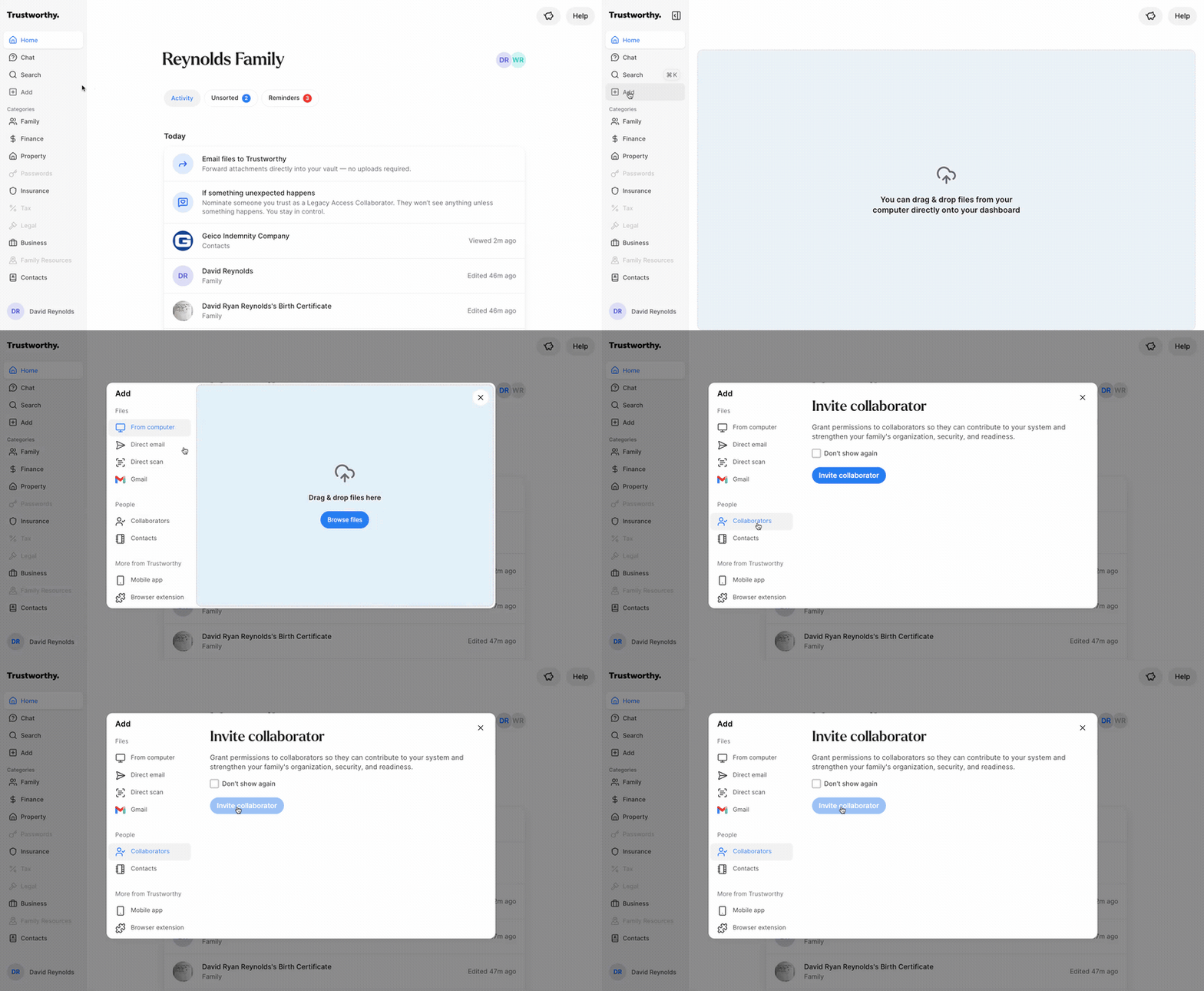
From the left-hand side of the Home screen click Add, then Collaborators.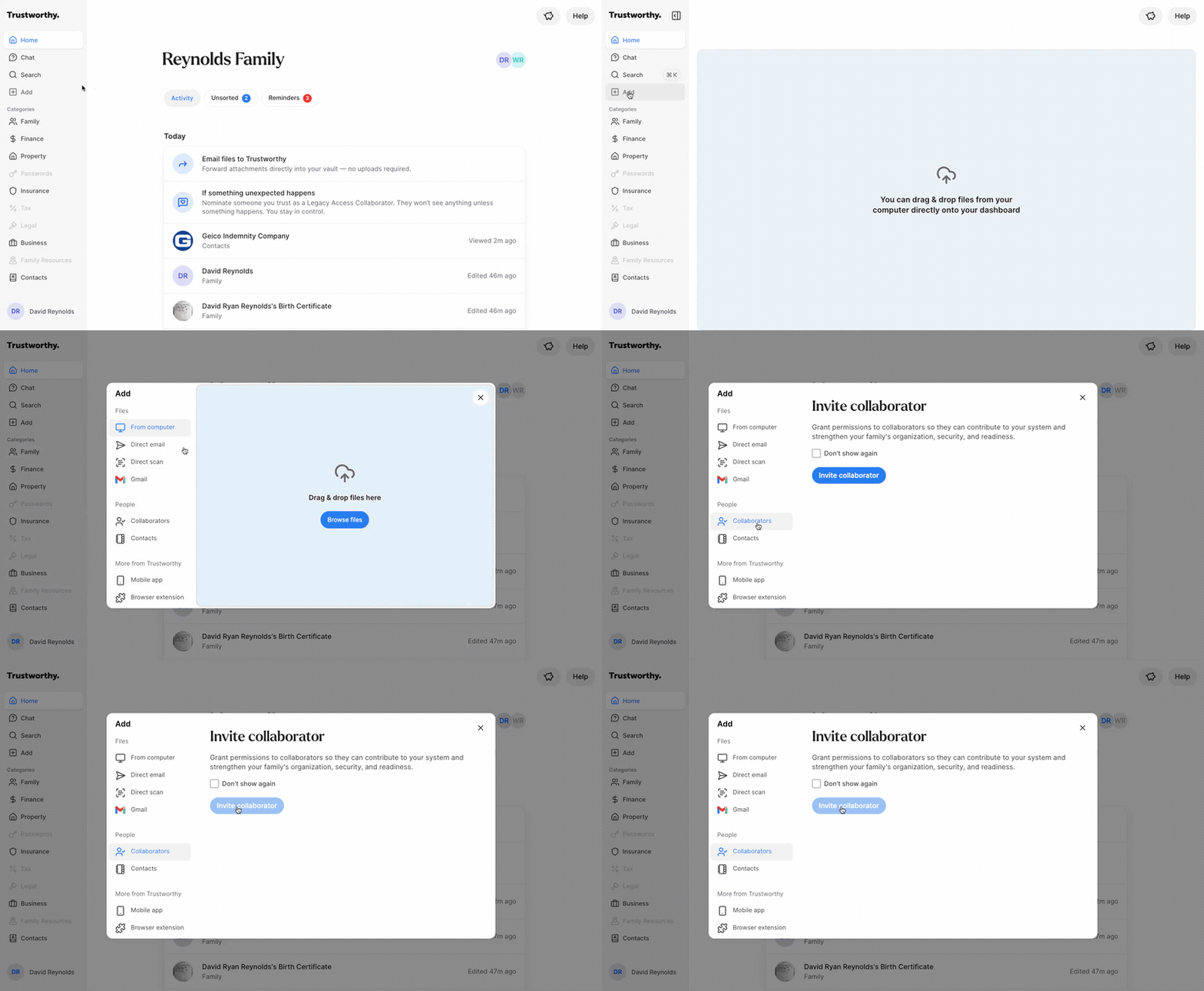
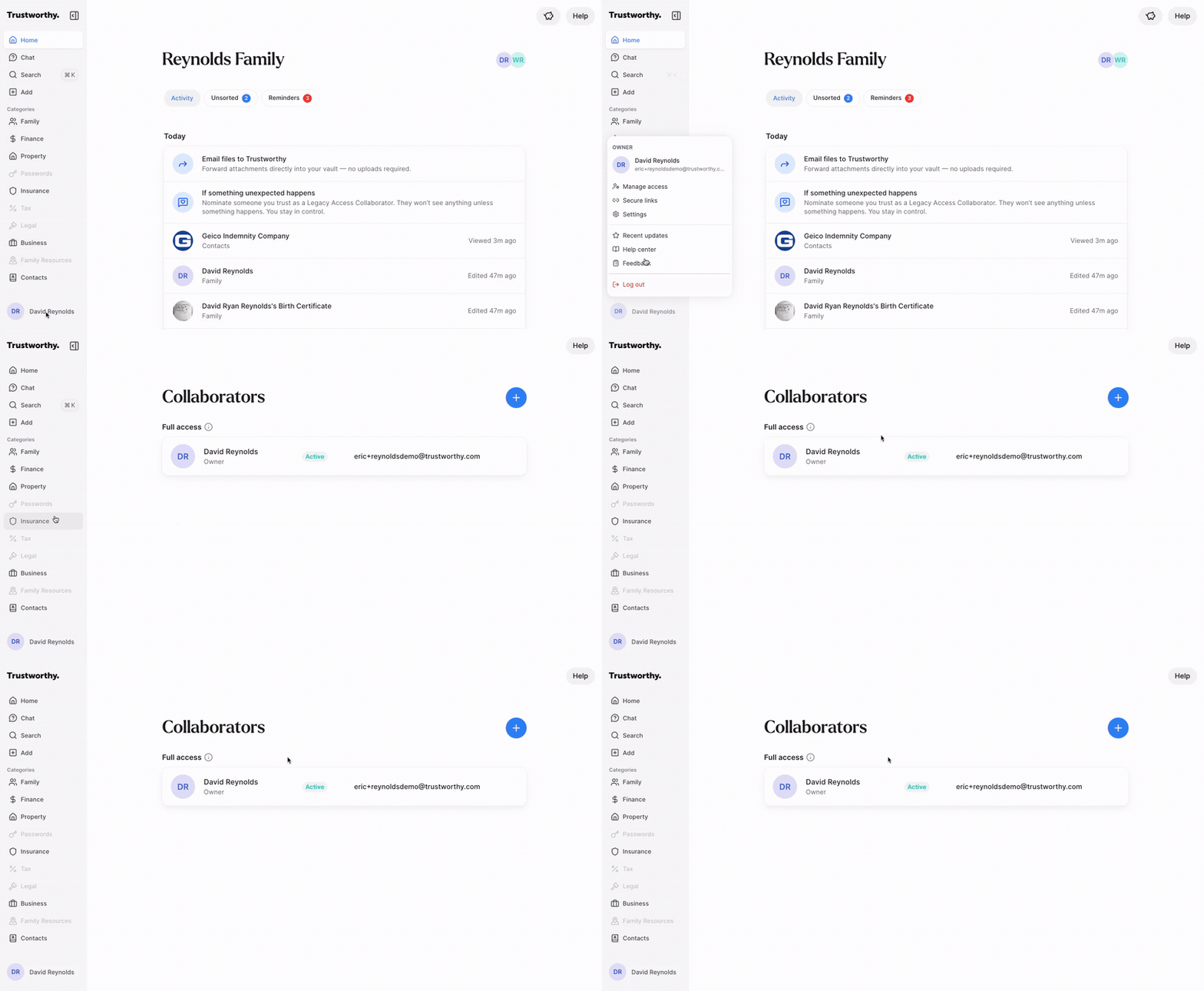
As an alternative, navigate to the bottom-left corner of the screen, click your Account Menu, and select Manage access from the menu.
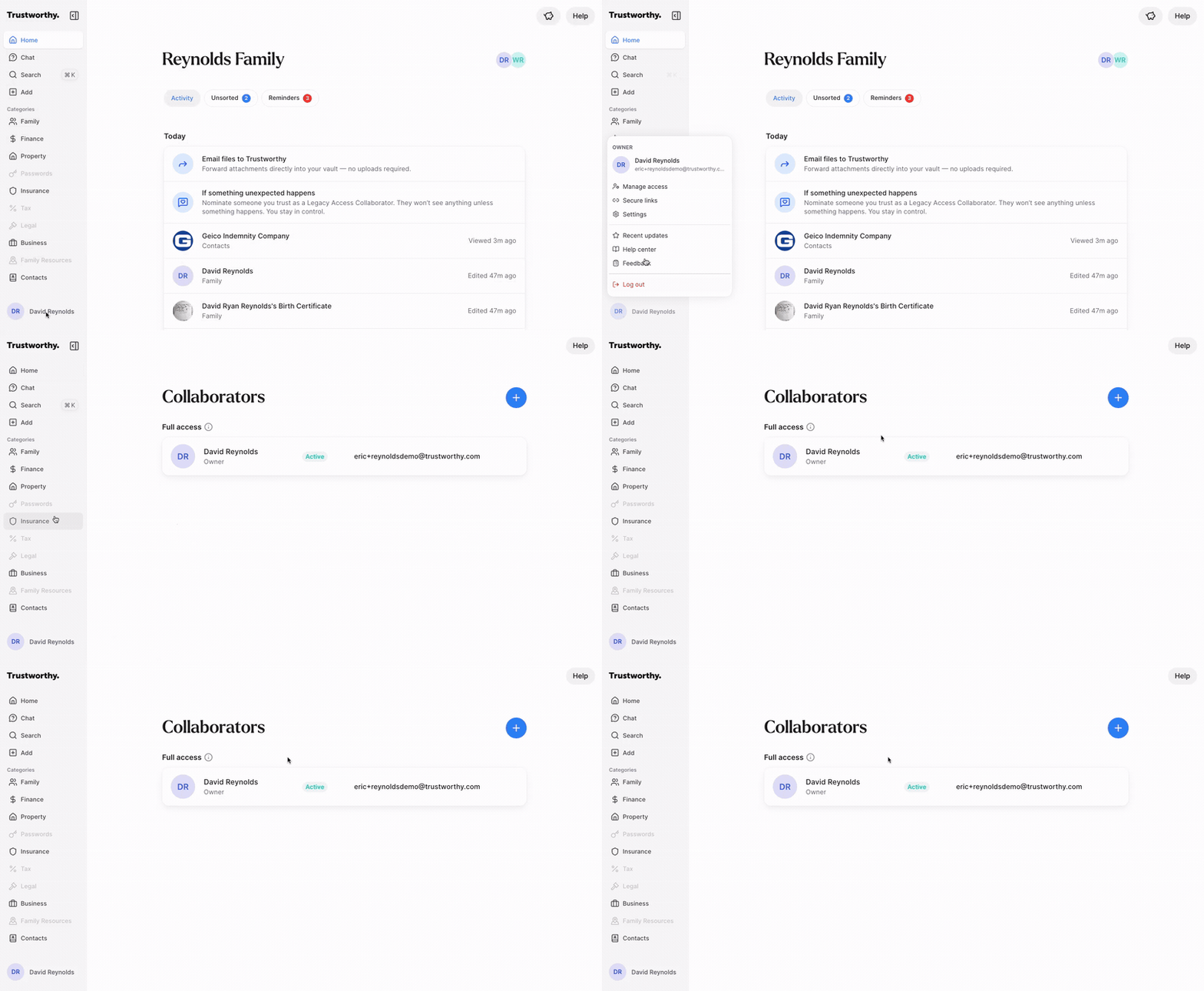
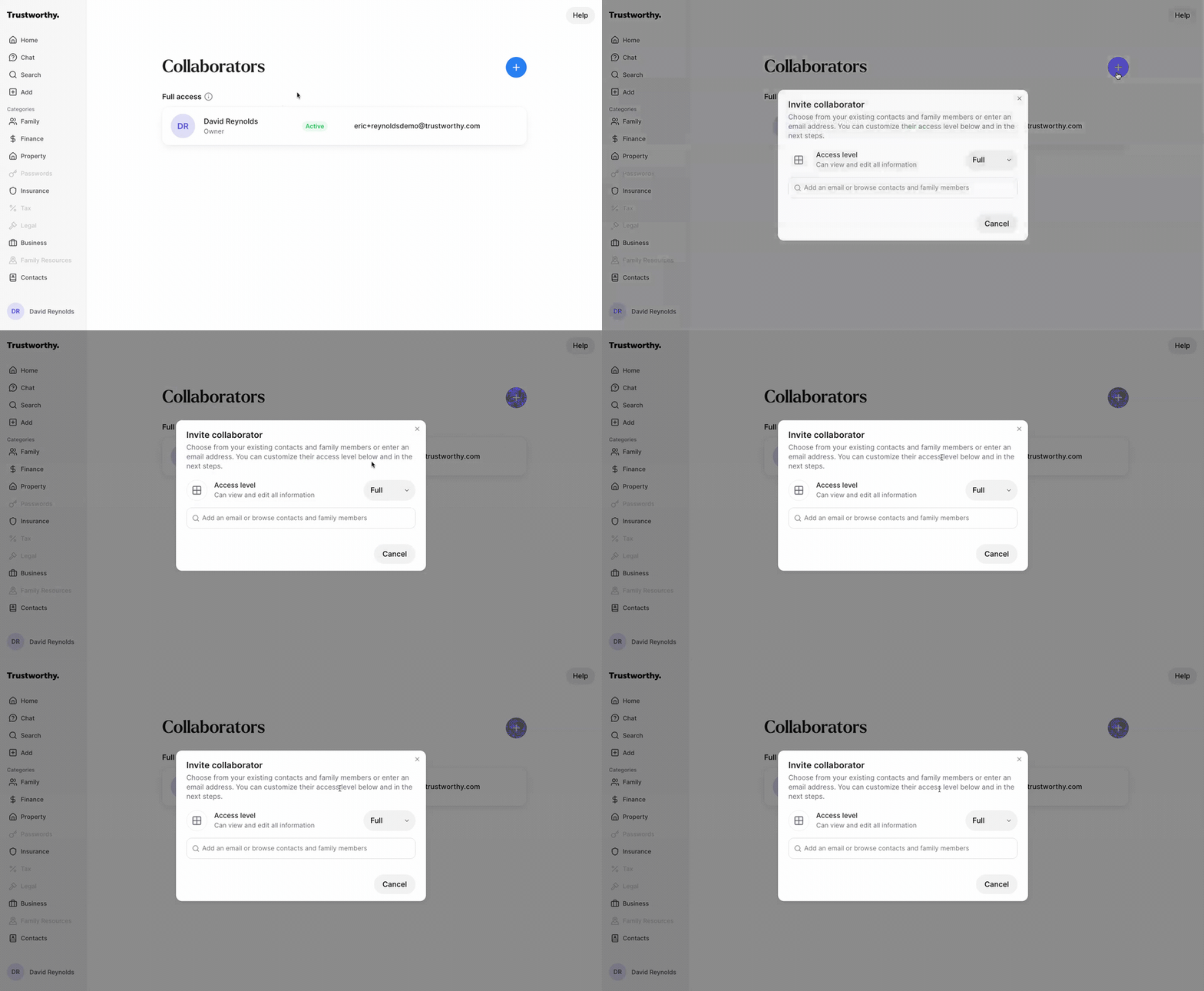
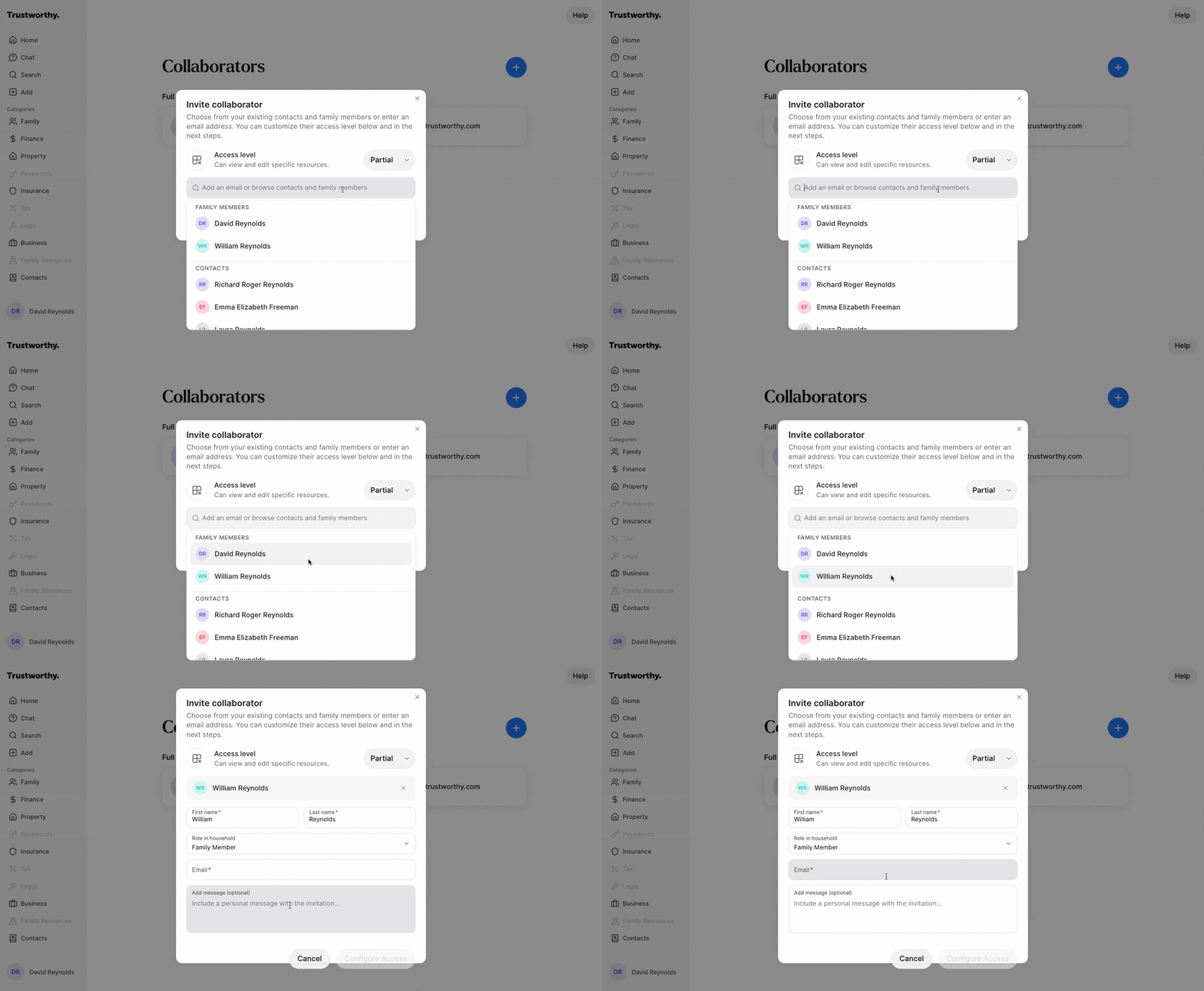
On the Collaborators screen, click the blue + icon in the top-right corner to open the invite window.
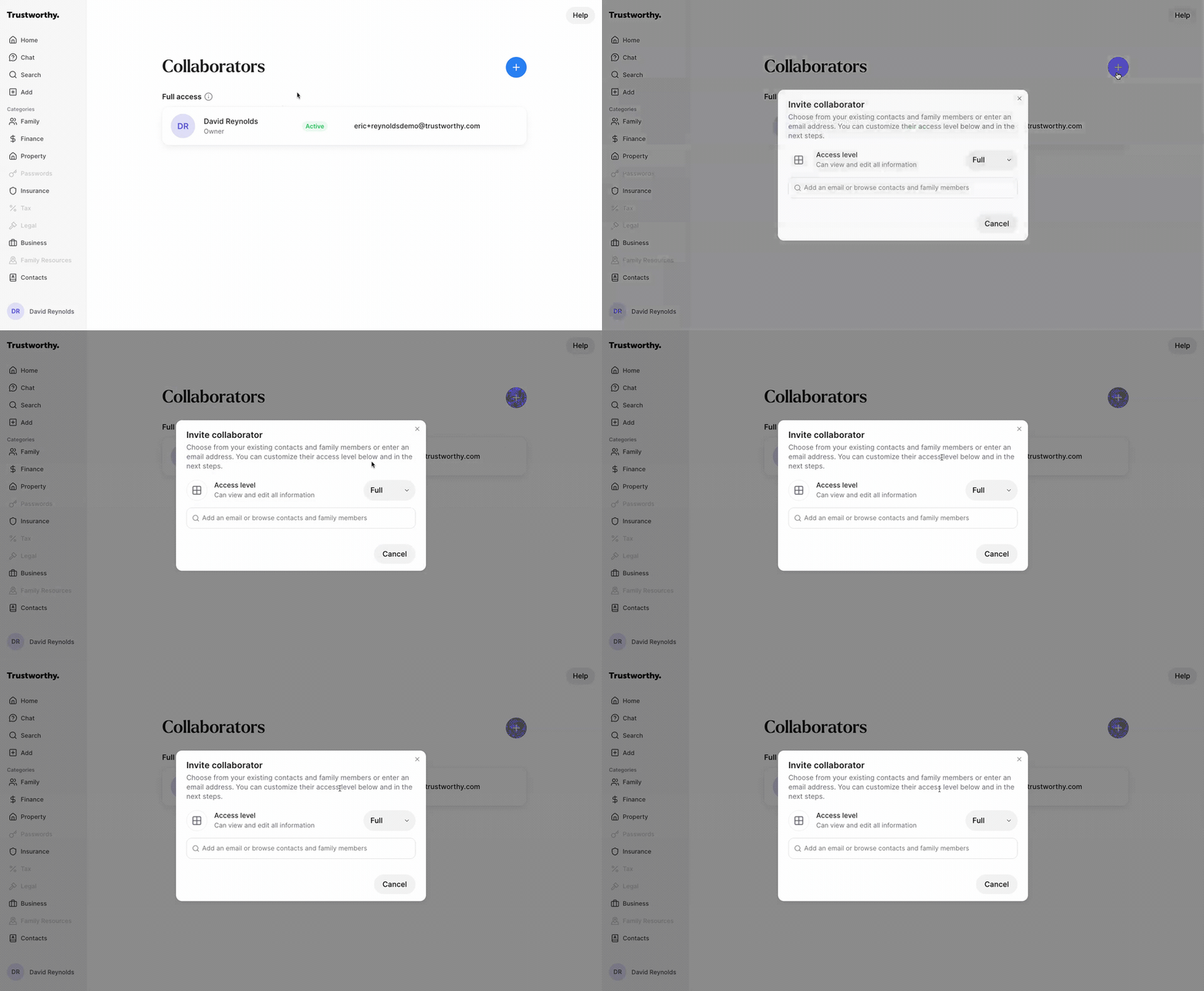
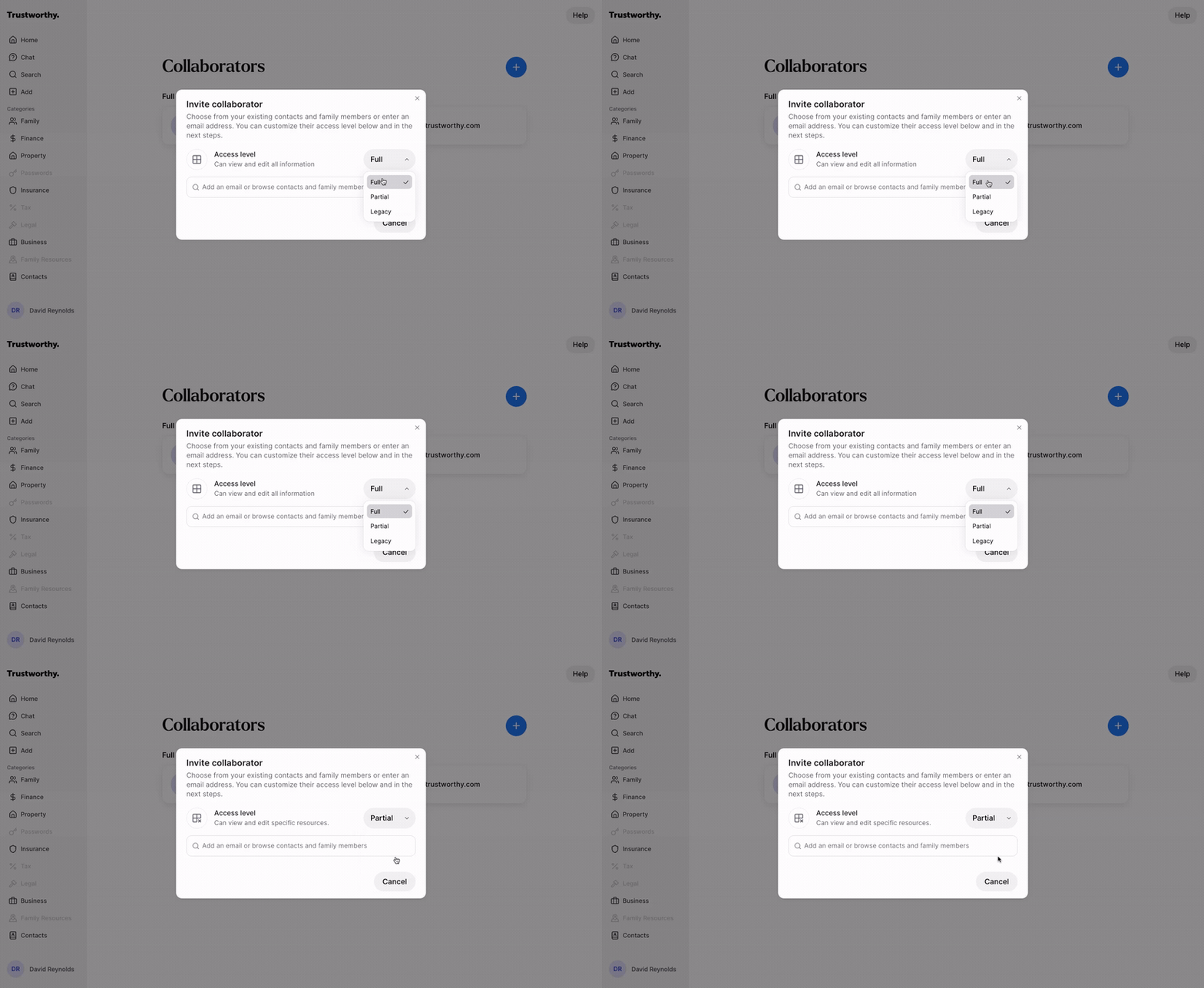
Choose an access level for your new collaborator from the Access level dropdown. You can choose from three different levels:
Full: Grants complete access to view, edit, and manage all information in the account, including billing and administrative settings.
Partial: Allows you to grant access to specific categories or even individual items, giving you granular control over what the collaborator can see and edit.
Legacy: Grants no access now. In the event of the account owner's passing, and after a verification process, this collaborator will gain full access to the account.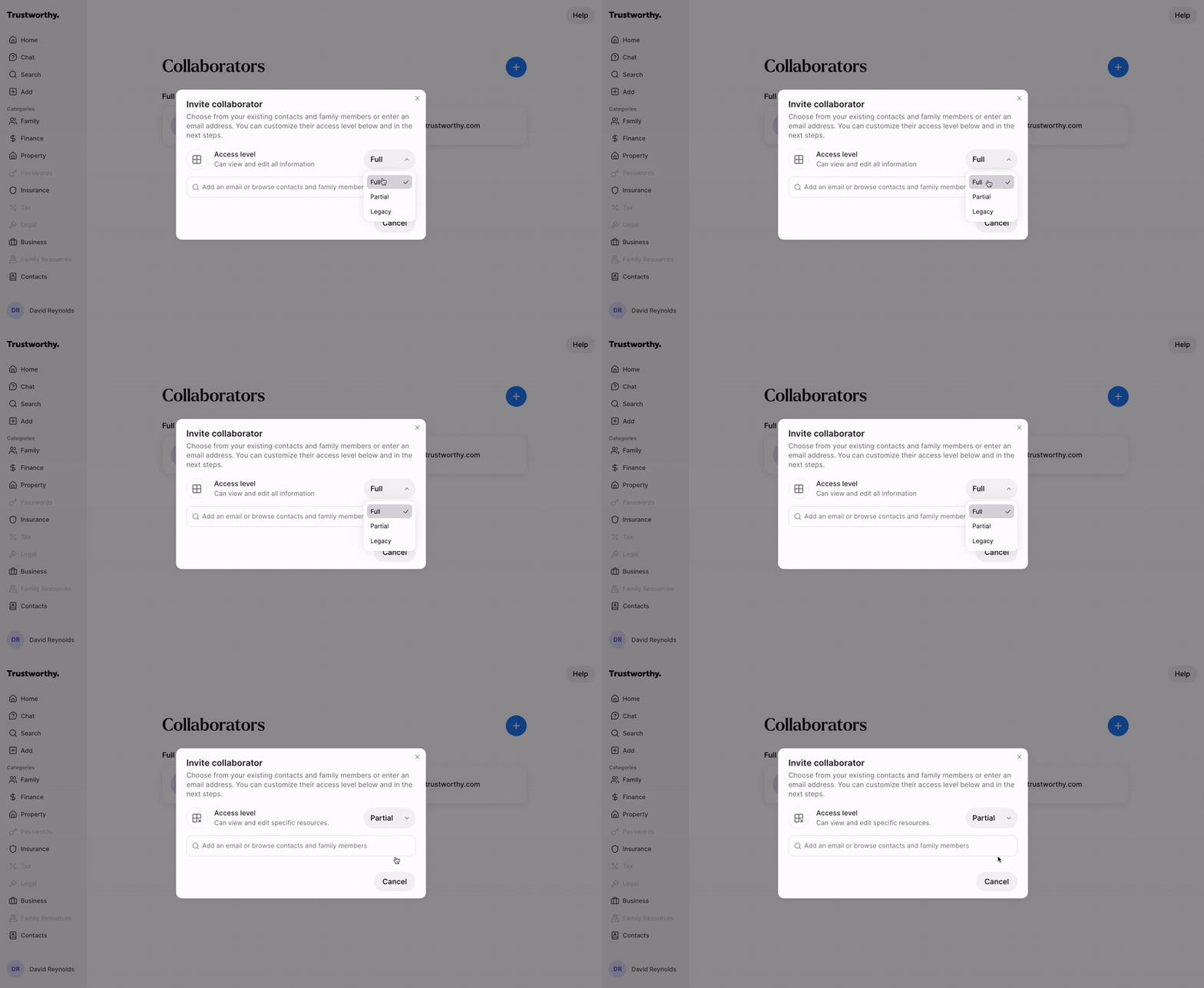
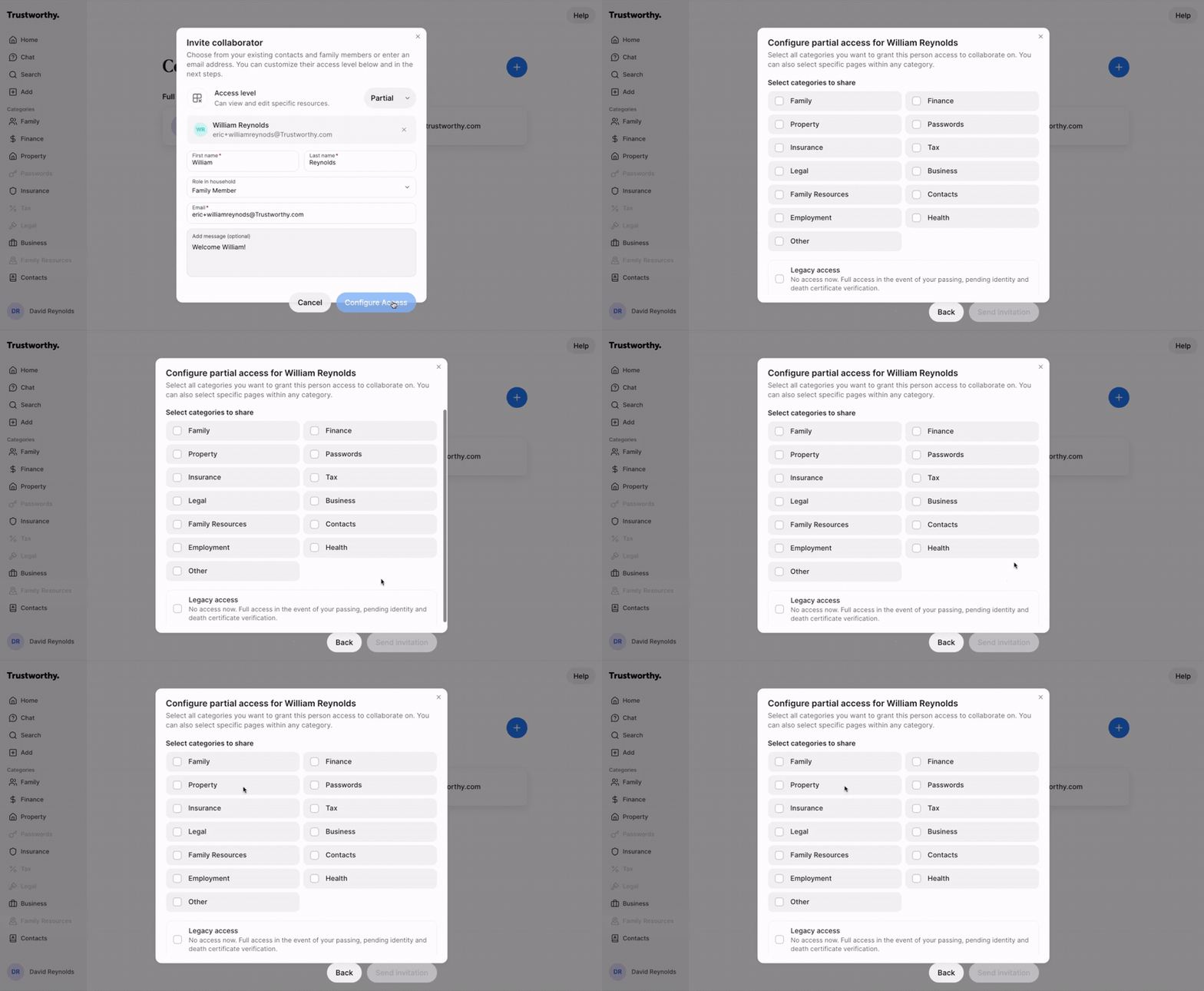
In the search bar, either select an existing family member or contact, or type a new email address. Fill in their name, role, and an optional personal message for the invitation.
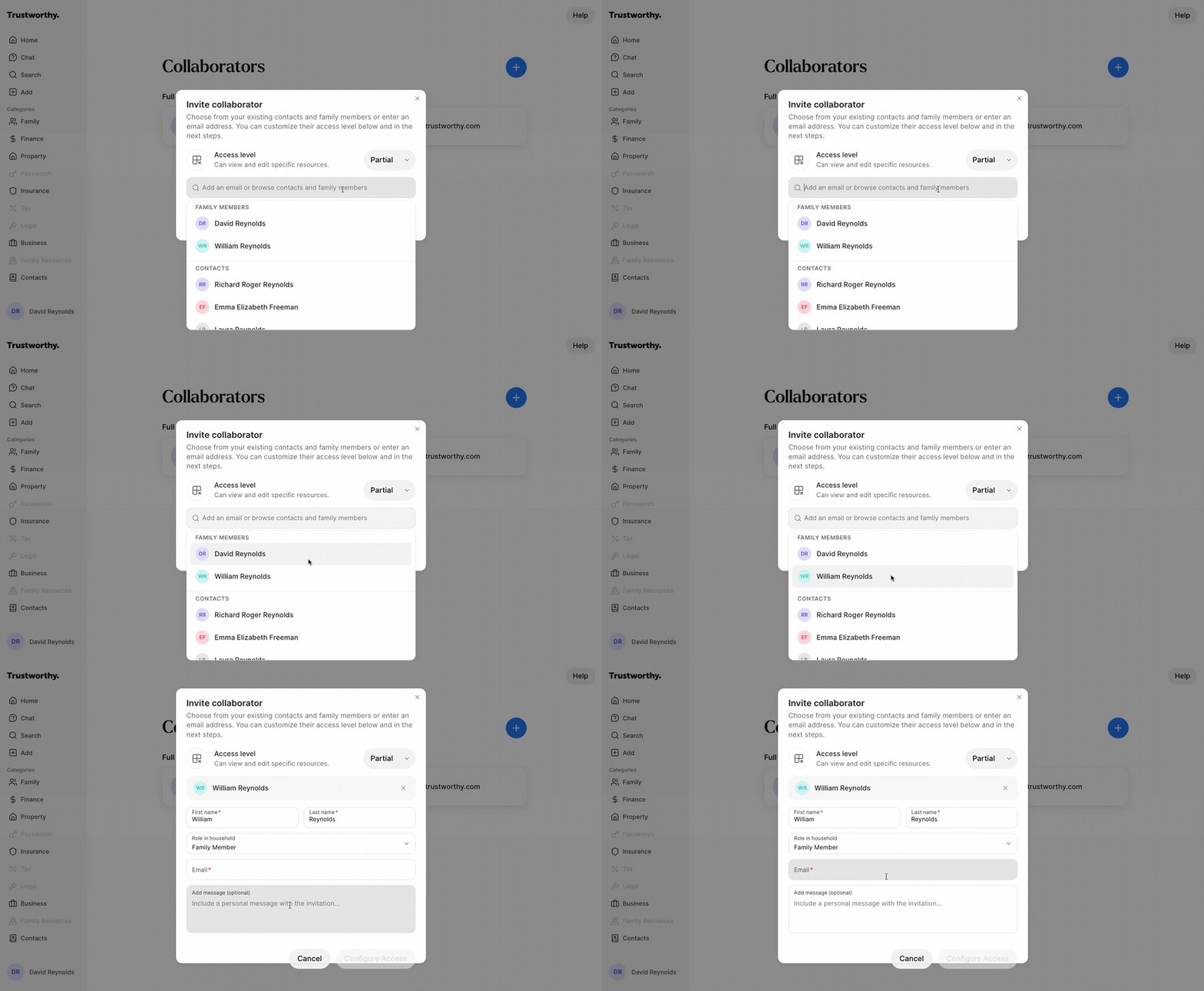
If you selected Partial access, click Configure Access. If you selected Full or Legacy, this button will say Send Invitation and you can proceed to the final step.
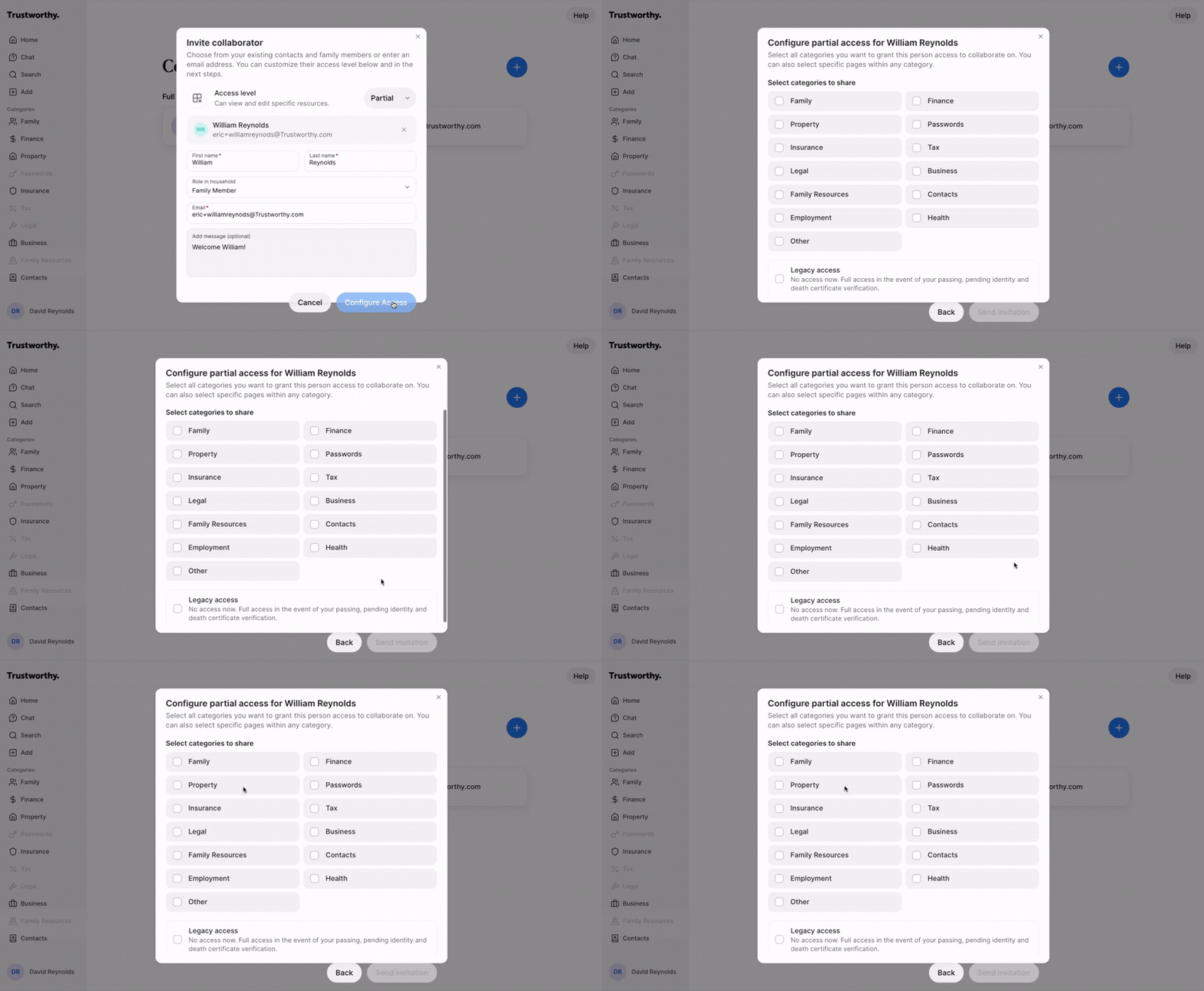
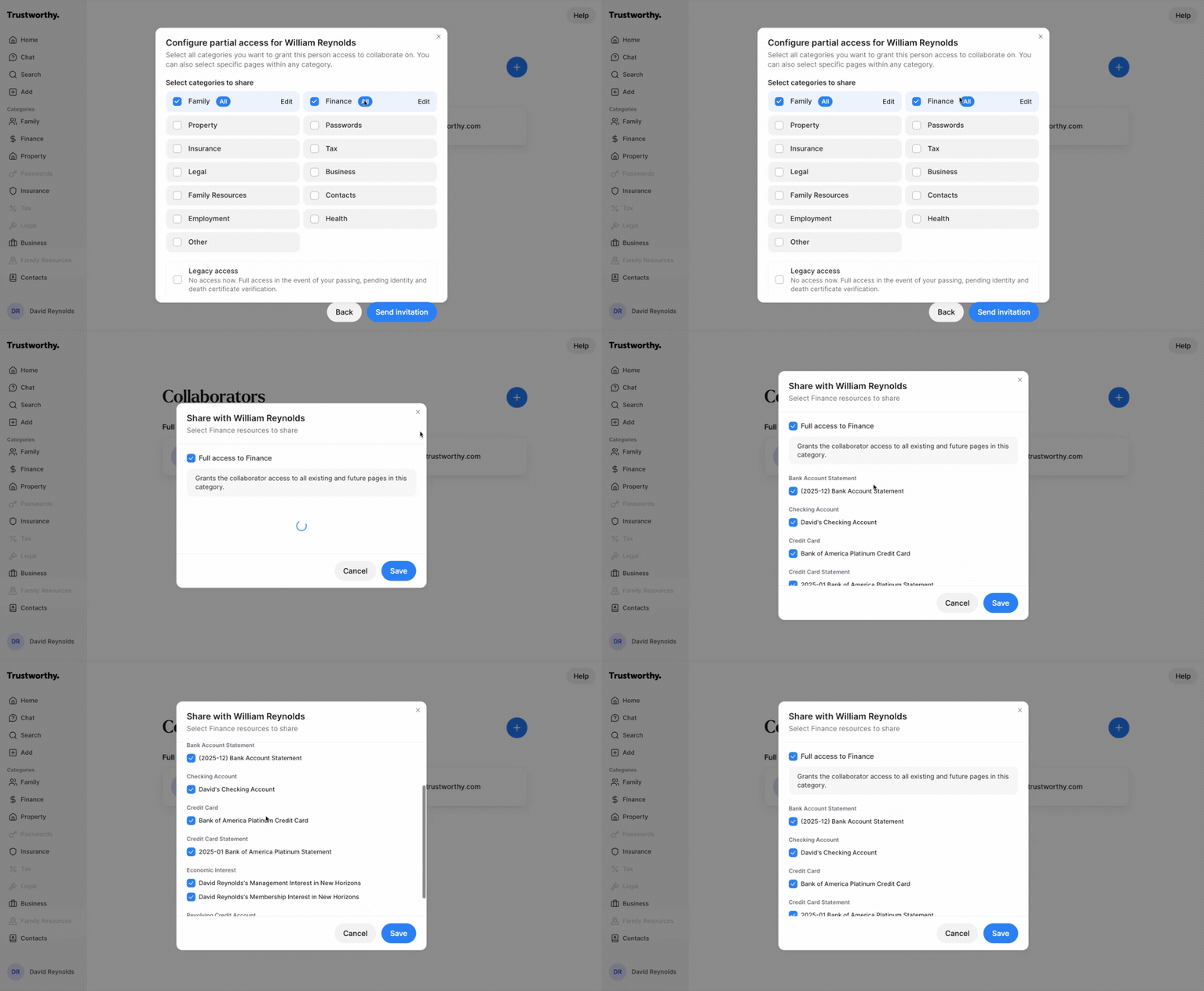
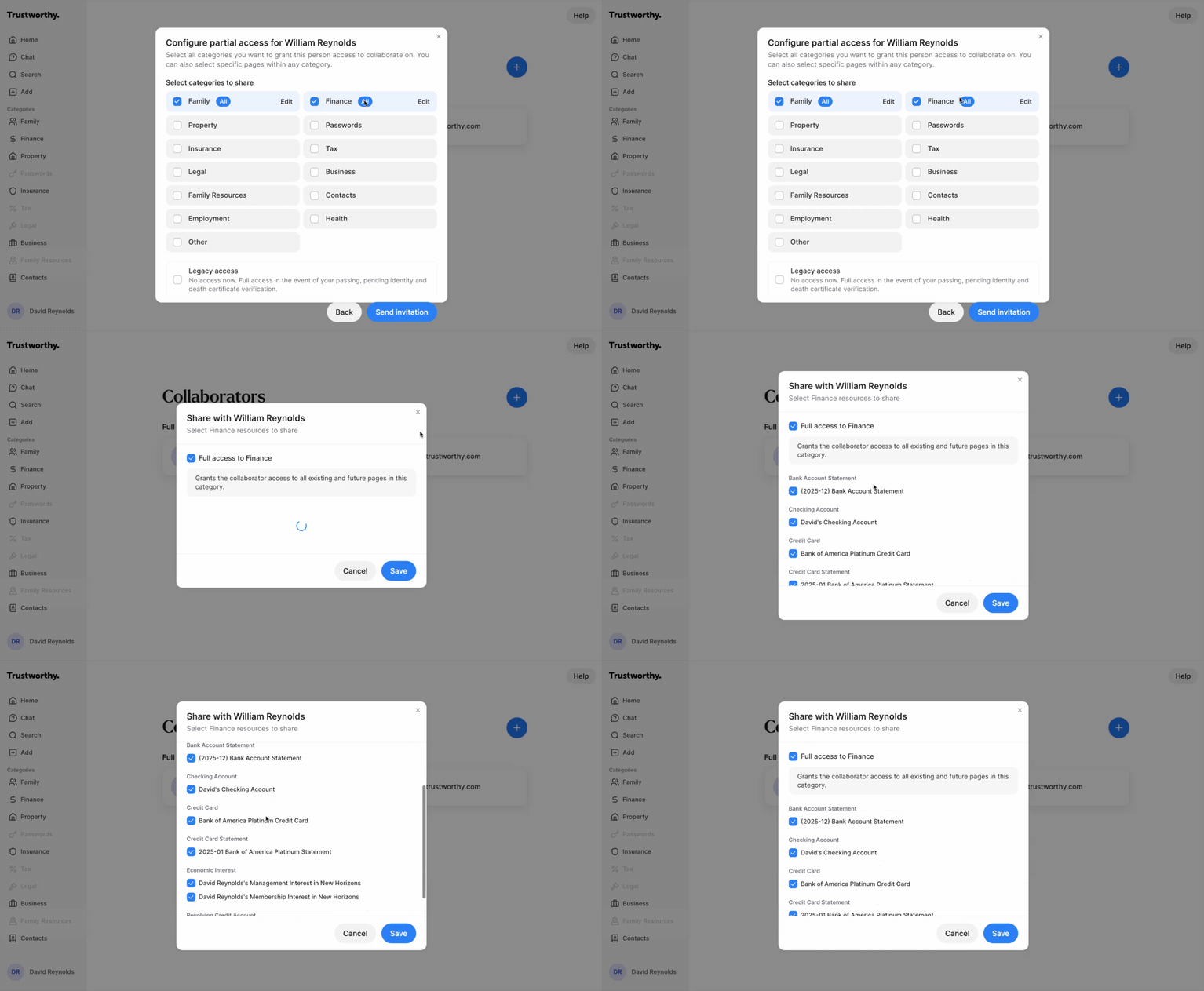
On the Configure partial access screen, check the boxes for the categories you want to share. To share only specific items within a category, click the pencil icon next to it and select the individual items. Each shared category shows a View or Edit badge for the level of access it grants; clicking that badge opens the same screen, where you can change it.
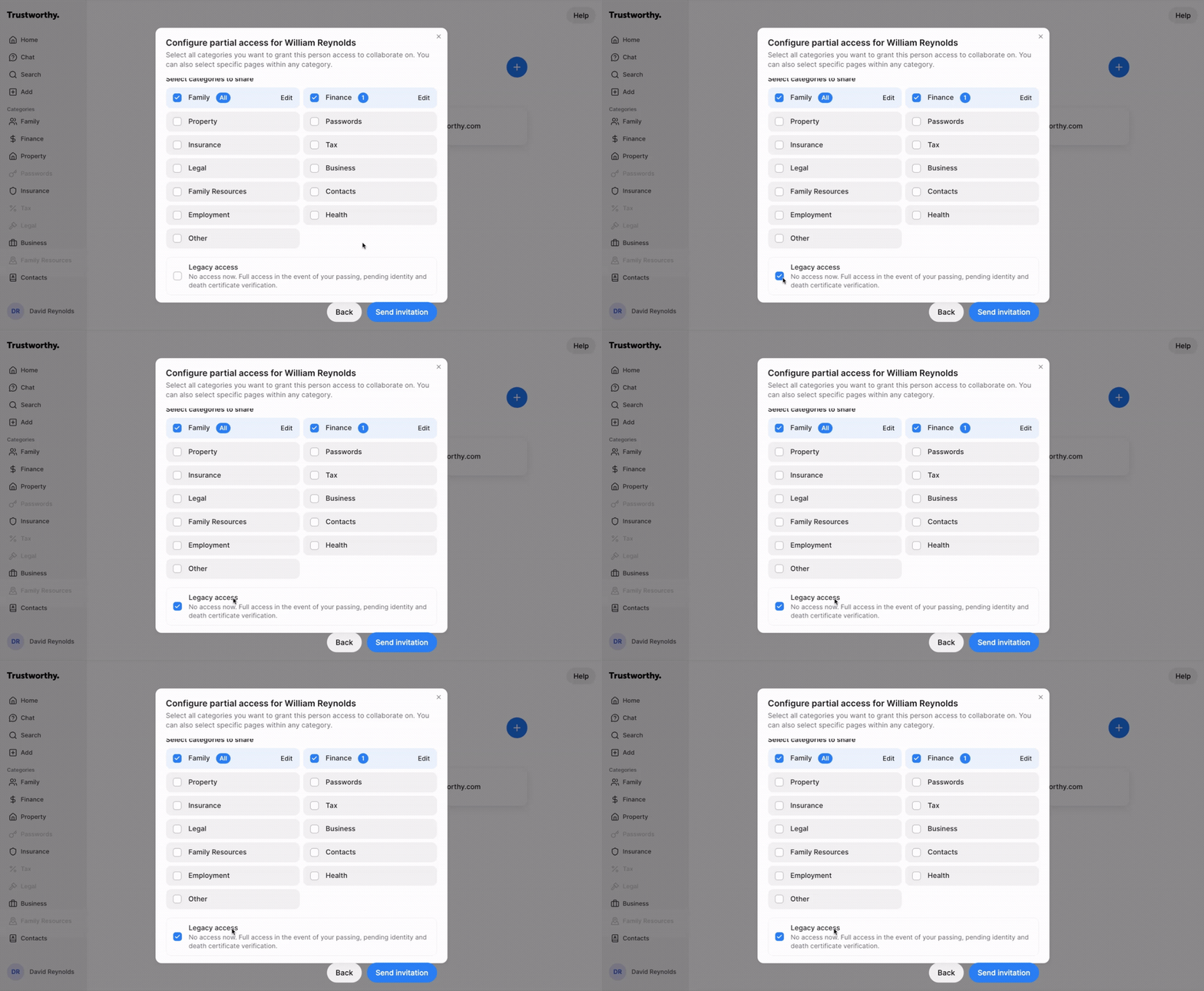
You can also grant Legacy access to a collaborator with partial access by checking the Legacy access box at the bottom. This will give them full access to the entire account upon your passing, in addition to the partial access they have now.
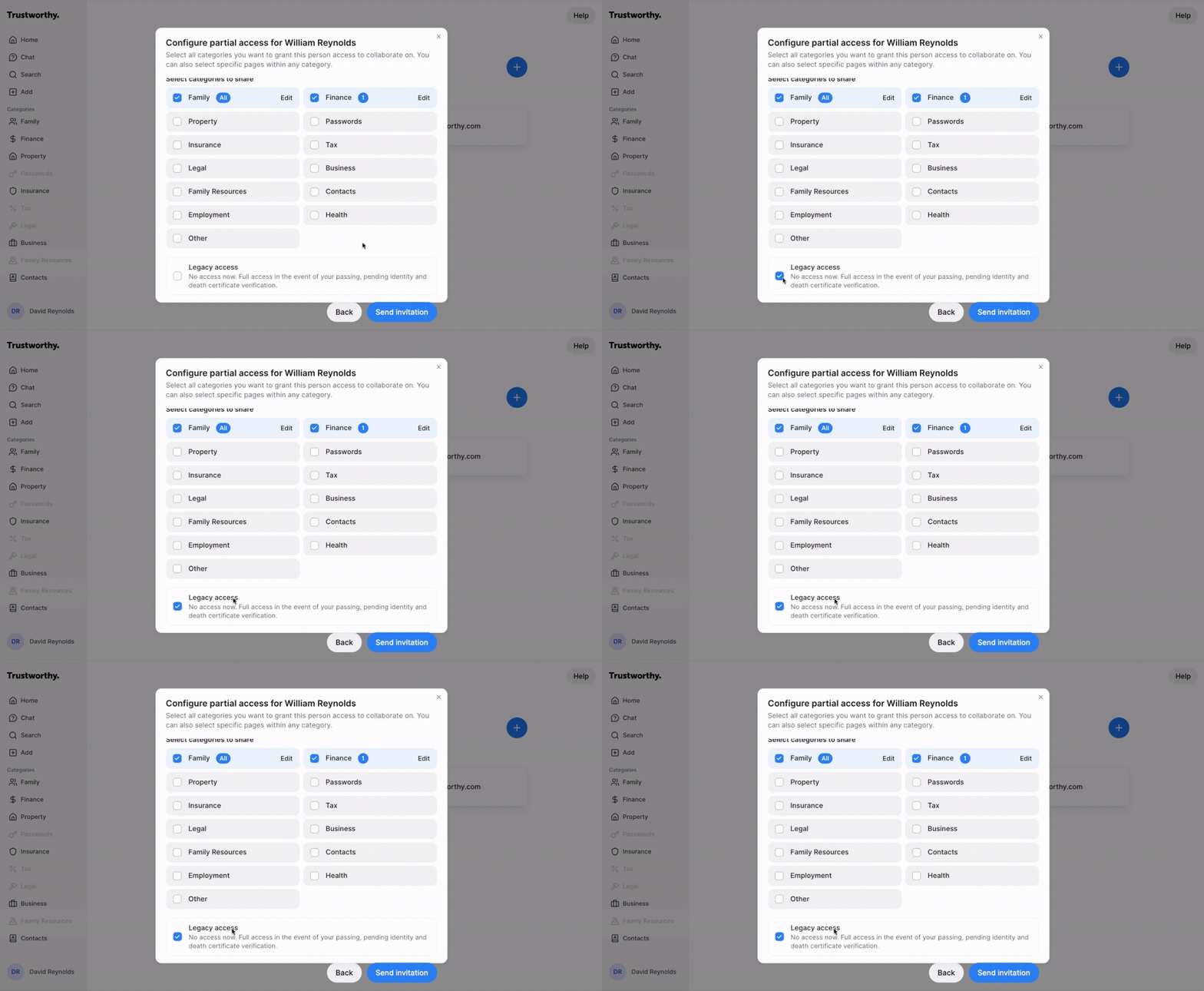
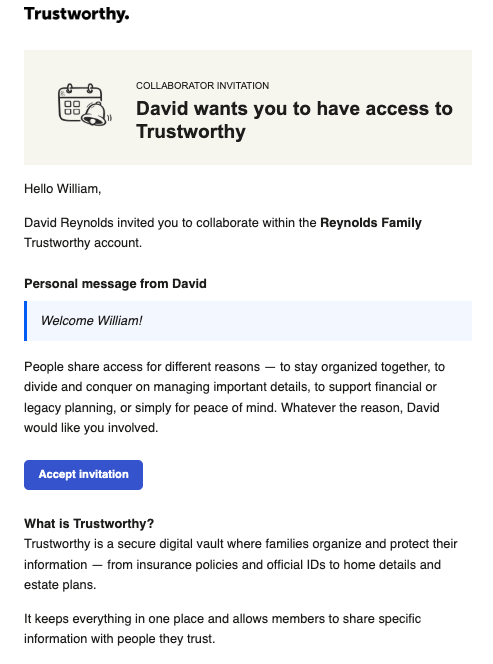
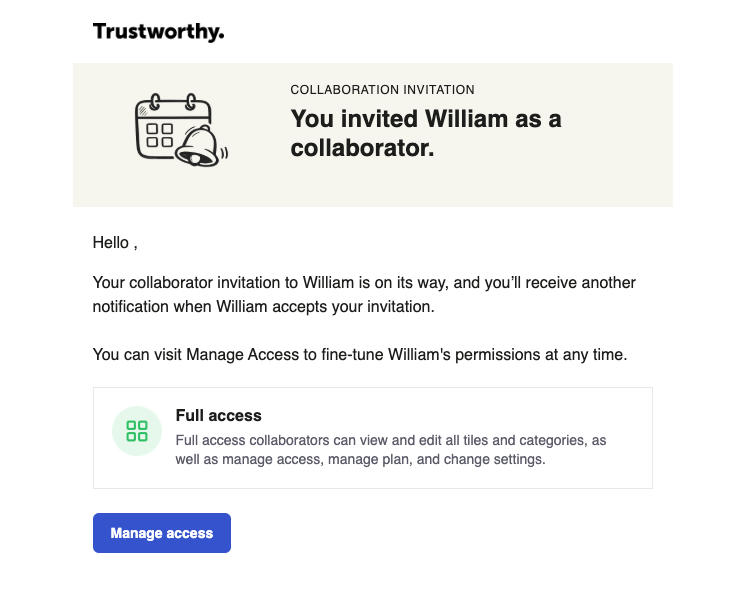
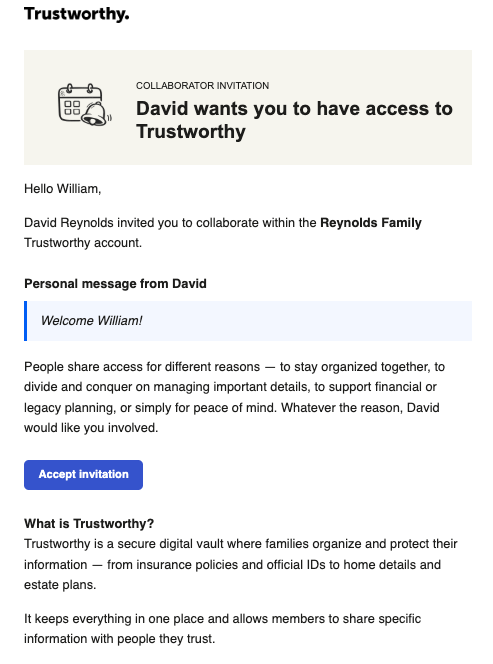
Click Send invitation to complete the process. Your collaborator will receive an email to accept the invitation and set up their account.
Email to Collaborator:
Email to Account Owner: