
Updates with Trustworthy Next
Trustworthy used to be a place to organize your life. With our latest update, Trustworthy now does more of the work for you.
Watch our overview video and read below for some of the new additions.
Automatic Organization
One of the biggest whats changed in Trustworthy is the introduction of automatic document organization. This powerful new capability saves you time by automatically analyzing, categorizing, and extracting key details from your files, so you can build your account faster than ever.
What is Automatic Organization?
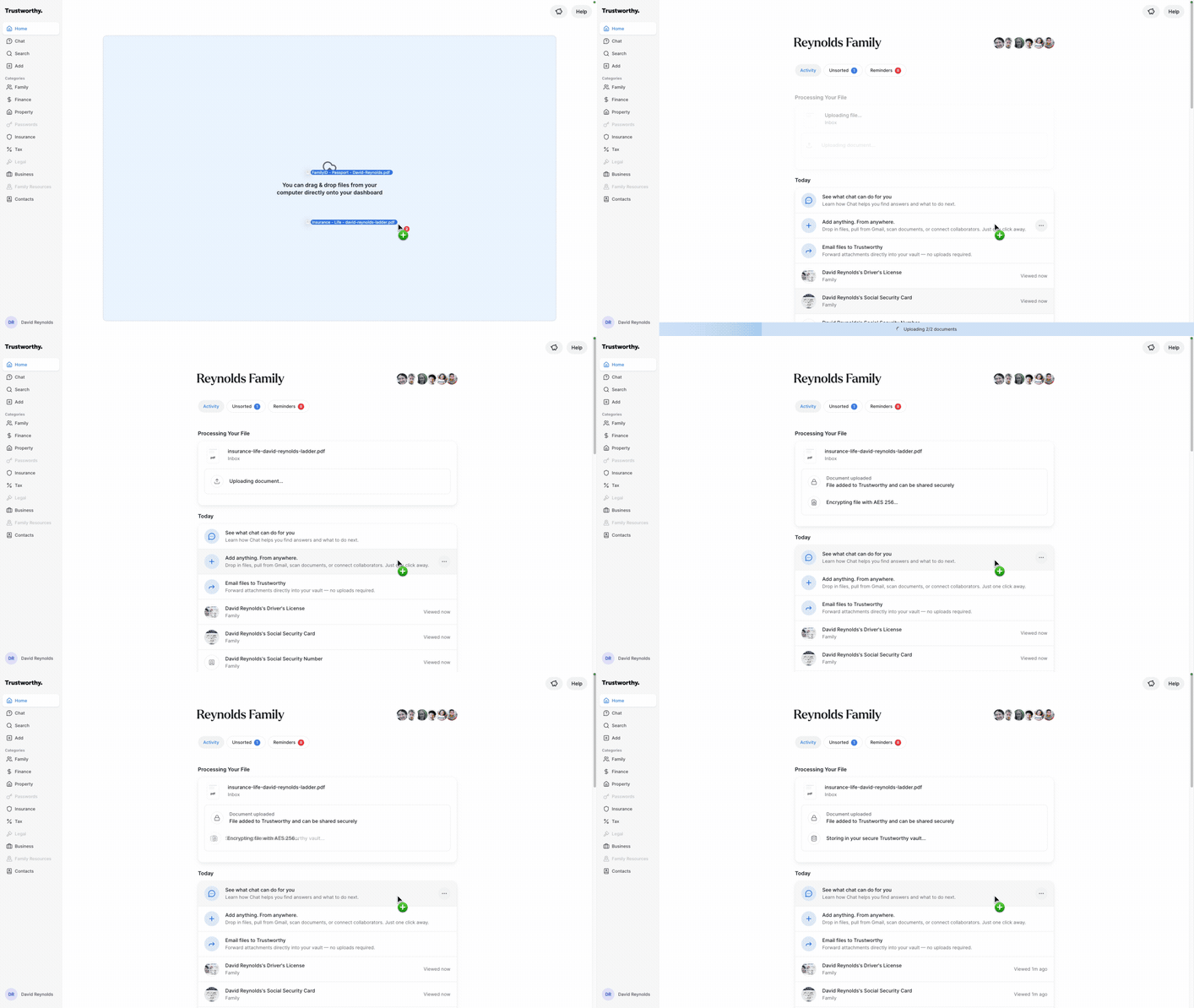
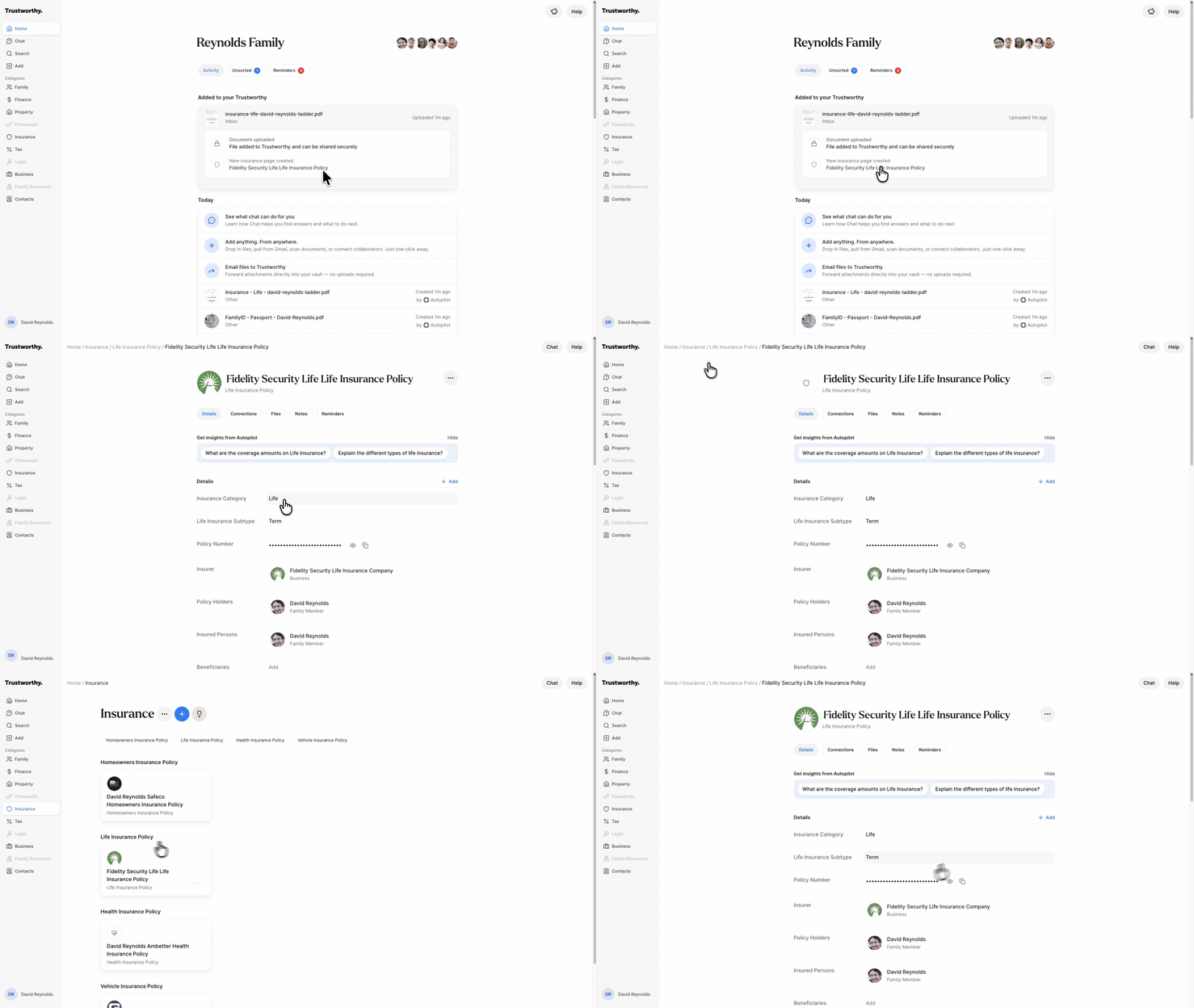
Automatic organization is a smart feature that intelligently processes the documents you add to Trustworthy. Instead of just storing a file, the system reads and understands its content to build out your vault for you. When you upload a document like a passport or an insurance policy, the system will:
Identify the document type and who it belongs to.
Create a new, structured page for the item (e.g., a Passport page for a family member) if one doesn't already exist.
Extract important information such as policy numbers, license numbers, and expiration dates, and automatically fill in the relevant fields.
Link the new information to the correct family member, business, or property.
Set up automatic reminders for key dates, like when a document is about to expire.
Why This Change Matters
This update transforms how you manage your information, making the process nearly effortless. The key benefits for you include:
Save Significant Time: Eliminate tedious manual data entry. Simply add your files, and Trustworthy does the organizing for you.
Increase Accuracy: Reduce the risk of human error from typos or missed details. The system pulls information directly from the source document.
Stay Organized Effortlessly: Your vault remains structured and complete without needing to manually create new entries or link files to people.
Be Proactive: With automatic reminders for expiration dates, you'll never be caught off guard by an expired passport, driver's license, or insurance policy again.
The Inbox is now Unsorted
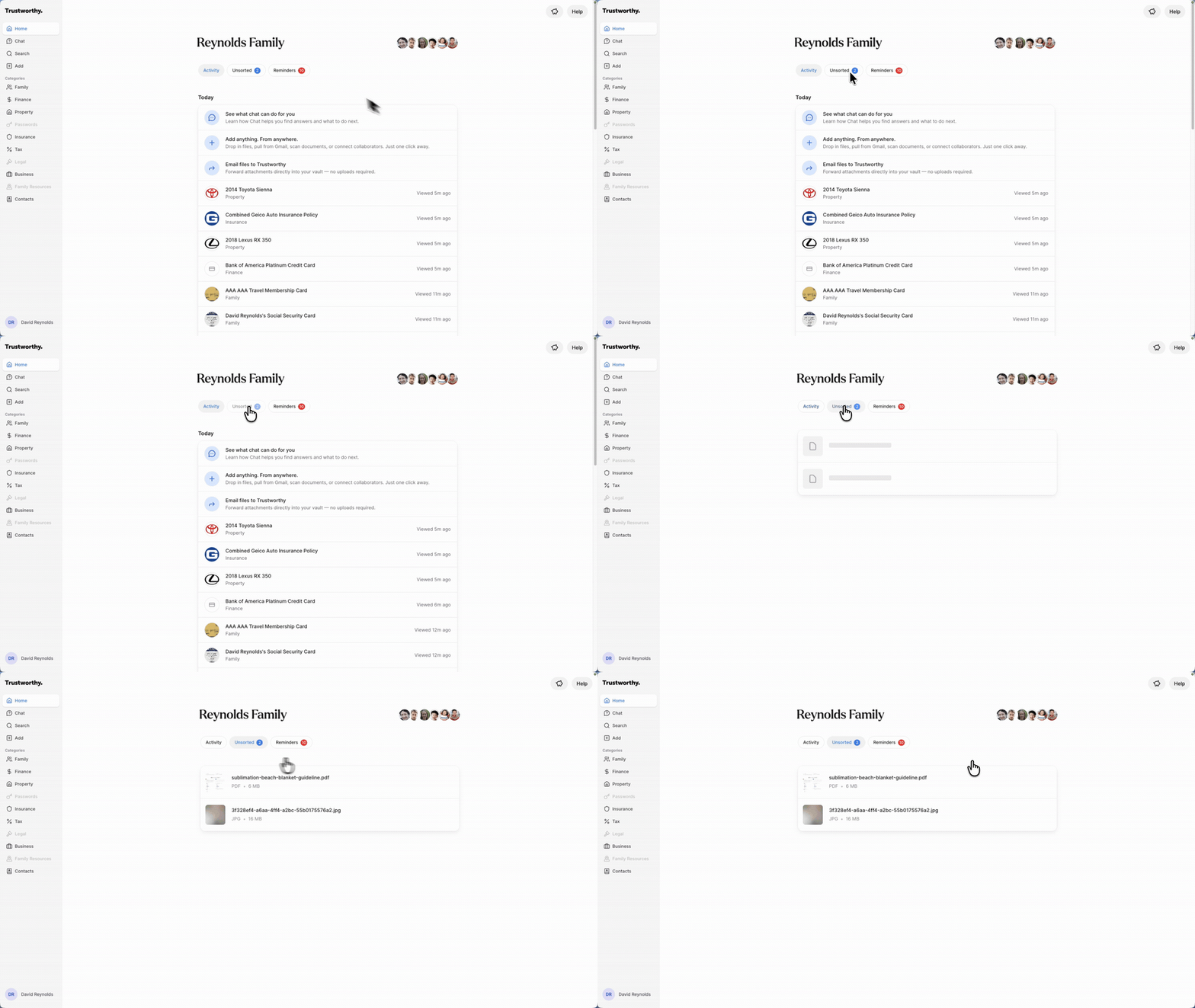
Previously Inbox, Unsorted now acts as your digital inbox, holding all the items you've added that haven't been assigned to a specific category yet.
What Unsorted Files Are
Unsorted is a temporary holding area for all documents and information that have not yet been filed into a specific category like 'Family,' 'Finance,' or 'Property.' Think of it as a staging area where you can process new additions to your account.
How to Categorize an Unsorted File
Organizing a file from Unsorted is a straightforward process that moves the item into its permanent location within your account.
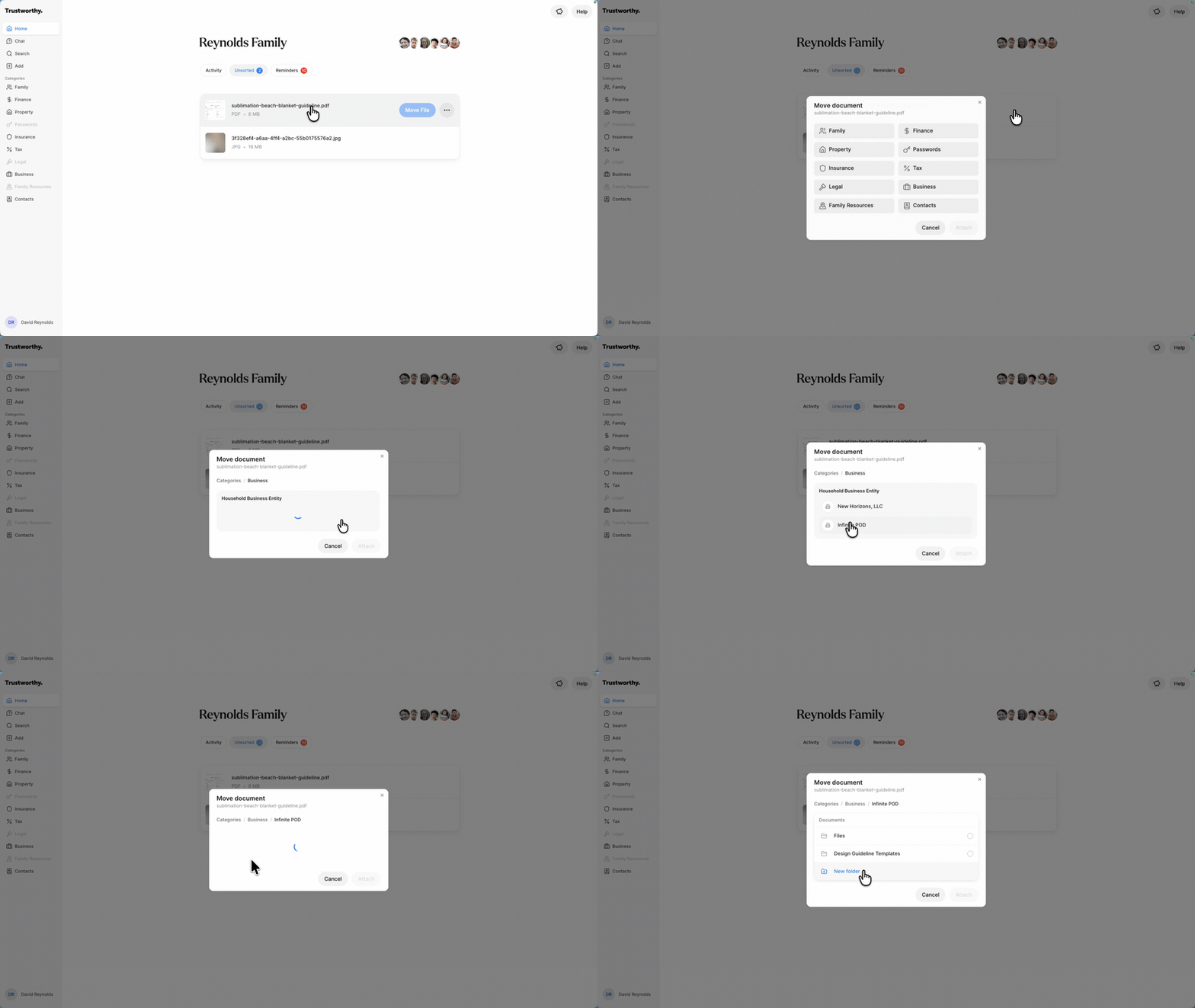
Navigate to the Home screen and click the Unsorted tab.
Click on the file you wish to organize and select Move File.
Select the Category and Item where the document should be moved.
This will move the document to the Files section of the Item.
Trustworthy Chat
Trustworthy Chat is a powerful new feature that allows you to ask questions in plain language and get instant answers from the information stored in your account. Powered by Autopilot, it helps you find specific details, summarize complex documents, and get actionable advice through a simple conversational interface.
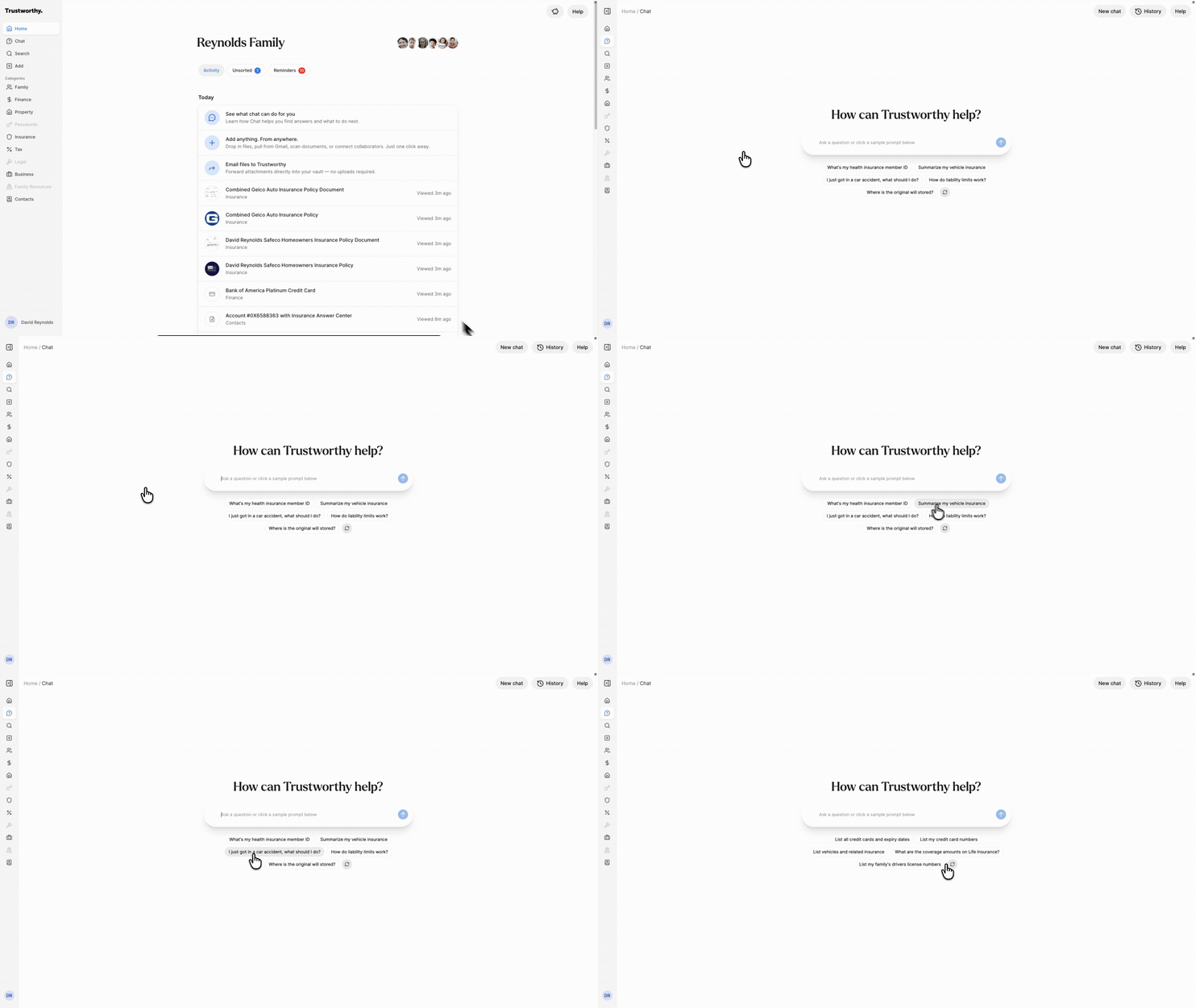
What Trustworthy Chat Is
Think of Trustworthy Chat as a personal assistant for your family's important information. Instead of manually sifting through documents, you can simply ask for what you need. Its capabilities are designed to save you time and provide deeper insights into your information.
You can use Chat to:
Ask direct questions: Quickly find specific information like a policy number, an EIN for a business, or a family member's driver's license number.
Generate summaries: Create consolidated overviews of your information, such as a table summarizing all your different insurance policies, including insurers, premiums, and effective dates.
Get actionable advice: Receive intelligent checklists that analyze your account and suggest what documents are missing to make your family's profiles more complete.
Explore possibilities: Use the sample prompts for inspiration on the types of questions you can ask to get the most out of your organized information.
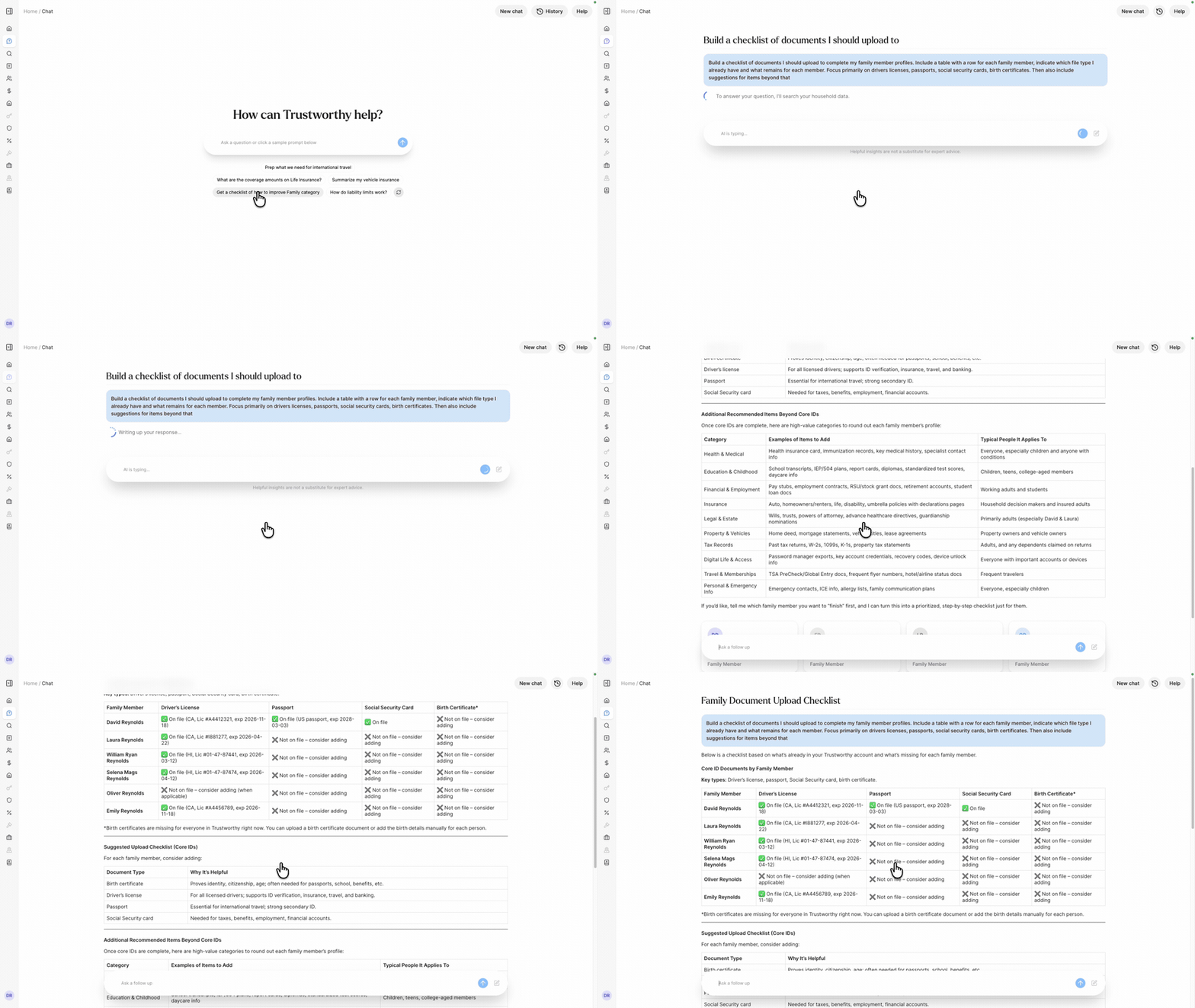
Why Trustworthy Chat Matters
Trustworthy Chat transforms how you interact with your essential data, making it more accessible and useful. This feature allows you to:
Find Answers Instantly: Get immediate answers to urgent questions without having to hunt through files and folders, saving valuable time and effort.
Gain Clarity on Complex Information: Understand the bigger picture by turning scattered details from multiple documents into a single, easy-to-read summary.
Stay Organized and Prepared: Proactively identify and fill gaps in your information, ensuring you have everything you need, from passports to birth certificates, organized and ready.
Gmail Connector
Connecting your Gmail account to Trustworthy allows you to automatically import important file attachments directly into your account. This feature saves you time by eliminating the need to manually search for, download, and re-upload documents from your email.
New files added from Gmail appear in your Activity Feed and may also appear in Unsorted if further action is need from you to organize the file.

What the Gmail Connection Is
The Gmail connection is a secure, read-only integration that scans your Gmail account for PDF attachments and imports them into your Trustworthy account. This allows you to centralize your important documents without leaving the Trustworthy platform.
To ensure your privacy and security, the connection has specific limitations:
Read-Only Access: Trustworthy can only view your emails to find attachments. We cannot send, edit, or delete any of your emails.
PDF Attachments Only: The integration currently only imports PDF files. Other file types like images (PNG, JPEG) or documents will be ignored.
Attachments, Not Email Content: The system only pulls the attached files, not the text or body of the email itself. Your email content remains private.
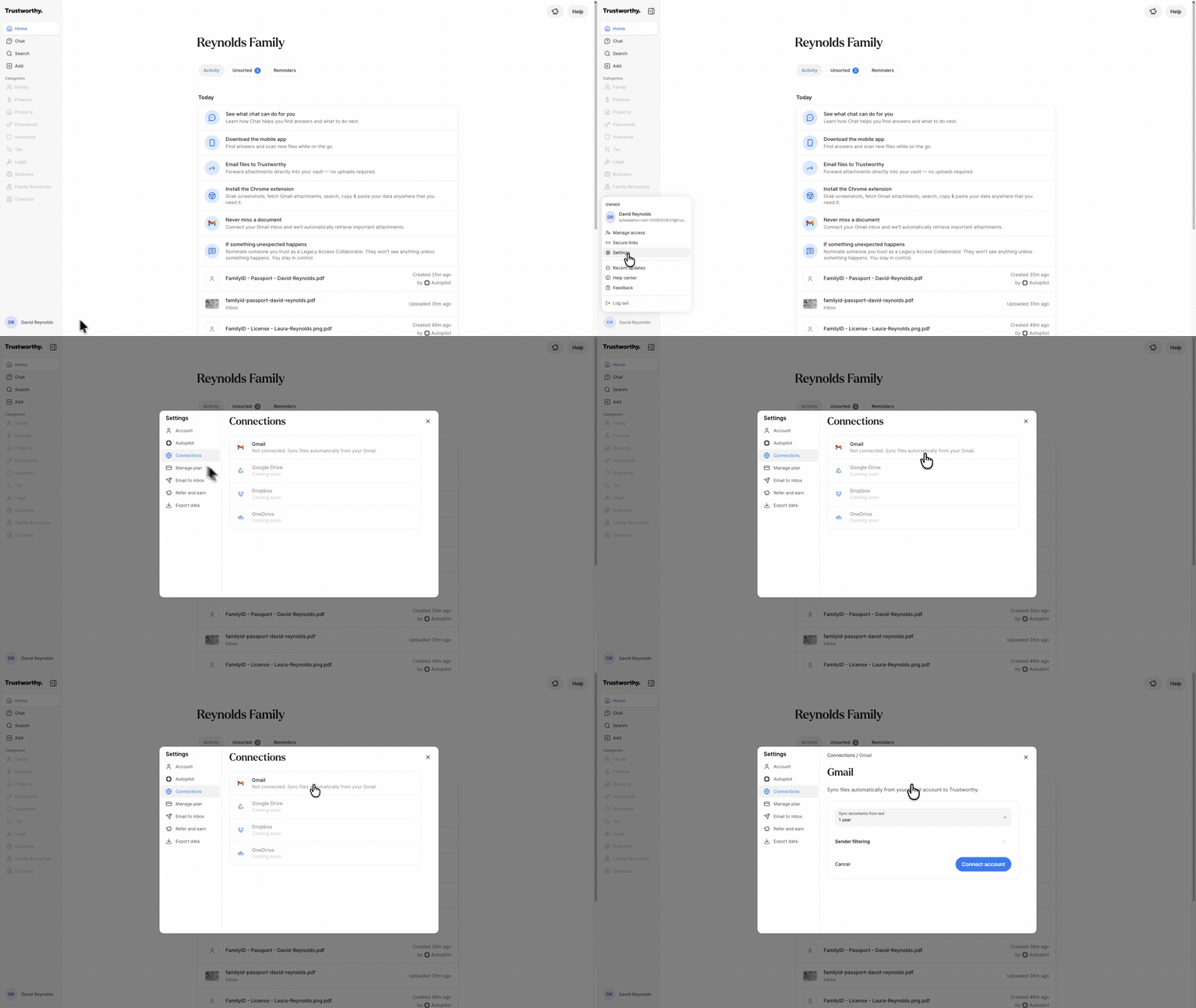
How It Works
You can set up the Gmail connection in just a few steps from your account settings.
Navigate to your Account Menu by clicking your initials in the bottom-left corner of the screen.
Select Settings.
In the Settings menu, click on Connections.
Choose the Gmail option to open the configuration window.
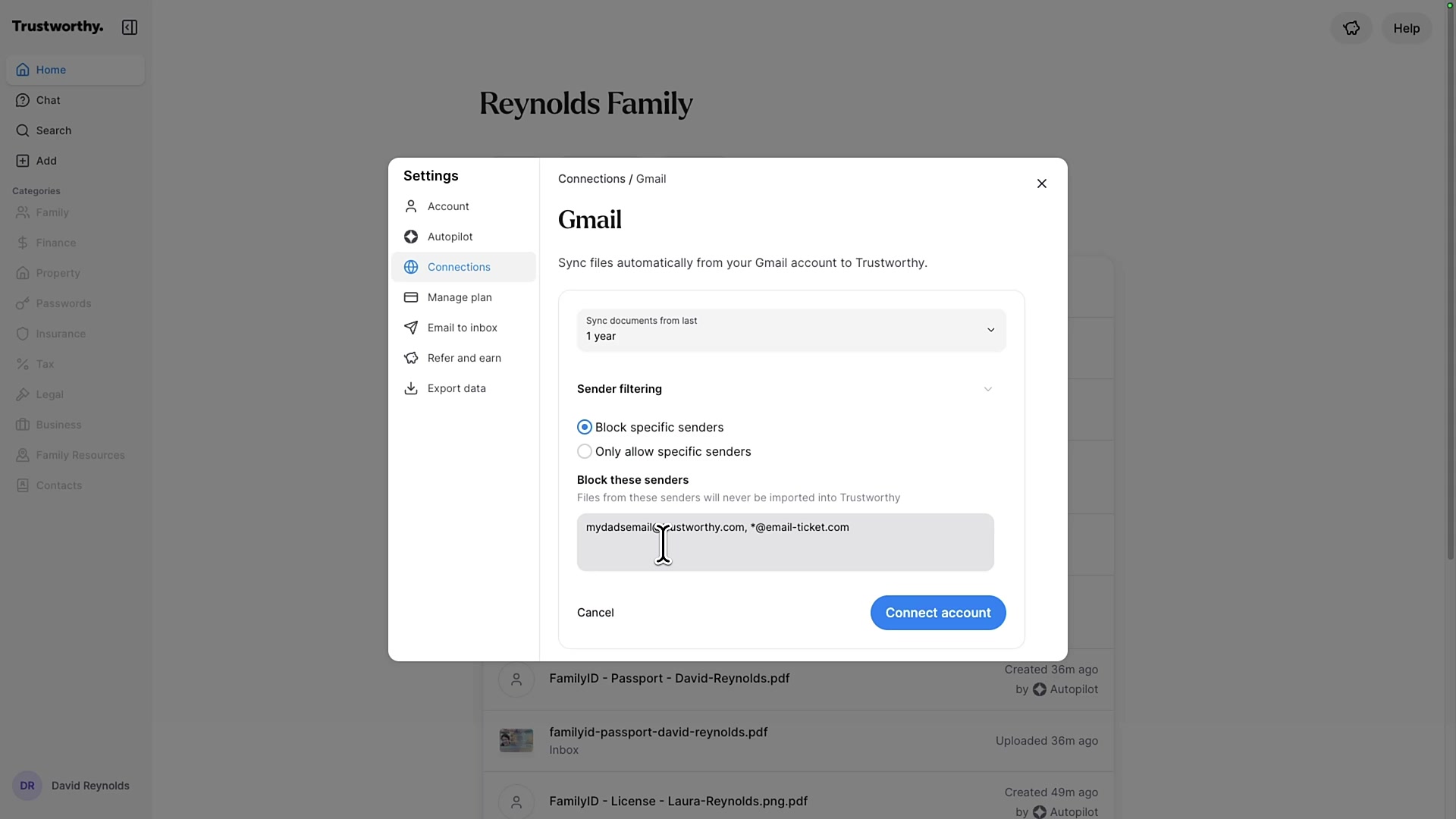
Before connecting, you can customize how Trustworthy syncs your files:
Historical Sync: Decide how far back you want Trustworthy to scan for documents. You can choose to sync files from the last year, two years, or only import new files received after you establish the connection.
Sender Filtering: To avoid importing unnecessary files (like promotional offers or receipts for minor purchases), you can filter which emails are scanned. You can either block specific email addresses or create an "allow list" to only import files from senders you specify.
Click Connect account and follow the prompts from Google to securely authorize the connection.
Why It Matters
Many of your most important documents, like financial statements, insurance policies, or online receipts, arrive as email attachments. By connecting your Gmail account, you can:
Automate Organization: Automatically bring crucial documents into your Trustworthy vault where they can be properly organized and managed.
Save Time: Avoid the tedious process of searching through your inbox, downloading files, and then uploading them one by one.
Ensure Completeness: Capture important documents you might have forgotten are stored in your email, creating a more complete and reliable digital archive.
Additional Updates
Connections: Connections allow you to link items to other information in the account, such as connecting a vehicle to its insurance policy. Or a Family Member to a Bank Account. Connections allow you to have a full view of how information is related in Trustworthy.
Offline Mobile Access: Trustworthy is now accessible on your mobile device even without cell service or Wi-Fi. Lightning fast, always available in an emergency. Need to sync your data? Your app will sync each time it's launched and an internet connection is available. Or manually trigger a sync from Settings.
Categories, Items and Reminders: Our team has been listening and we’ve introduced meaningful updates in these areas. Expect more options and flexibility to better support your family’s unique needs.