
How to Use Trustworthy Chat
Trustworthy Chat helps you get answers from the information you’ve stored in Trustworthy.
You can use Chat to:
Find specific details quickly
Summarize documents, pages, or categories
Create checklists and action items
Understand what may be missing
Get organized faster
You can access Chat by selecting Chat in the left-hand navigation on desktop or at the bottom of your screen on mobile. Once inside a Category page, Chat is always available at top right.
Ask Questions
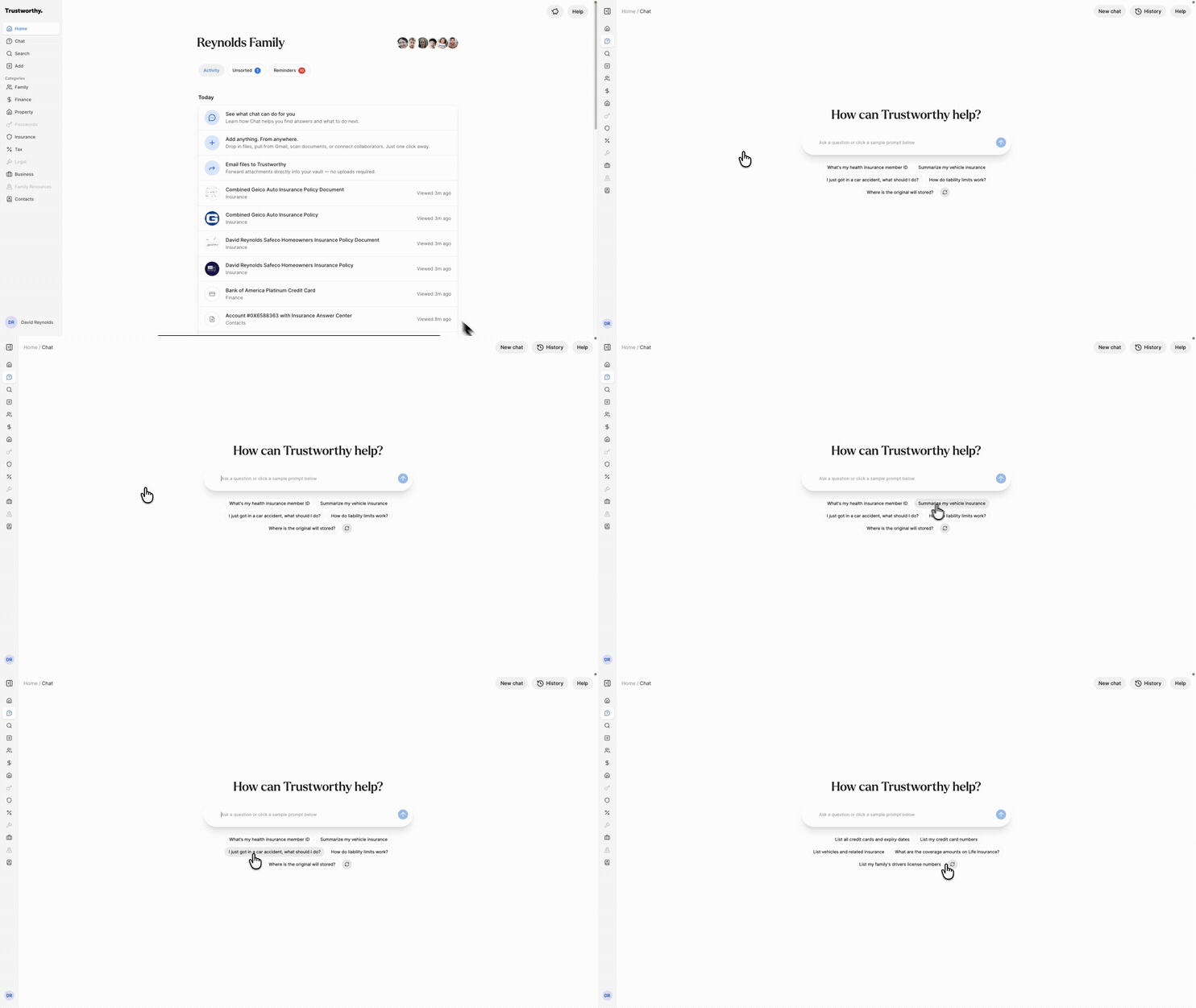
The main Chat screen gives you a simple way to ask questions about your information.
Type your question into the text field or use one of the sample prompts to get started.
To see new prompt ideas, click the refresh icon next to the suggestions.
Examples:
What is my business EIN?
When does my passport expire?
Summarize my insurance premiums.
What documents am I missing?
Trustworthy Chat will search across your documents and provide a direct answer when possible.
To begin a new conversation, click New Chat at the top of the screen.
Add a File in Chat
You can add a file to Chat without leaving the conversation — handy when a document comes up mid-question.
Select the Attach a file button in the message box, or drag a file directly onto the chat. Then send your message to upload it.
From the main Chat, your file is sent to your Inbox, where Trustworthy reads it and suggests where it belongs — just like any other upload.
When Chat is open on a specific page (for example, a vehicle or an insurance policy), the file is added directly to that page.
You can add one file per message. To add several files at once, use the Inbox instead. Adding files in Chat is available to account owners and full-access collaborators.
Generate Summaries and Checklists
Chat can help organize complex information into clear summaries.
For example, you can ask Chat to summarize:
Insurance policies
Financial accounts
Estate planning documents
Travel details
When possible, summaries are displayed in an easy-to-read format and may include links to the original documents for review.
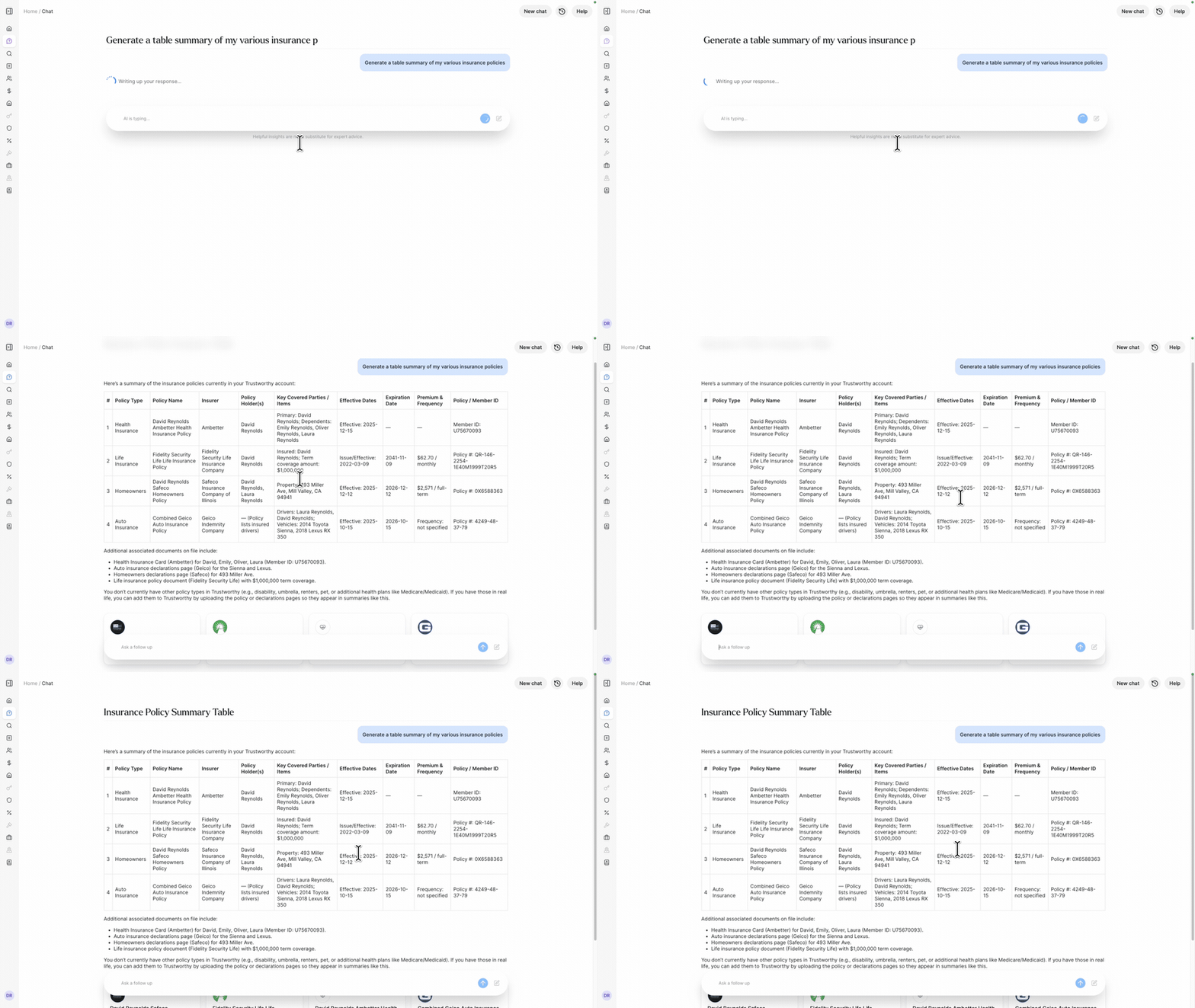
You can also ask Chat to create actionable checklists.
For example:
Create a checklist to complete my estate plan
What am I missing in Insurance?
How can I improve my emergency preparedness?
Chat will review the information in your account and provide suggestions based on what it finds.
Access Chat History
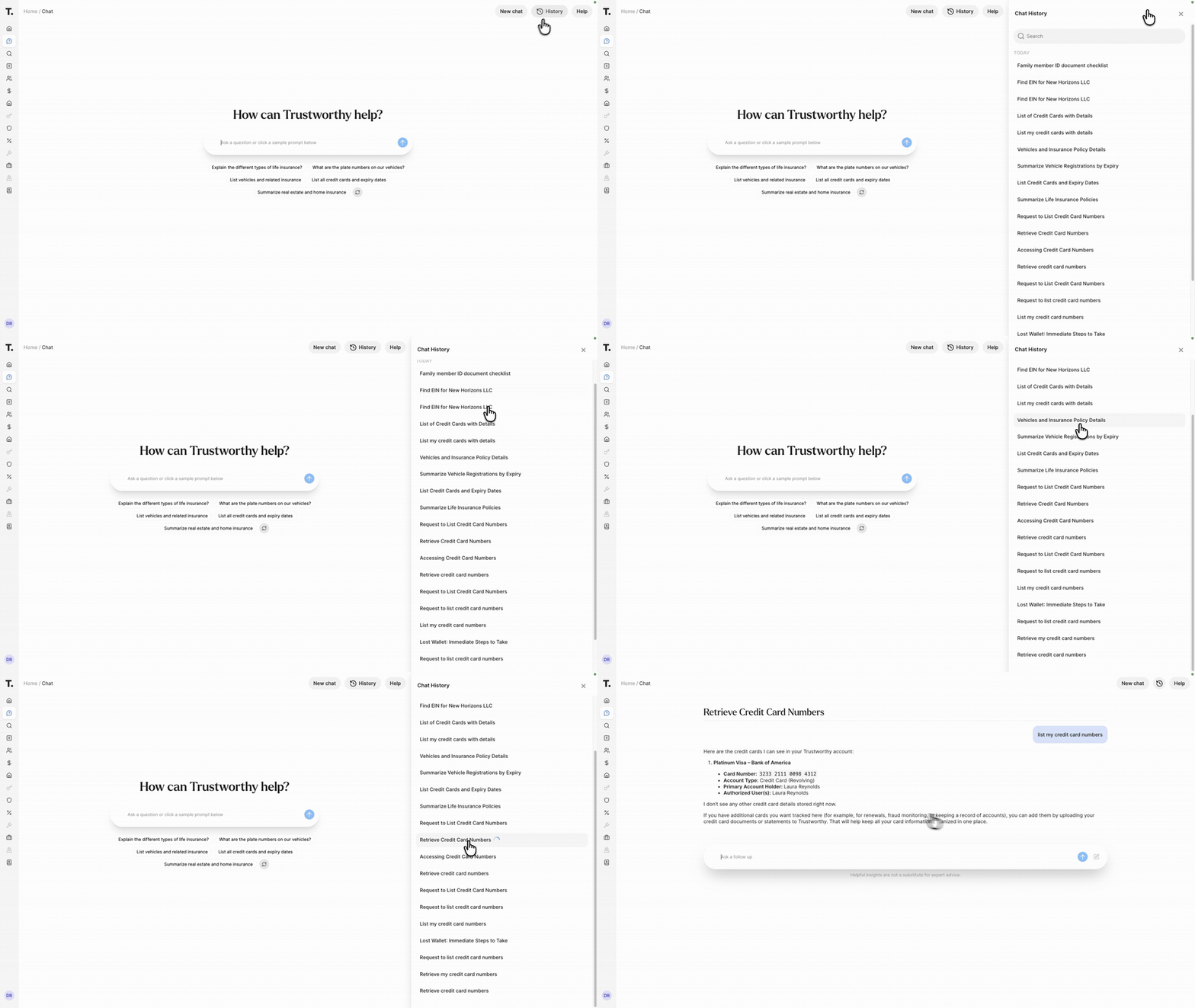
Trustworthy saves your past conversations so you can return to them later.
To view previous chats:
Open Chat
Click History in the top-right corner
Select any previous conversation to reopen it
Use Contextual Prompts
As you move through your Trustworthy account, you may see suggested prompts related to the page or file you’re viewing.
For example, while viewing a vehicle insurance policy, you may see prompts like:
Summarize my vehicle insurance
What is my deductible?
When does this policy renew?
These suggestions can help you get answers faster and inspire your own prompts.
Privacy & Security
Your privacy matters and is foundational to Trustworthy.
While we explore, evaluate, and use privately hosted AI models, some Trustworthy features—including Chat—currently leverage major AI platforms such as OpenAI, Anthropic, and Amazon.
To protect your information, Trustworthy maintains Zero Data Retention agreements with our AI providers.
These are legally binding agreements designed to ensure that the data shared for processing:
Is not used to train AI models
Is not retained beyond processing needs
Is not stored outside of Trustworthy except as required for legal and compliance purposes
We are continuously evaluating new ways to provide even greater privacy, flexibility, and control as AI technology evolves.
If you have feedback or feature requests—such as bringing your own AI model or selecting a preferred provider—we’d love to hear from you.