
Gmail Connector: Automatically Importing Files into Your Inbox
Connect your Gmail account to Trustworthy to automatically find and import important documents directly from your email attachments. This feature saves you from manually searching and uploading files, ensuring your critical information is securely organized in your vault. You can access and manage this connection from your account menu, where you can also change which senders are included, adjust how far back Trustworthy looks, or stop the automatic import at any time.
Accessing and Managing Connections
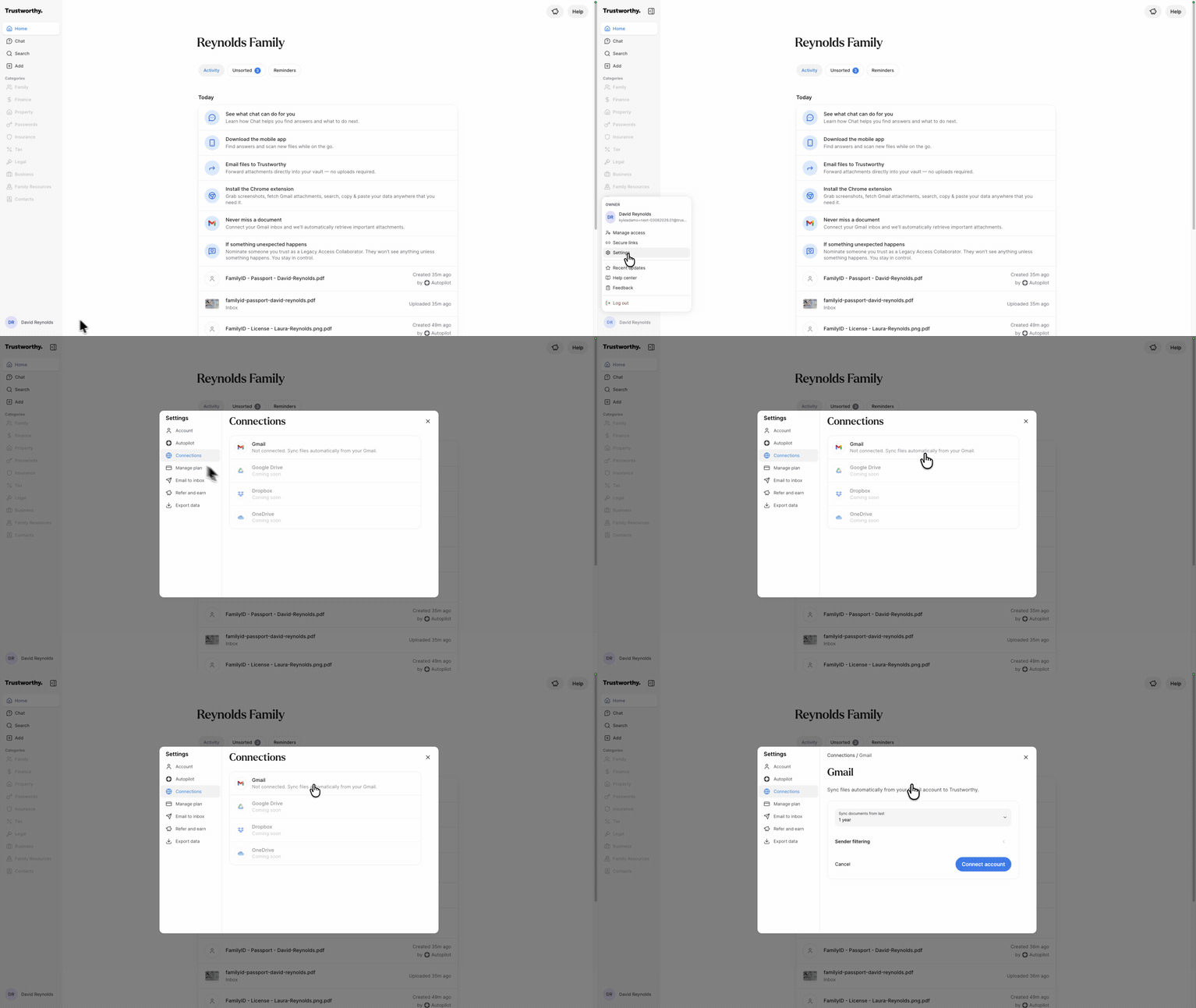
To connect your Gmail account, you first need to navigate to Connections under Settings. This is where you can manage all third-party integrations with your Trustworthy account.
In the bottom-left corner of the screen, click on your name to open the account menu.
Select Settings from the menu.
In the Settings modal, click on Connections in the left-hand navigation pane.
Configuring Your Gmail Connection
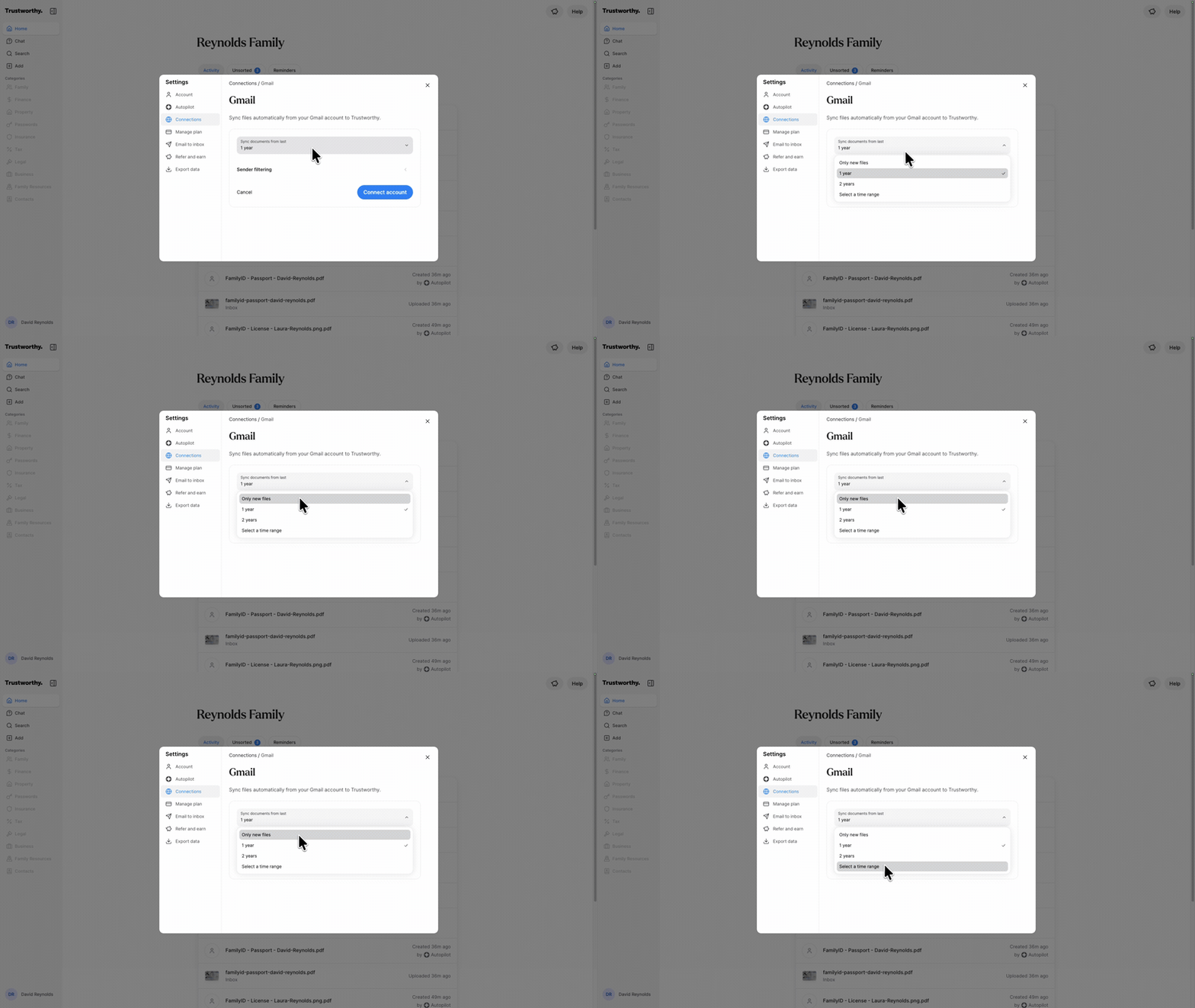
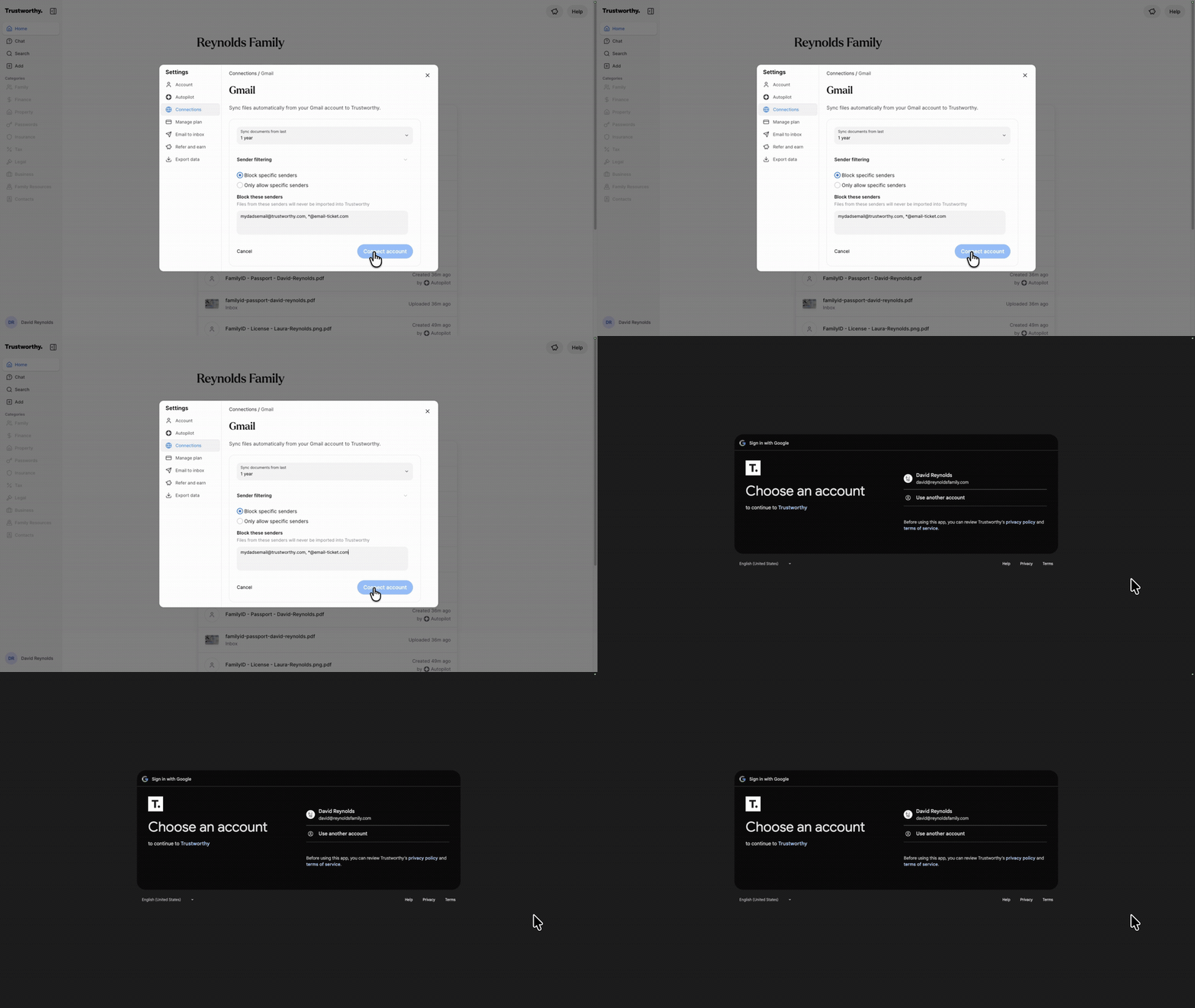
After selecting the Gmail option, you can configure how Trustworthy syncs files from your account. This allows you to control the time range of the import and filter which emails are scanned.
Sync documents from last: Choose a time frame for the import. You can select a preset like 1 year or 2 years, choose to sync Only new files from this point forward, or select a specific time range.
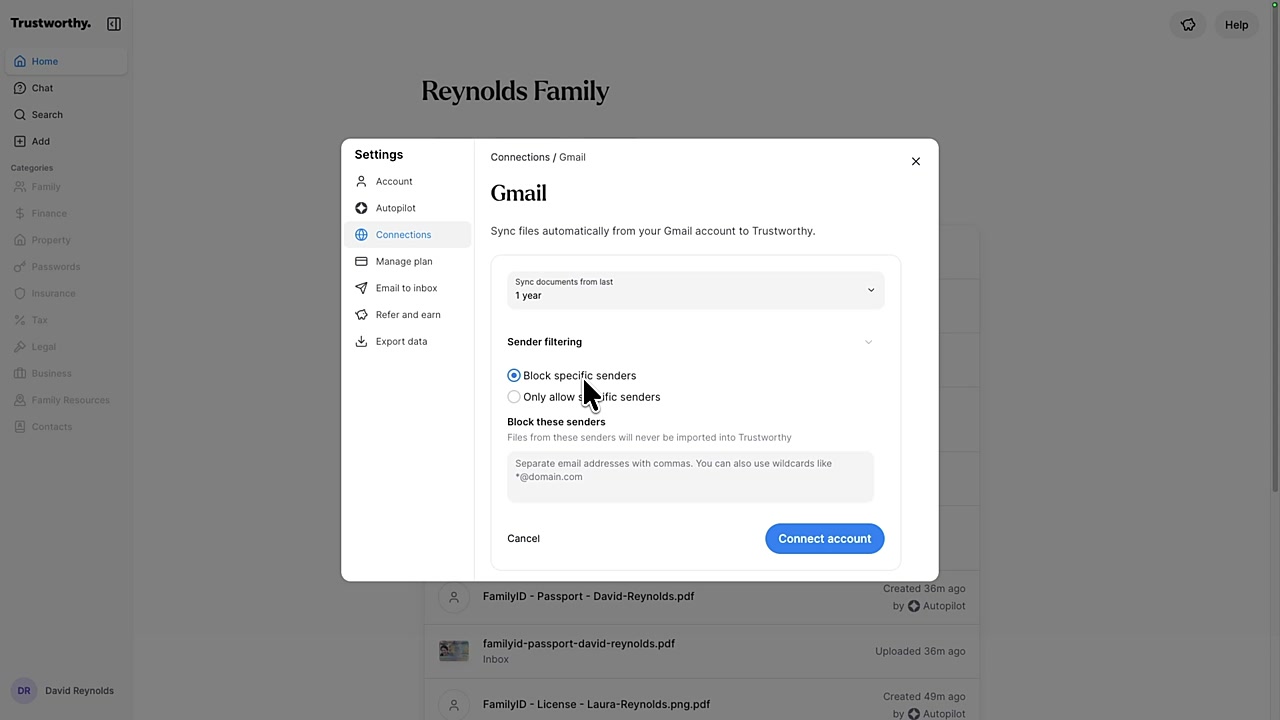
Sender filtering: Refine which emails are scanned by including or excluding specific senders. You can Block specific senders to prevent their attachments from being imported, or Only allow specific senders to exclusively import attachments from a defined list.
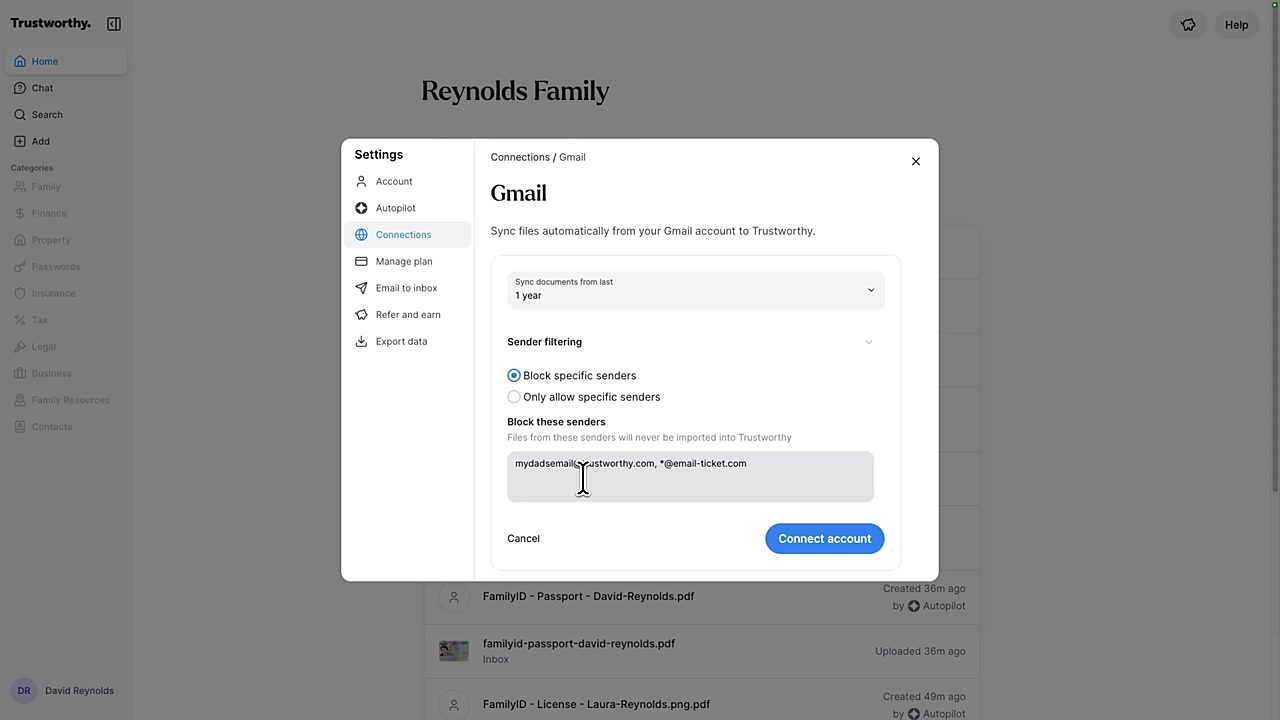
You can block individual email addresses or use a wildcard to block an entire domain (for example, *@email-ticket.com). Separate multiple entries with a comma.
Block and allow are alternatives, not a pair. Choosing Only allow specific senders clears your blocked list, and choosing Block specific senders clears your allowed list. Only the mode you save is kept.
You can change any of these settings later. Open Connections in Settings, click Edit next to your Gmail account, adjust the settings, and save. Widening the time range asks Trustworthy to look further back for older documents. Narrowing it does not remove anything already imported.
Once you have configured your preferences, click the Connect account button. You will be redirected to a Google sign-in page to authorize the connection.
Important Notes on Permissions and Data
Read-Only Access: Trustworthy only requests read-only access to your Gmail account. It cannot send, edit, or delete any of your emails.
PDF Attachments Only: The integration is designed to import only PDF attachments. Other file types, such as PNG or JPEG images, will not be imported.
No Email Body Content: Trustworthy does not read or ingest the body content (the text) of your emails; it only processes the attachments.
Managed on the Web: Connecting a Gmail account, changing its settings, and disconnecting it are done in the web app at secure.trustworthy.com. The mobile app does not yet offer these controls.
Your Own Connection: Each person connects their own Gmail account, and manages it from their own login. You will only see the Gmail accounts you connected yourself.
How to Stop Automatically Importing Files into Your Inbox
Files arriving in your Inbox on their own often come from a connected Gmail account. You may choose to disconnect Gmail entirely or modify your Gmail connection settings. Already-imported files will not be removed by disconnecting.
You have three ways to change what arrives:
Stop one sender — block a single email address or domain, and keep everything else.
Narrow what is imported — change your sync time range or your sender list.
Disconnect Gmail — stop the automatic import entirely.
Stop Importing from One Sender
If most of what arrives is useful and one sender is not, you can block that sender from the file itself, without changing anything else.
Open the file in your Inbox.
Click the sender's email address, shown with the Gmail icon just under the file's title.
In Rule for this sender, click Don't accept PDFs.
Trustworthy stops importing from that address and removes the files from that sender that are still waiting in your Inbox. Files you have already accepted into your account are not affected. This also works in the mobile app: open the file in your Inbox and tap the sender's email address under Added by.
Change What Gets Imported
To keep the connection but change what it brings in, open Connections in Settings and click Edit next to your Gmail account. From there you can change the time range and edit your blocked or allowed senders, as described in Configuring Your Gmail Connection above.
One thing to know: Only new files sets the starting point for the import to today, so no older mail is brought in. It does not stop new mail from being imported going forward. To stop the import altogether, disconnect the account.
Disconnect Your Gmail Account
Disconnecting stops the automatic import completely. The process can be completed in a few steps from your account settings menu.
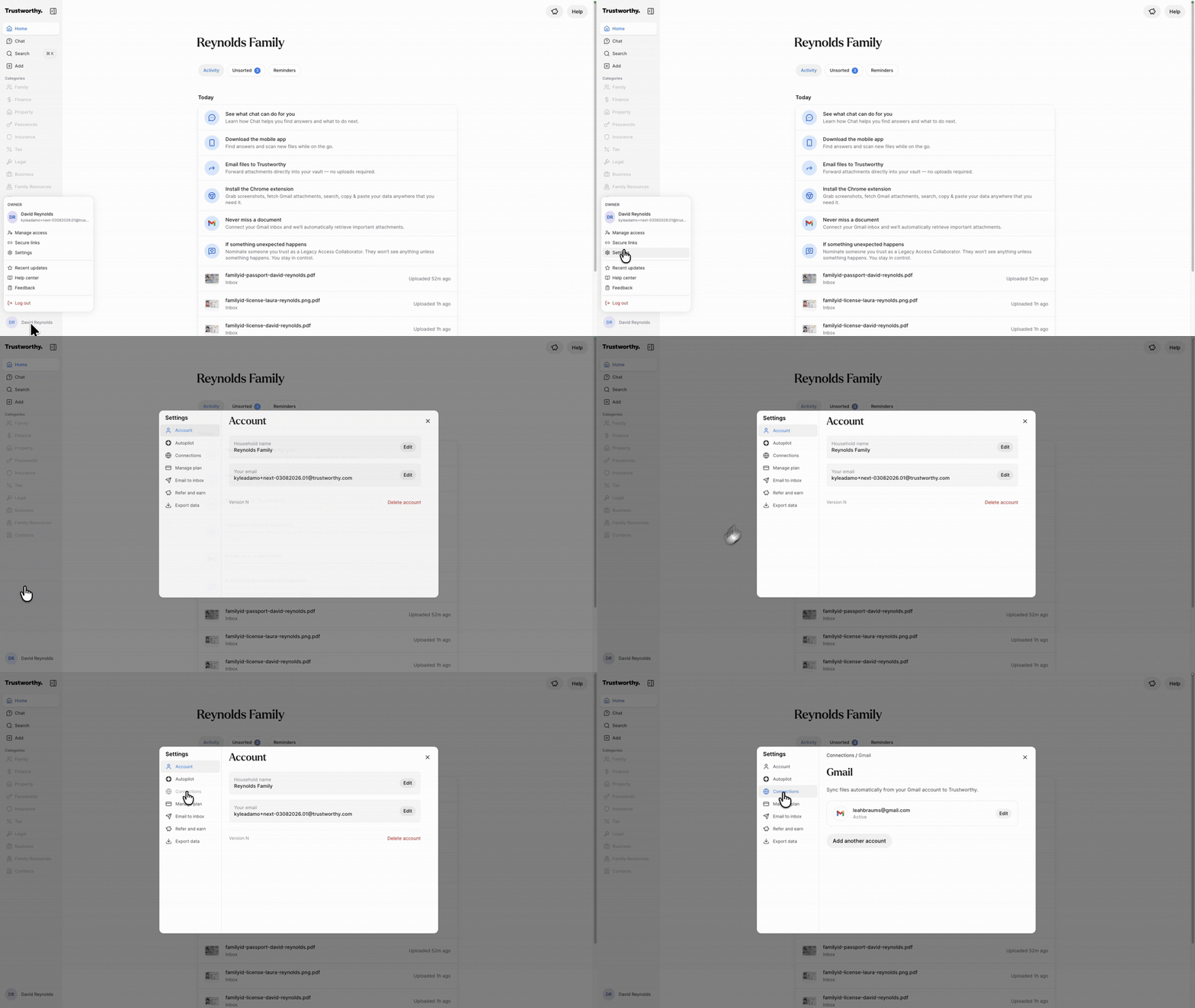
Click the Account Menu in the bottom-left corner of the navigation panel.
Select Settings from the pop-up menu.
In the Settings window, click on the Connections tab from the left-hand menu.
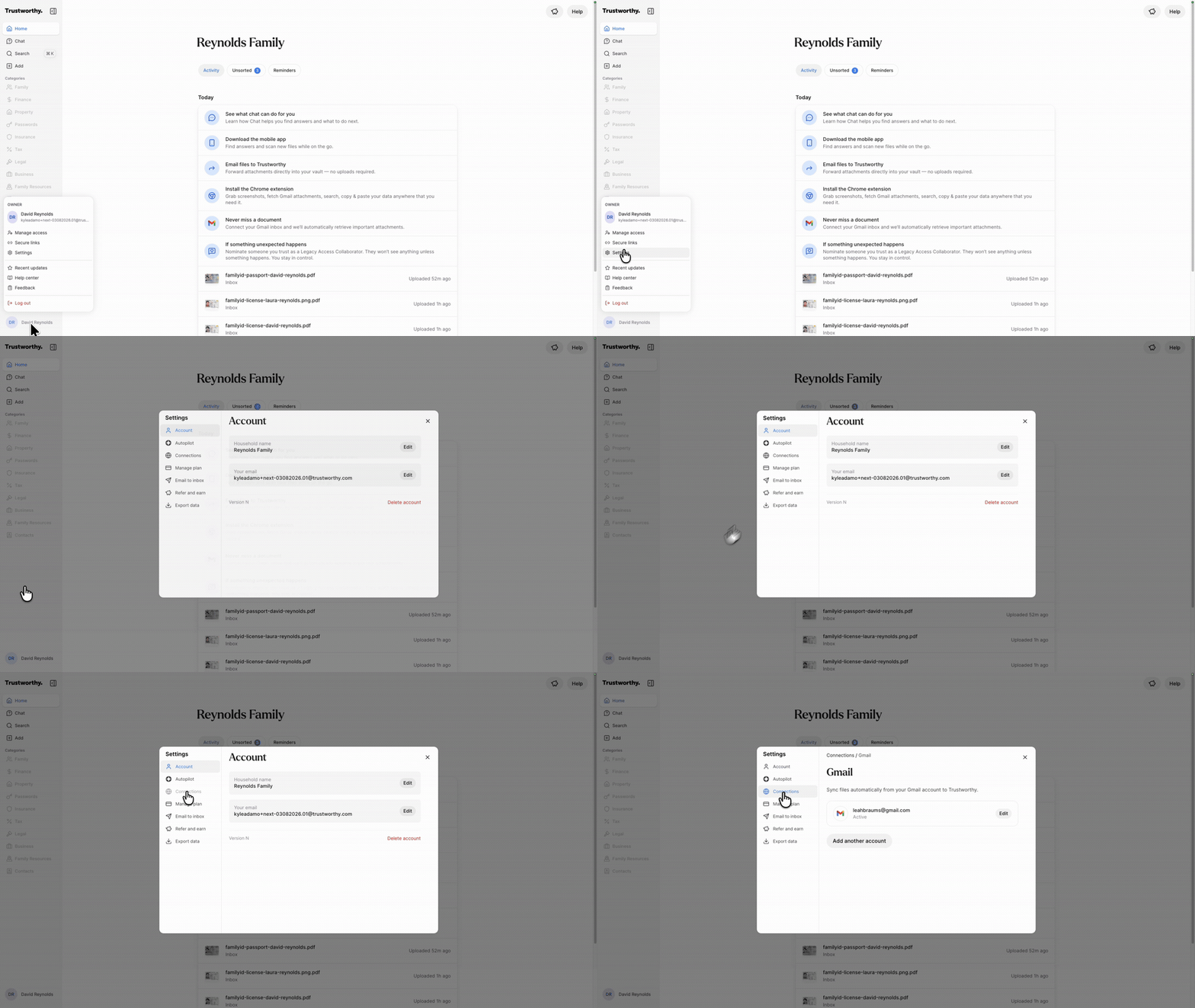
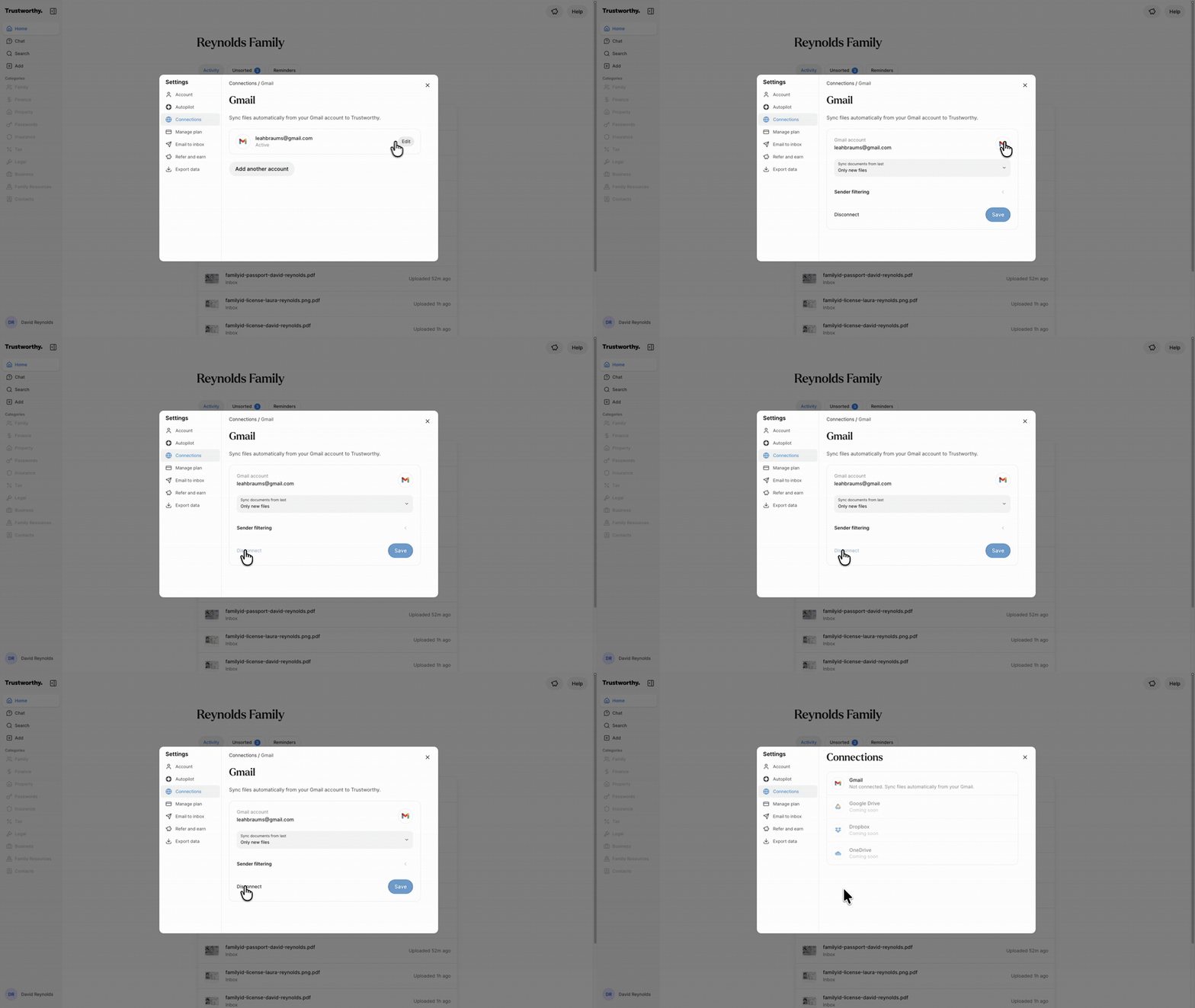
You will see your active Gmail account listed. Click the Edit button next to it.
On the next screen, click the Disconnect button. Your Gmail account will now be disconnected, and Trustworthy will no longer sync files automatically from that account.
Important Considerations
Disconnecting your Gmail account will prevent any new email attachments from being synced to Trustworthy. However, it will not delete any files that have already been imported.
Common Questions
Deleting a File That Came From Gmail
Deleting an imported file removes it from Trustworthy. The original email and its attachment remain in the Gmail account, and the file will not be imported again.
Disconnecting Gmail and Trustworthy
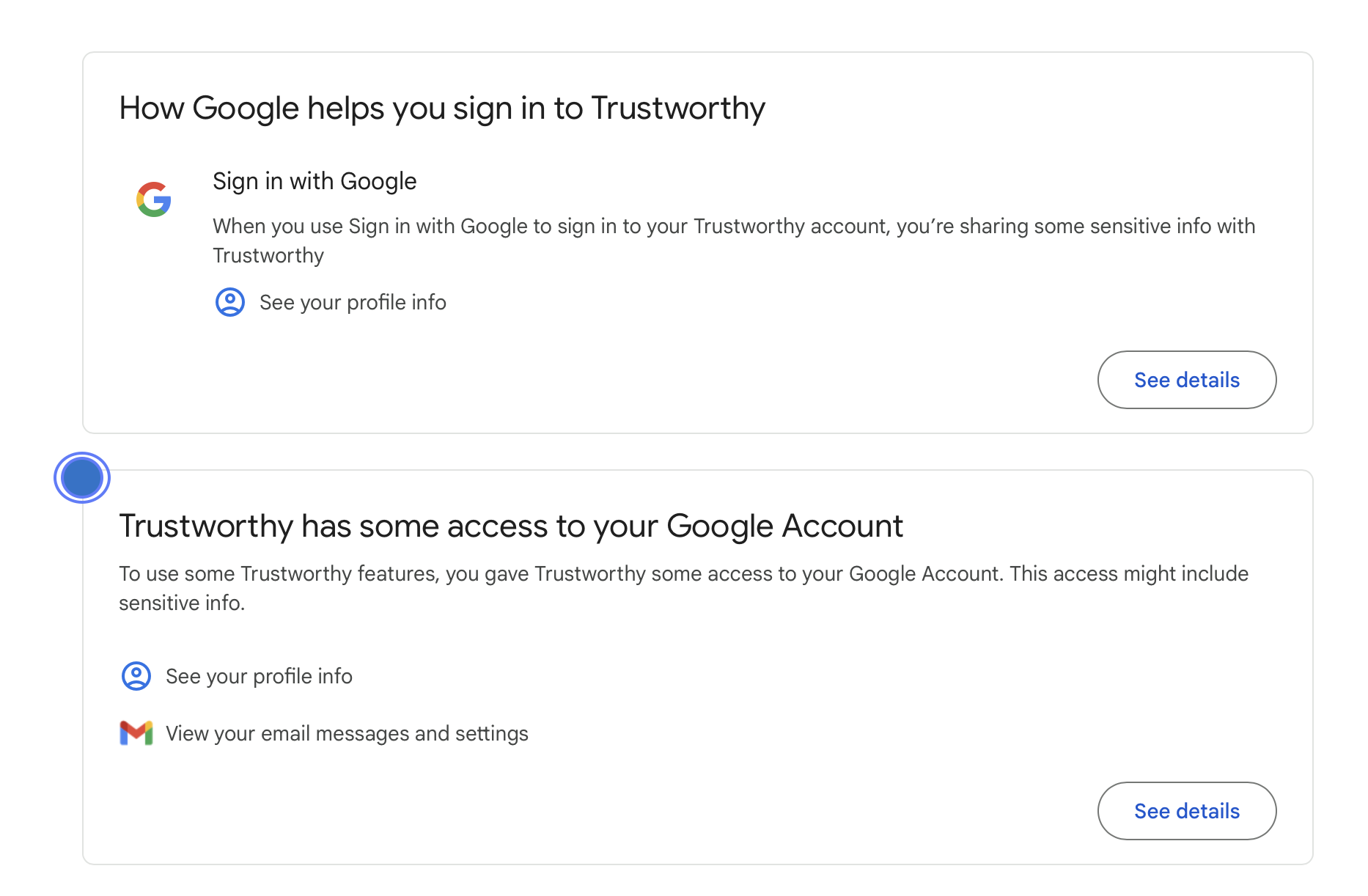
You can verify that you have disconnected your Trustworthy account from Gmail by signing into your Google account and choosing Manage Your Google Account. From there, select Linked Apps, and confirm only "Google helps you sign in to Trustworthy" is enabled. The section "Trustworthy has some access to your Google account" disappears when you disconnect your sync between Gmail and Trustworthy.
Files Are Still Arriving After I Disconnected
More than one person, or more than one Gmail account, may be connected to a household's Trustworthy account. Disconnecting yours stops your own import only.
Each person manages their own connection from their own login, so an account owner cannot disconnect a Family member's Gmail for them. To stop all Gmail importing for the household, ask each person who has connected an account to sign in and disconnect it. If you have connected more than one Gmail address yourself, they are listed together under Connections and each is disconnected separately.