
Managing Multiple Households/Family Member's Information
Many Trustworthy members manage information for multiple family members, and those family members don’t always live in the same household. For example, siblings may work together to manage an aging parent’s affairs.
Here are strategies for managing multiple family member's information in a single Trustworthy account or across multiple.
Option 1: Everyone's information in one account.
Most Trustworthy members begin by adding all family members to the Family Category. As you upload files, you can name them for the family member (if the system doesn't do it automatically) and use Connections to organize information by the family member.
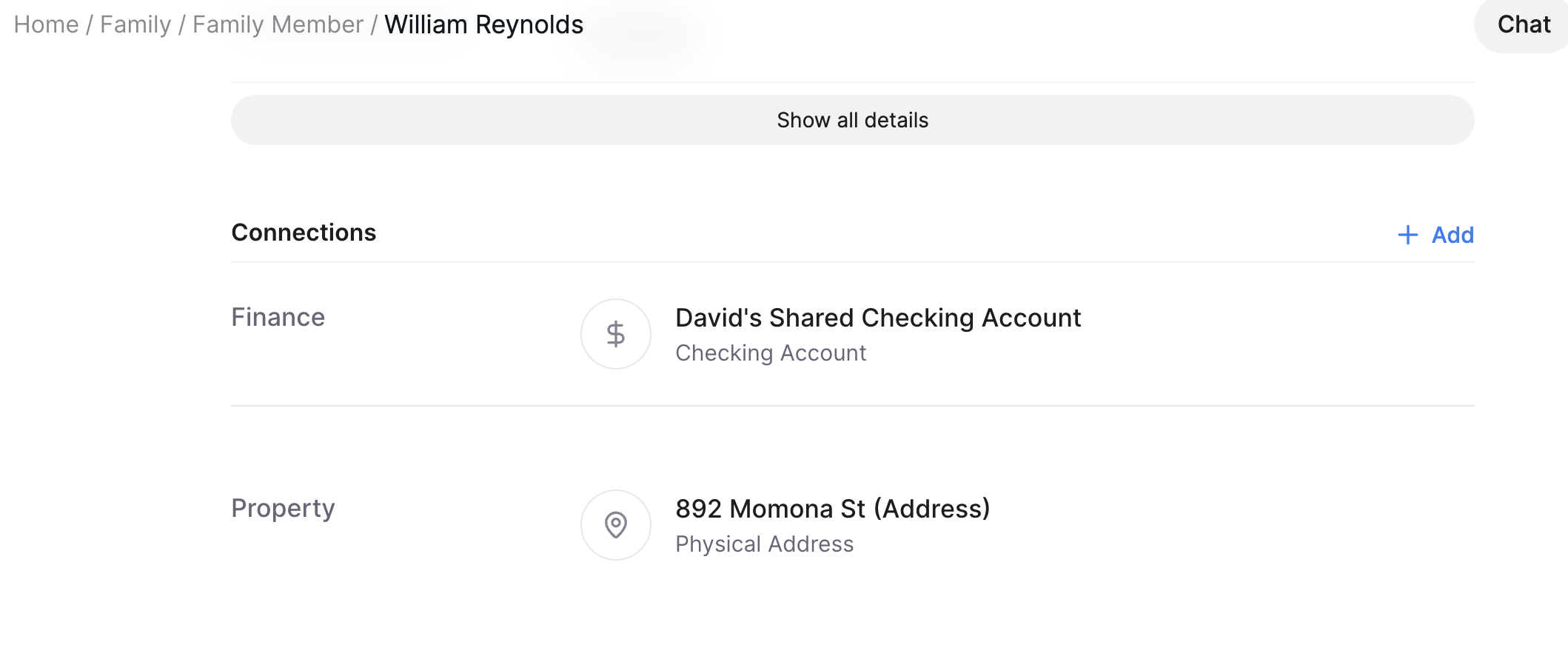
For example, if multiple members of the family own multiple housing properties or vehicles, you might distinguish your family car from your mother's by labeling it "Mom's Toyota Sienna" or "Dad's California Summer Home." Then, you can use Connections to associate that property type to their information.
In this example, William Reynolds is connected to David's Shared Checking Account and a property at 892 Momona St.
In this scenario, a single Trustworthy account supports multiple family members through Collaborators. Only one subscription is required. Depending on the plan, the account owner can invite a designated number of family members to join as collaborators, allowing them to work together on the account owner’s Trustworthy dashboard.
Option 2: Collaborating with family members across multiple accounts.
Managing everyone's information in one account can get messy, especially if each family member has multiple bank accounts, properties, insurance policies, etc. If a member or members of the family have complex data that clearly needs its own space, they should sign up for their own Trustworthy subscription. If they still want you to manage their information, they can invite you as Full Access Collaborator or Partial Access to the areas where they need help.
How can I access another member's Trustworthy account?
In this setup, the collaboration feature will allow you to switch between multiple households. Once you've been invited to another account, you'll use your own login details (password and MFA) to access and then switch between all the households you have access to using the Account menu.
Need more help? Managing multiple households can be a great opportunity to enlist the support of a Trustworthy Certified Expert. These professionals can help navigate complex household situations and provide guidance on best practices.