
How to Edit Display and File Names
In Trustworthy, every file has two names:
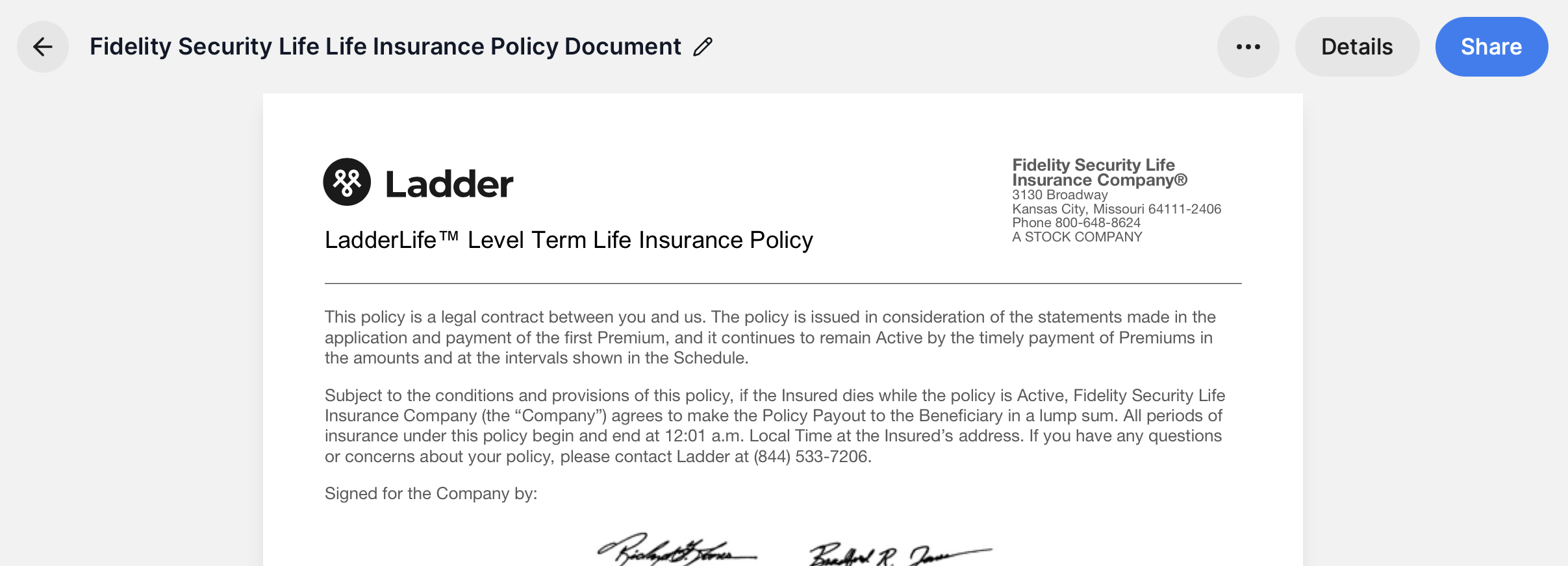
Display name — what you see inside Trustworthy (automatically suggested by Autopilot)
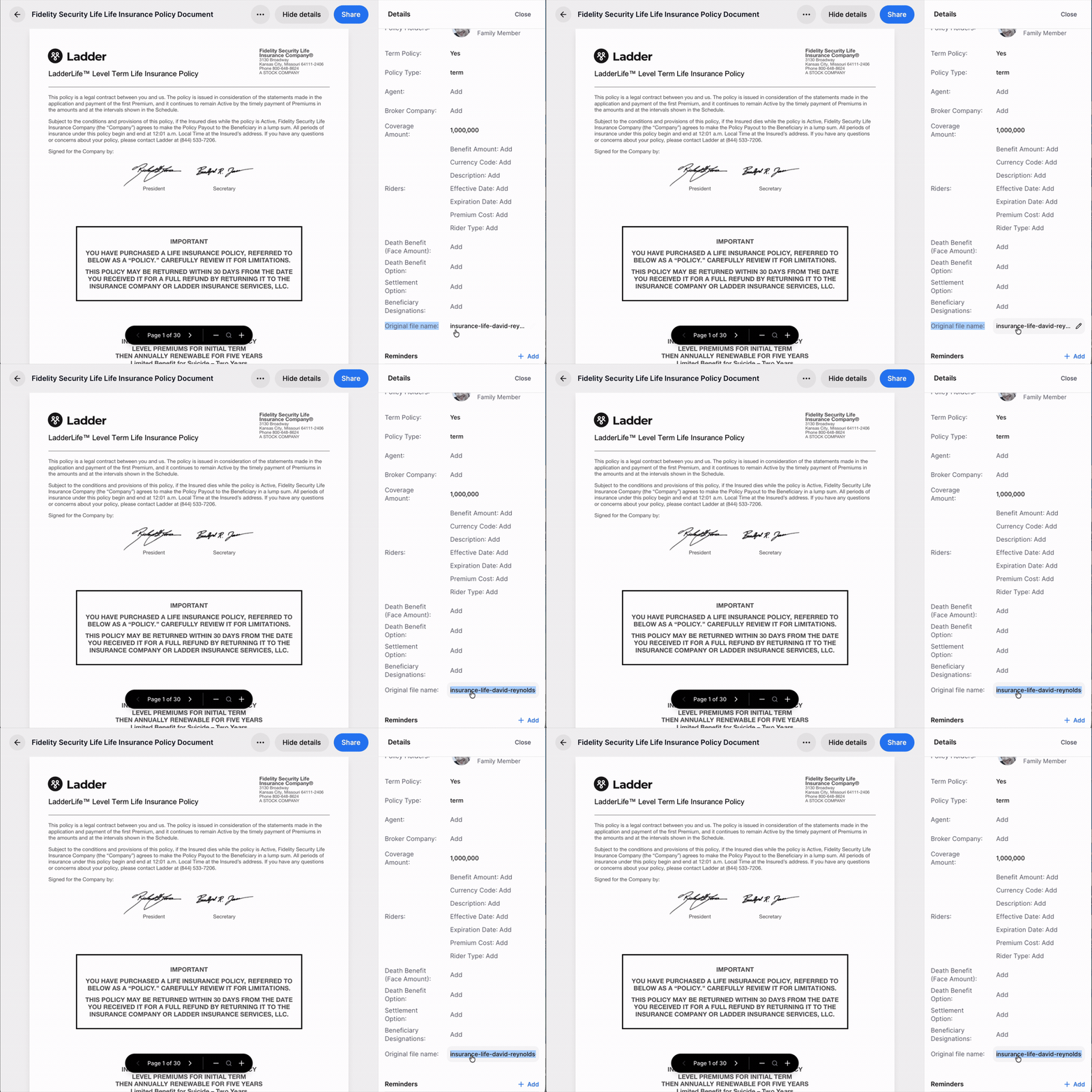
File name — the original name from when the file was uploaded
You can edit both to keep things clear, consistent, and easy to find according to your preferences.
Edit a File’s Display Name
The display name is the title shown throughout Trustworthy. It’s automatically suggested by Autopilot based on the file, and you can update it at any time.
To edit it:
Navigate to your file
Click the file to open the preview
At the top of the viewer, hover over the current name
Click the pencil icon
Type your new name and press Enter
If you change your mind, do not click Enter. Just click Escape (esc) and exit Edit mode.
Edit a File’s Original File Name
The file name is the original name of the uploaded file. Editing it can help you standardize naming for sharing, downloads, and long-term organization.
To edit it:
Open the document
Click Details in the top-right corner
Scroll to the bottom to File name
Click into the field and update the name
Click away to save or tap Escape (esc) on your keyboard to cancel
Tips for Naming Your Documents
Use the display name for clarity and readability for you, your loved ones, and advisors
Example: “Dave’s 2023 Term Life Policy”Use the file name for consistency and structure
Example: “insurance-life-policy-reynolds-2023.pdf”
Summary
Each file in Trustworthy has two editable names: one suggested by Autopilot for easy viewing, and one for the underlying file. You can adjust either at any time to keep your information organized in a way that works for you.