
The Files View: See Everything in One Place
The new Files tab is your central location for finding every file you have ever uploaded to Trustworthy. Located in the main navigation area of your family dashboard, this tab allows you to quickly search, sort, filter, and manage all your documents in one place.
Viewing Your Files
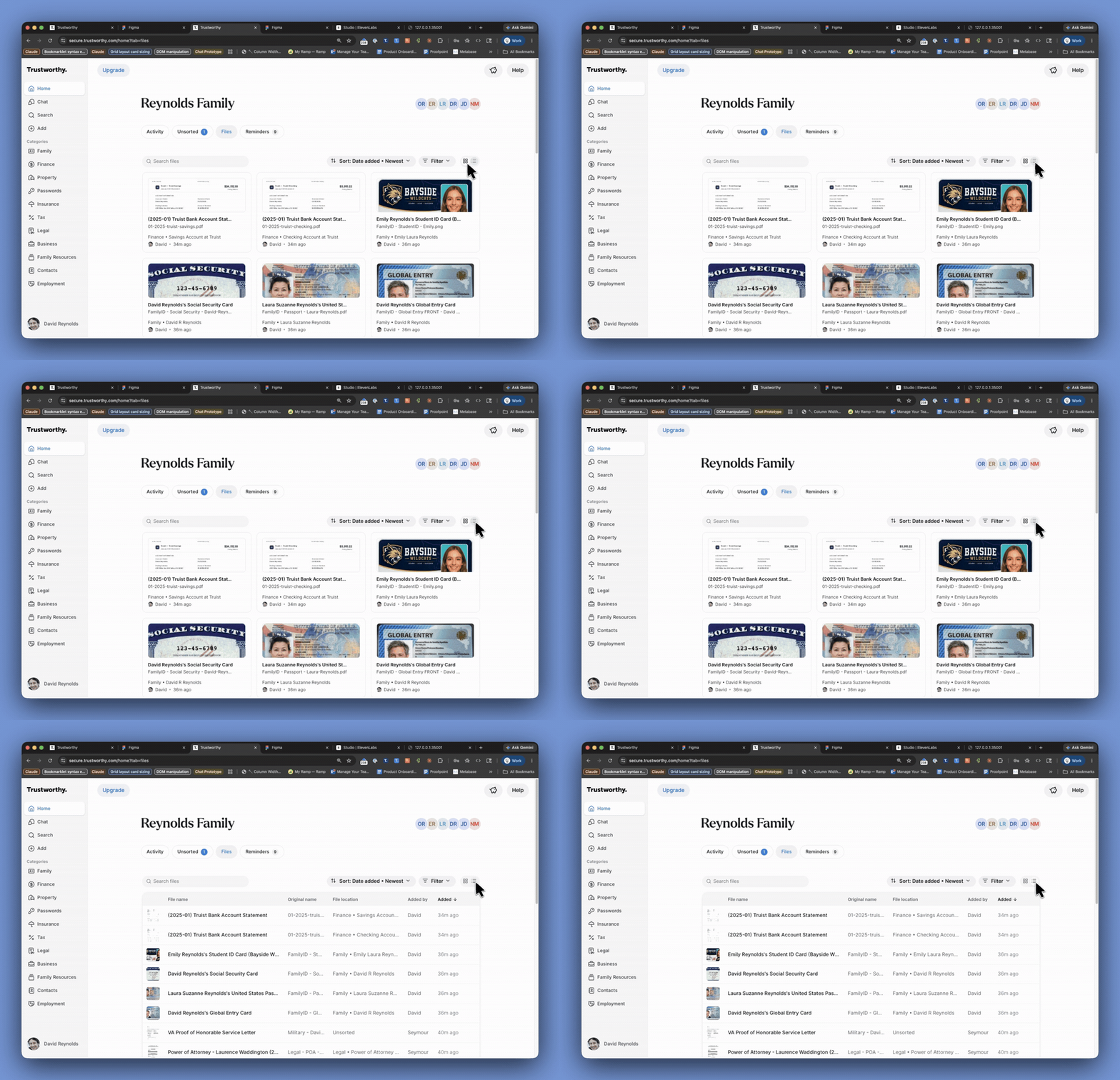
The Files tab offers two different layouts to view your documents, allowing you to choose the format that best suits your needs. You can switch between views using the icons next to the Filter button.
Card View: The default view, which displays your files as visual thumbnails. Each card shows a preview of the document, its file name, its location within Trustworthy, and who uploaded it.
List View: Presents your files in a compact table format. This view provides details such as File name, Original name, File location, who it was Added by, and when it was added. You can also sort the list by clicking on any of the column headers.
Searching, Sorting, and Filtering
To help you locate specific information quickly, the Files tab includes several powerful organizational tools.
Search Files: Use the search bar at the top to find files by typing keywords from the file name or its extracted contents.
Sort: By default, files are sorted by Date added - Newest. You can click the sort dropdown to change the order based on other criteria.
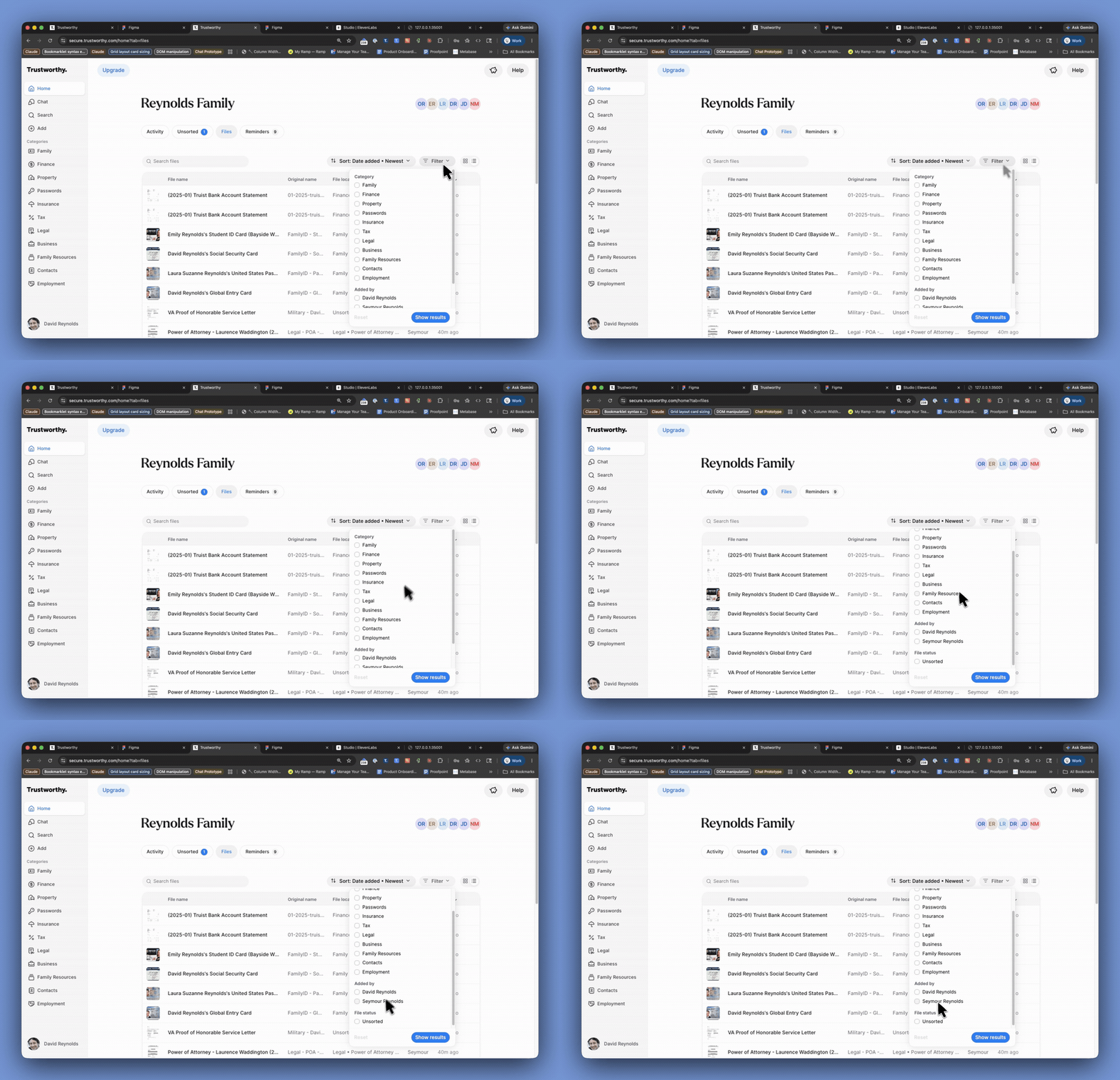
Filter: Click the Filter button to narrow down your file list based on specific criteria, such as the Category it belongs to or the family member who Added by the file.
Managing Individual Files
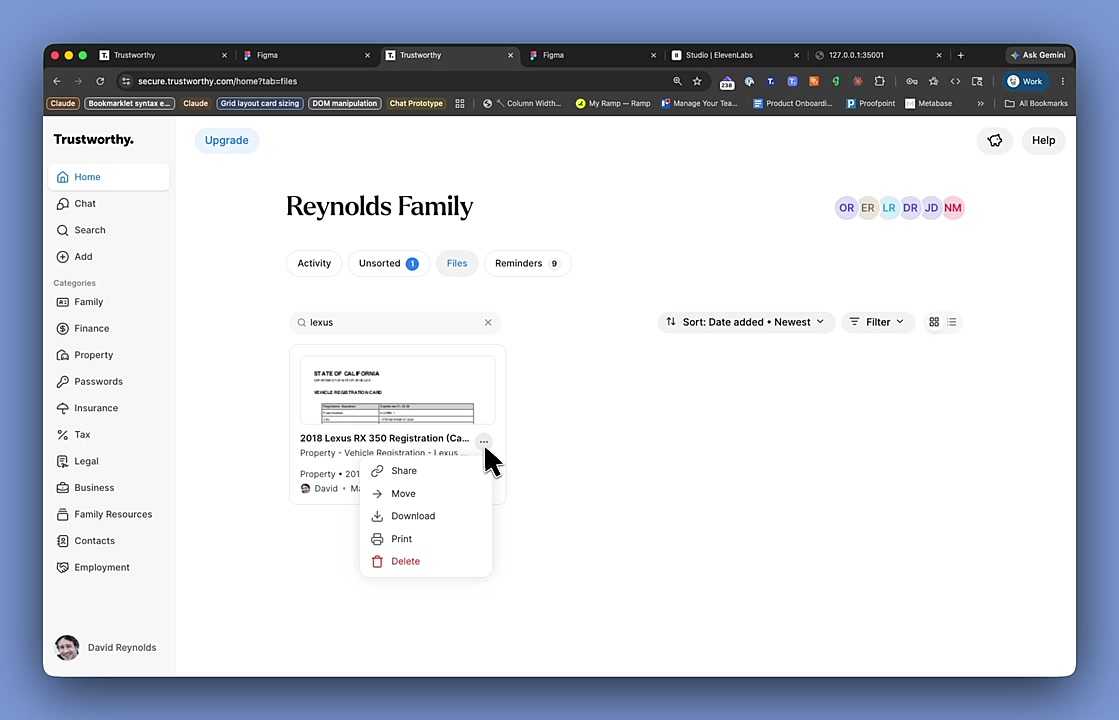
From either the Card View or List View, you can perform actions on any file by clicking the three-dot menu associated with it. This menu gives you quick access to several functions:
More: Move the file to a different location within Trustworthy.
Share: Securely share the file with others.
Download: Save a copy of the file to your computer.
Print: Print a physical copy of the file.
Delete: Permanently remove the file from your Trustworthy vault.
Tip for Using the Files View
To quickly narrow your view, combine search with filters. For example, search for “insurance” and then filter by a specific family member to see only documents connected to them.