
Offline Access in the Trustworthy Mobile App
Your most important information should not depend on having a signal.
The Trustworthy mobile app is designed with an offline-first experience, meaning many of your critical documents and details remain available even when you do not have cell service or Wi-Fi.
Whether you are traveling, dealing with an emergency, or simply in a location with poor connectivity, Trustworthy helps keep your information ready when you need it.
What “offline-first” means
When you sign in to the Trustworthy mobile app, your account securely syncs to your device in the background.
That allows you to continue accessing important information even if your internet connection later becomes unavailable.
Examples may include:
Passports and IDs
Insurance cards
Medical information
Passwords and passcodes
Travel documents
Emergency contacts
Household details and notes
Which document files are saved for offline
Trustworthy keeps two kinds of things available offline:
Your details — the information Trustworthy extracts and stores, like account numbers, policy details, passwords, notes, and emergency contacts — sync to your device so you can view them without a connection.
The original document files — the actual scans and PDFs — are downloaded for offline for a focused set of your most critical documents:
Driver's licenses
Passports
Birth certificates
Social Security cards
Health insurance cards
Medicare cards
Auto, homeowners, and life insurance policy documents
Vehicle registrations
Wills
Trust declarations
Power of attorney documents
Very large files (over 20 MB) are not stored offline. Other documents stay available whenever you are connected — and you can open one ahead of time if you know you will be offline later.
We would love your feedback. This list covers the documents people reach for most in a pinch, but it is just a starting point. If there is another type of document you would want available offline, let us know — your input helps us decide what to add next.
How to tell if information is available offline
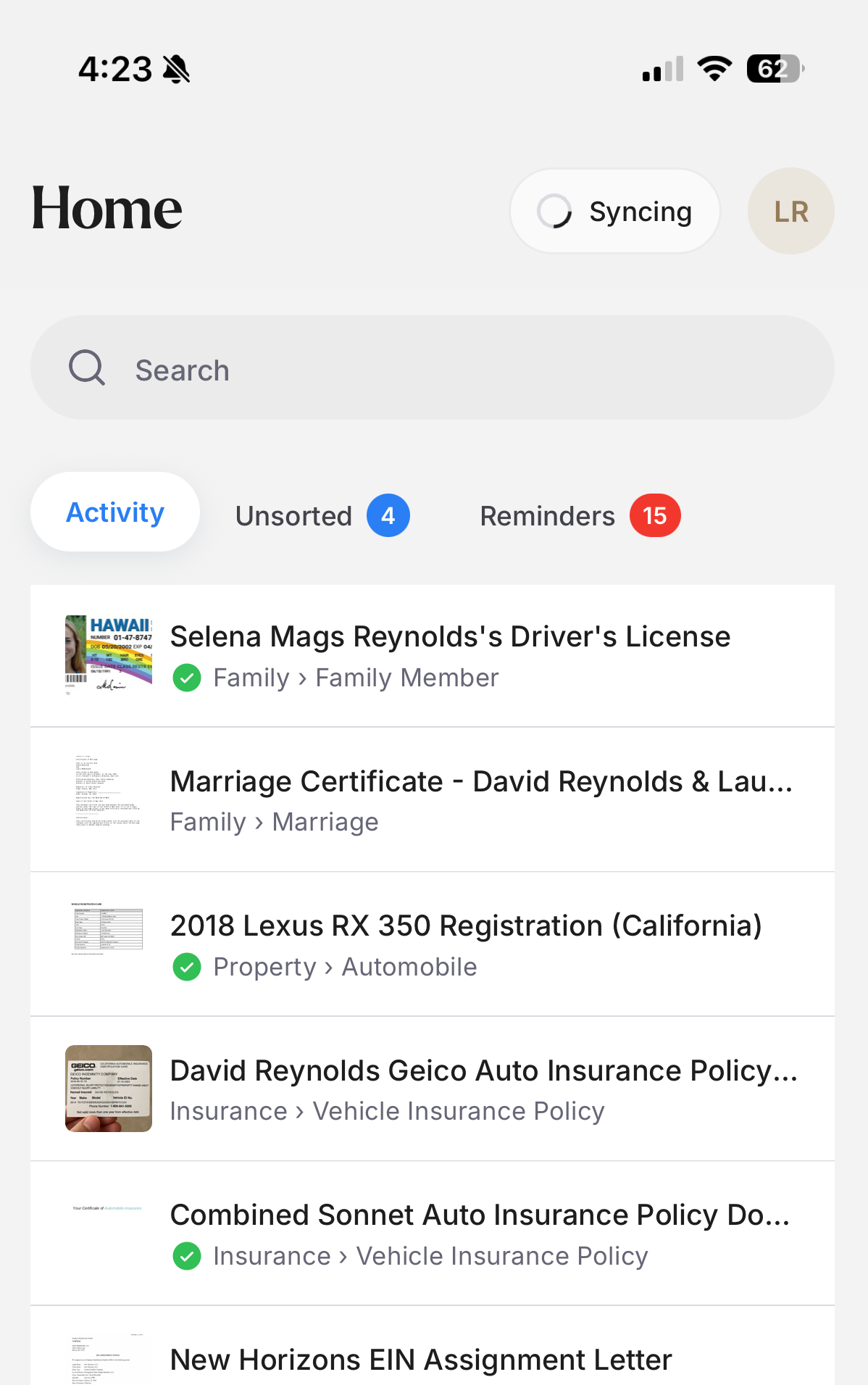
Items that are stored locally on your device for offline access may display:
A green checkmark
Or a label such as “Available offline”
This helps confirm that the information has already synced to your device.
What happens when you reconnect
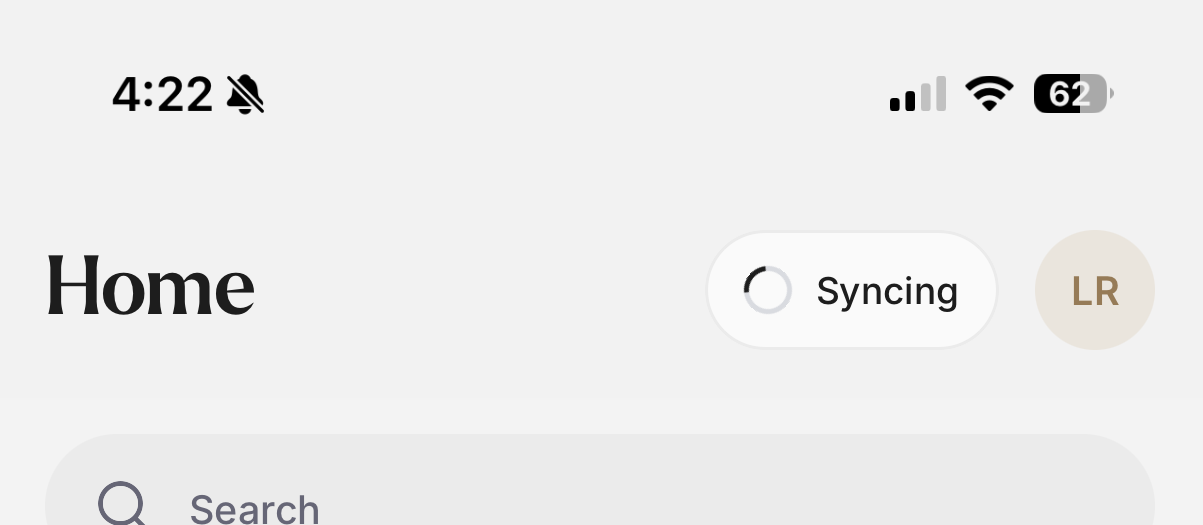
As soon as your device reconnects to the internet, Trustworthy automatically syncs updates. Let the sync finish before proceeding.
This helps ensure:
Recent changes stay current
Newly added files become available
Updated information syncs across your devices
Important note about multiple accounts
Offline access currently works for one Trustworthy account at a time on a mobile device.
For example:
If you sign into your own household account, that information syncs for offline use.
If you later switch to a collaborator account, that account’s information will sync instead.
Nothing is deleted from your Trustworthy account. The app is simply prioritizing which account is stored locally on the device for offline access at that moment.
If you want your personal household information available offline again, simply switch back to your own account while connected to the internet.
Tips for the best offline experience
For the most reliable experience:
Open the mobile app periodically while connected to the internet
Allow syncing to complete before traveling
Keep the Trustworthy app updated to the latest version
Open especially important documents ahead of time if you know you may be offline later
Privacy and security
Offline information stored on your device remains protected by the security settings of your phone, such as:
Face ID or Touch ID
Device passcodes
Biometric authentication
Trustworthy is designed to balance convenience with strong privacy and security protections for your household information.