
Change a Contact's Logo or Photo
You can customize the photo or logo displayed for any contact or family member in Trustworthy, including contacts that are automatically populated by Trustworthy, such as financial institutions, insurance companies, and select other organizations.
Adding your own photo or logo can make contacts easier to recognize for you, your family members, and any collaborators you've invited to your account.
How to Change a Photo or Logo
Open the contact in the Contacts category, or open a person or pet in the Family category.
Select Edit.
Hover your mouse over the existing photo, logo, or circle icon.
A camera icon will appear.
Click or tap the circle area to update it.

On the Trustworthy Website
When editing a contact or family member on the Trustworthy desktop website, selecting the camera icon allows you to upload a new image from your computer.
Choose any picture that helps you quickly identify the contact
Your selected image will replace the existing icon or logo shown in Trustworthy for all people with access to your account.
On the Trustworthy Mobile App
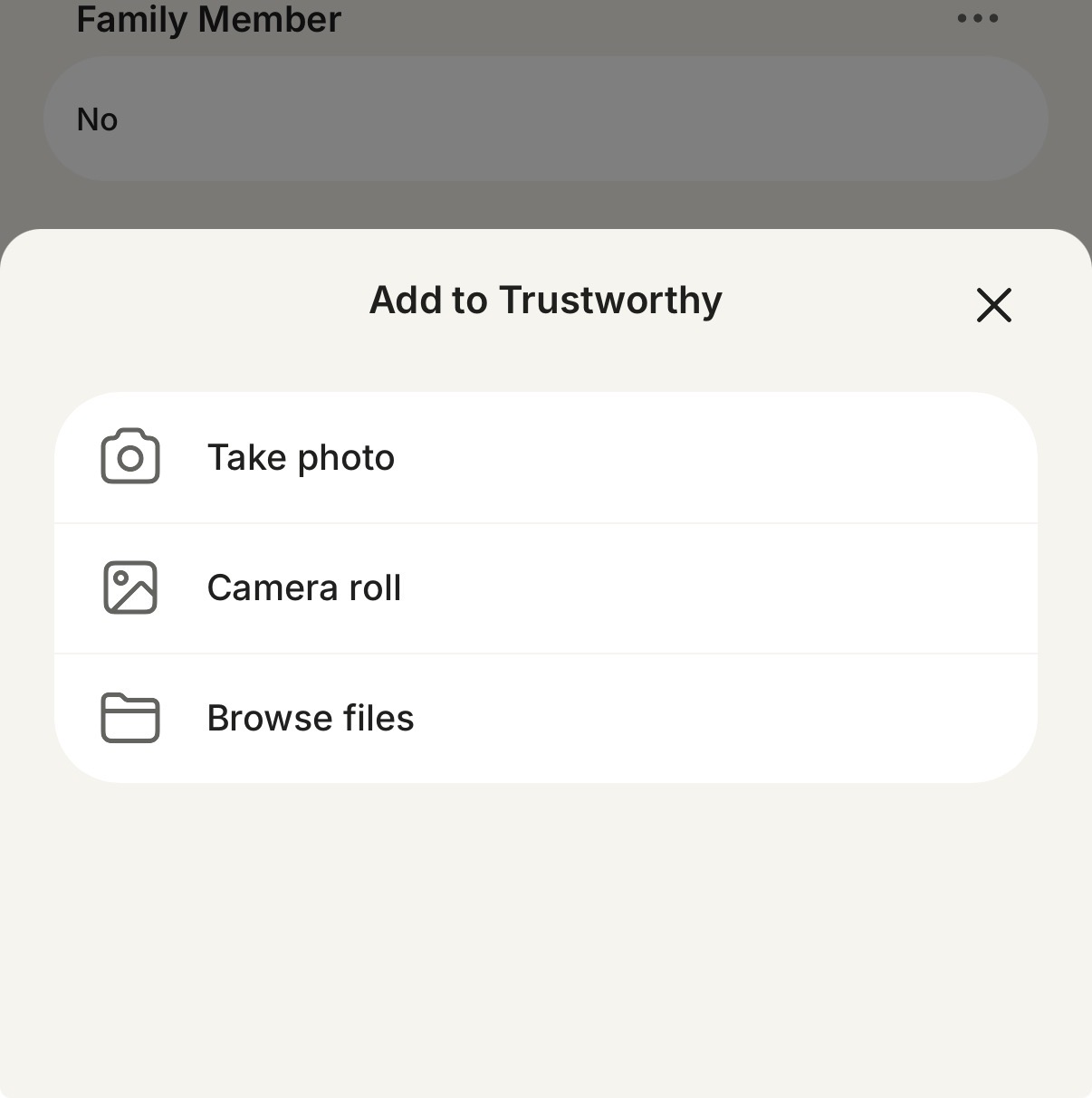
When editing a contact or family member in the Trustworthy mobile app, tapping the photo area opens additional options:
Take photo — Use your device camera to capture a new picture.
Camera roll — Select an existing photo from your device.
Browse files — Choose an image stored elsewhere on your device.
This makes it easy to personalize contacts and family members while you're on the go.
Good to Know
Custom photos and logos can be used for both people and organizations.
You can replace an automatically assigned logo with your own image at any time.
Updating a photo does not affect any documents, details, reminders, or connections associated with that contact.
A clear, recognizable photo or logo can make navigating your Trustworthy account faster and more intuitive, especially when managing information for multiple family members, advisors, institutions, or service providers