
Exporting Your Data
All of your files in Trustworthy can be downloaded in a zip file from your Settings page.
This functionality is only available from the Trustworthy web app.
Visit Account Menu
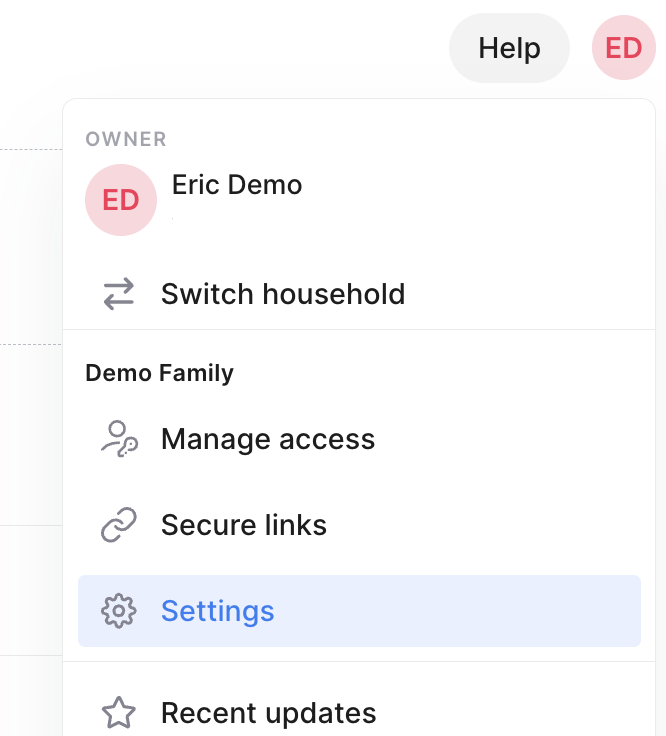
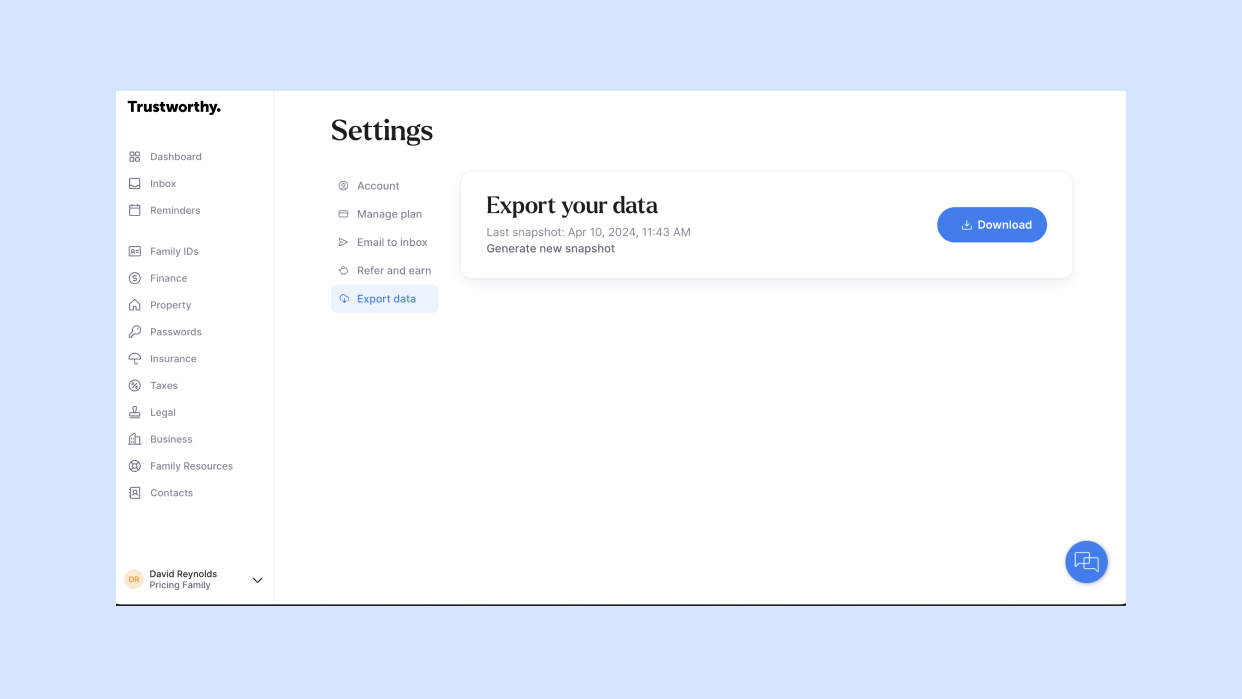
Login to the Trustworthy web app and click your Account Menu in the top right, then select Settings > Export data.
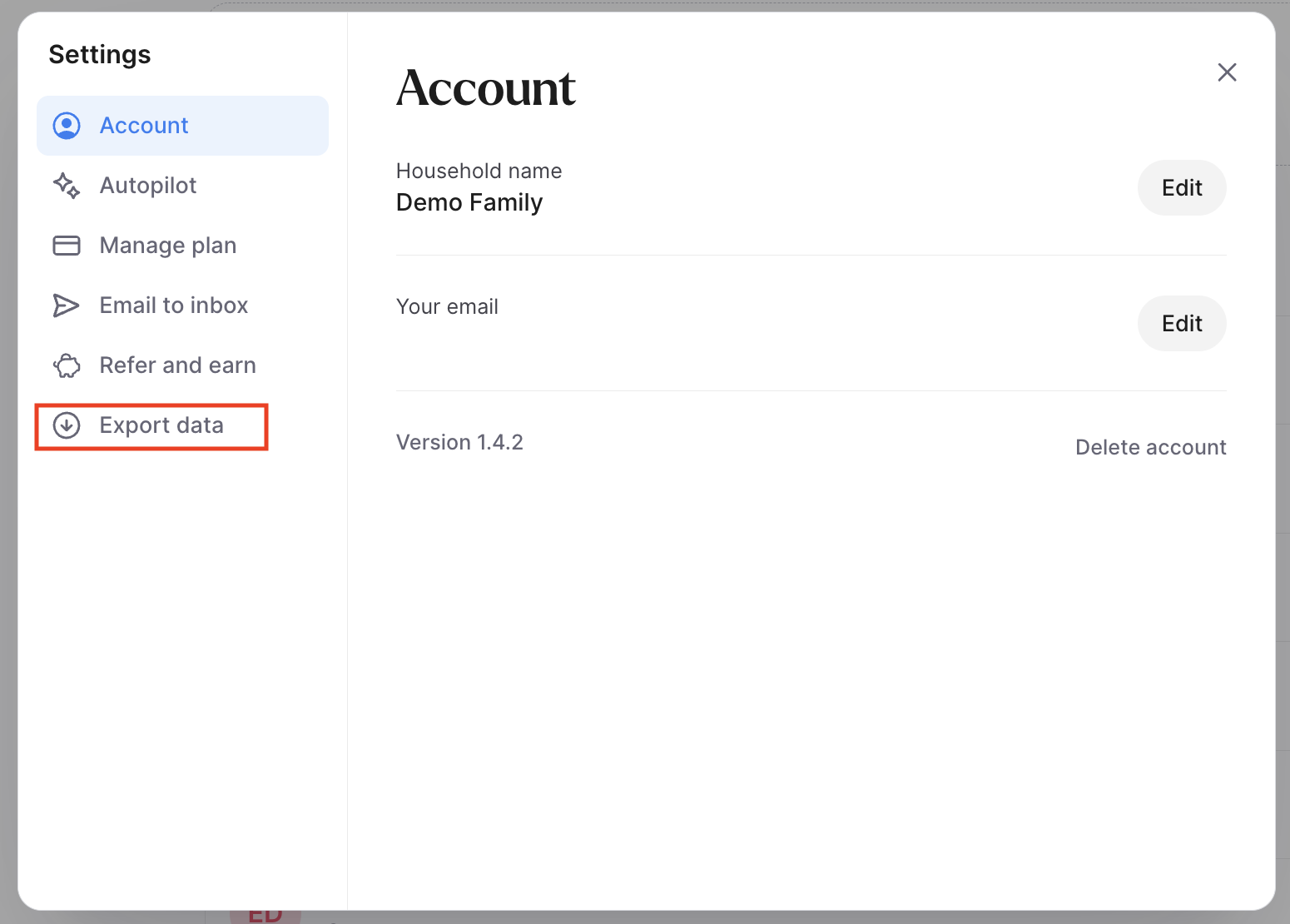
Export your data
Click the Export data button in the Export data section. A prompt appears notifying you that the export is running in the background and you'll be emailed once the export is ready.
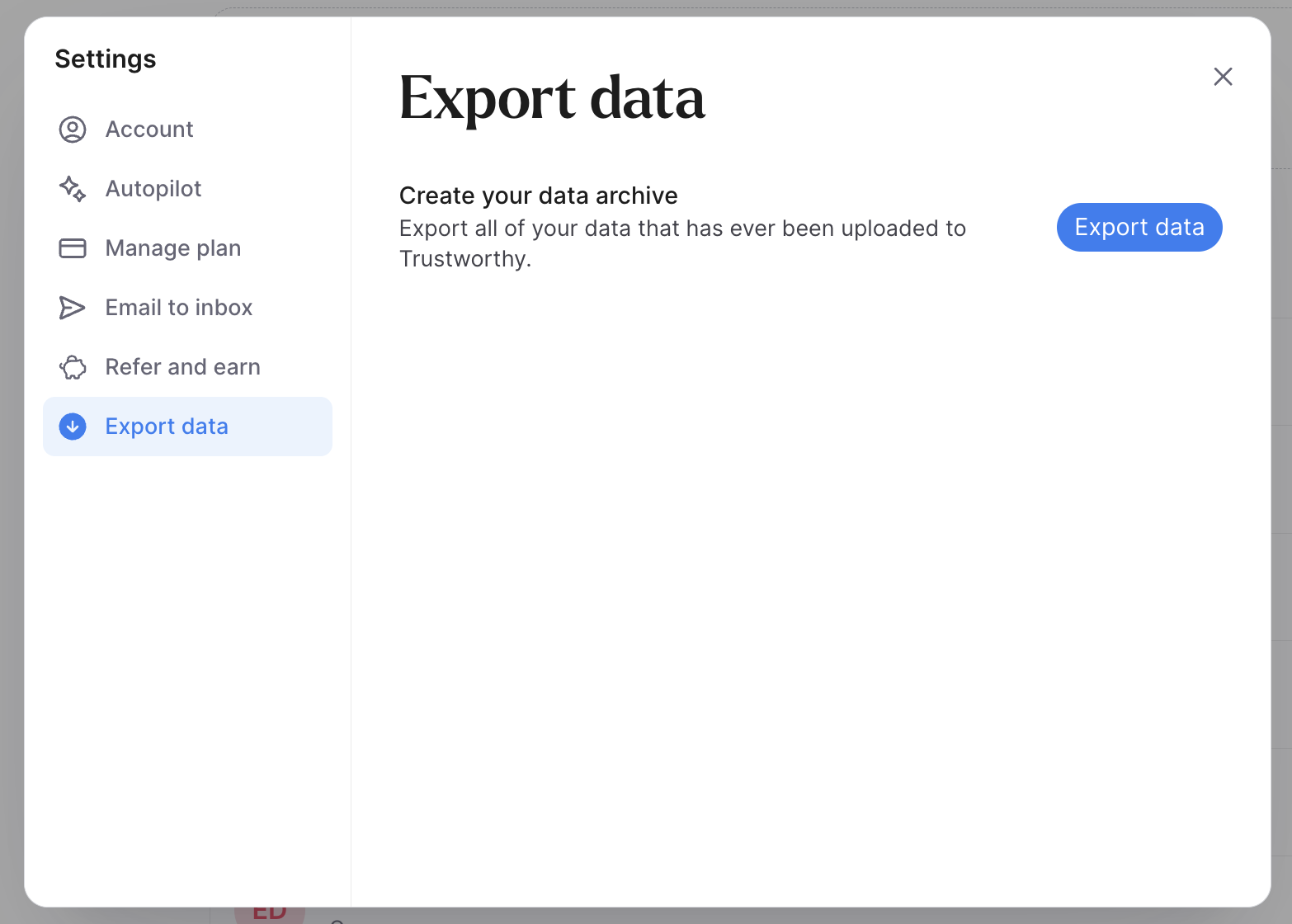
Wait for the export to complete
The time required to generate your export file can vary depending on how many files you have in your account. When you see your Export button switch to Download, this means your download is ready. For larger accounts it may take several minutes. Watch for an email notifying you when your download is ready.
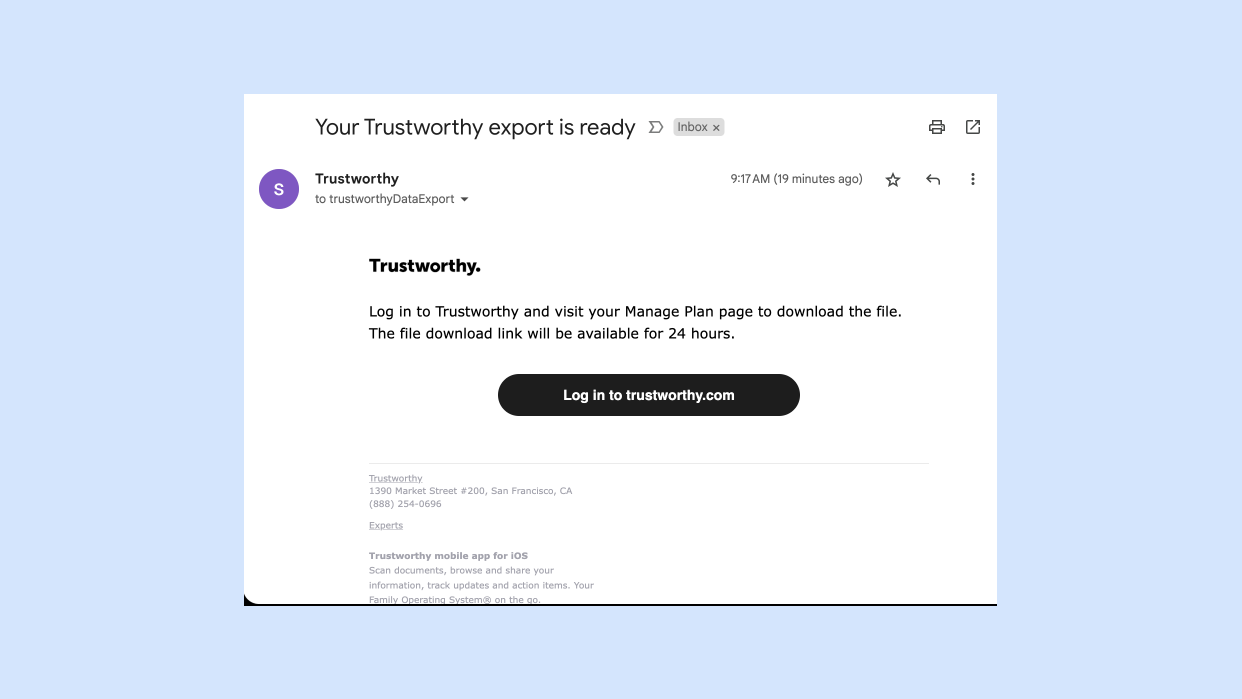
Download a zip of your files
Once your export is ready, visit the Settings > Export Data page and click the Download button to download a zip archive of all files. The download link remains available for 24hrs. You can regenerate a new export if you miss your download window.
Note: in some instances, you may notice a small difference between the file size shown when you upload a file to Trustworthy and the size shown when you download it. The difference you’re seeing is only in how the size is reported, not in the file itself.
This happens because different operating systems and applications calculate and display storage units differently. For example, some systems round file sizes up or down, or use slightly different measurement standards.