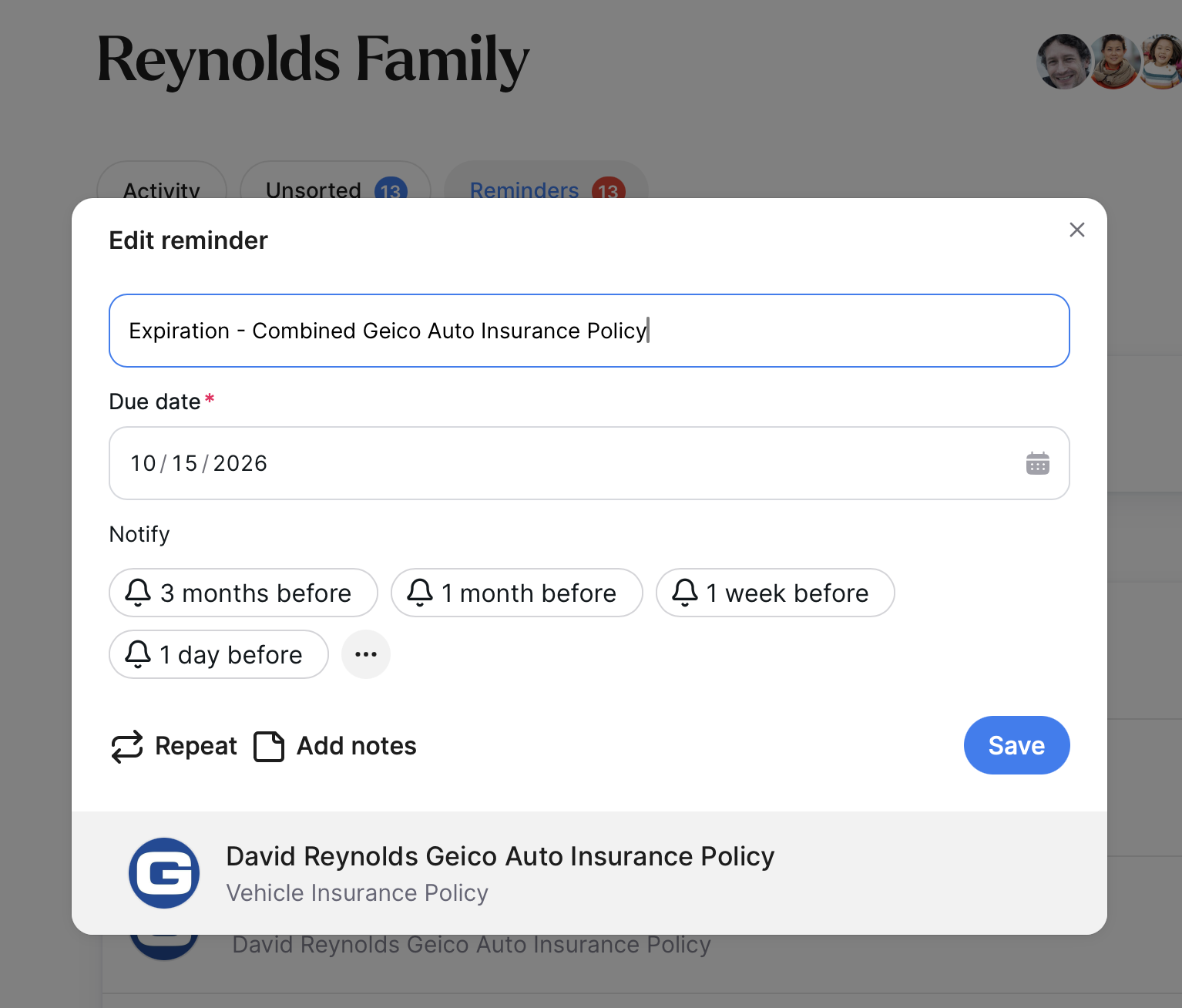
Reminders
Trustworthy helps you stay organized by creating automatic reminders for important dates, such as document expirations or renewals. This guide shows you how to add a custom reminder, set notification preferences, and manage it effectively.
Members often create reminders for things like upcoming appointments, family tasks, renewals, and follow-up actions.
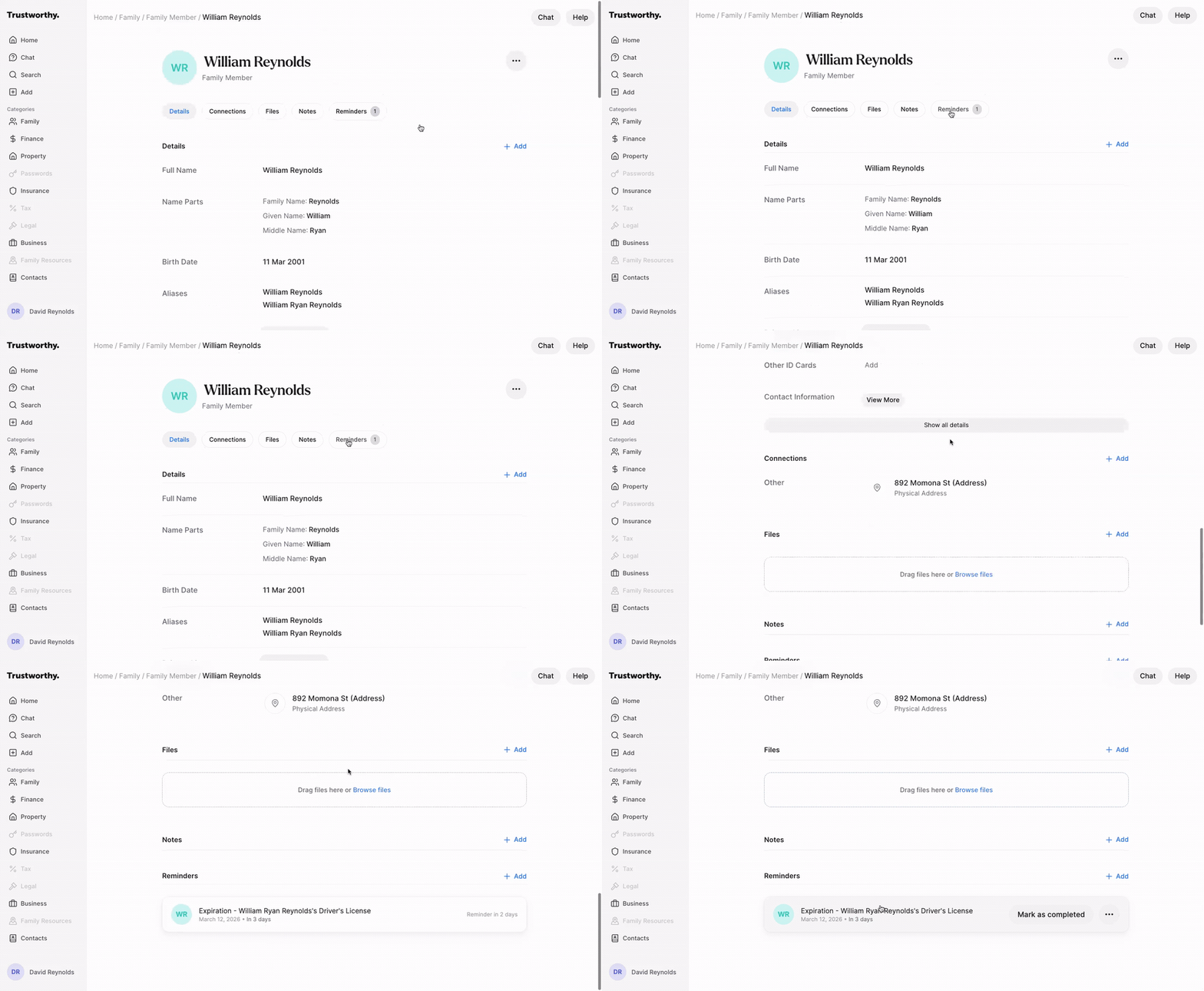
Navigate to the Item where you want to add a reminder.
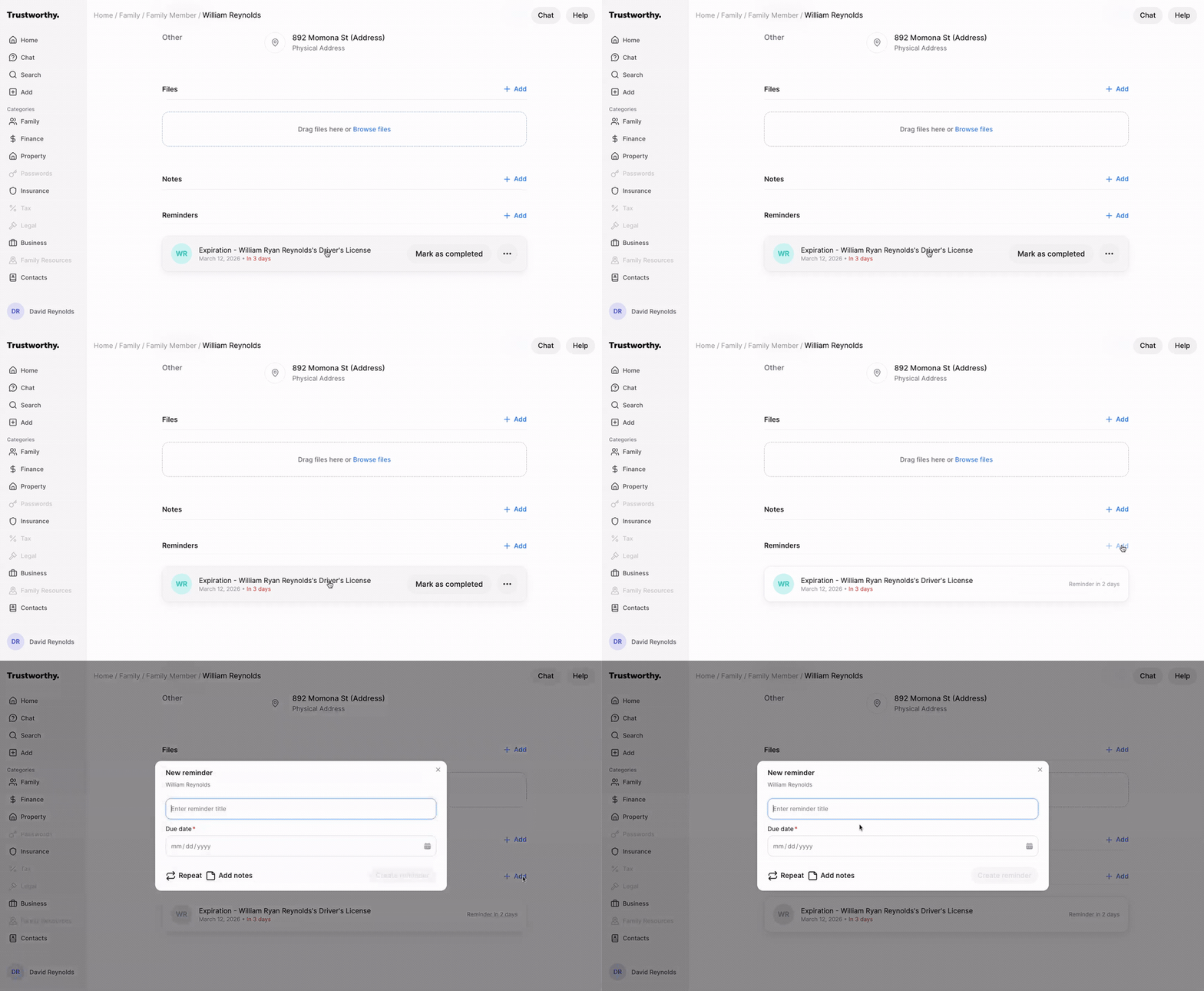
Scroll to the Reminders section and click the + Add button.
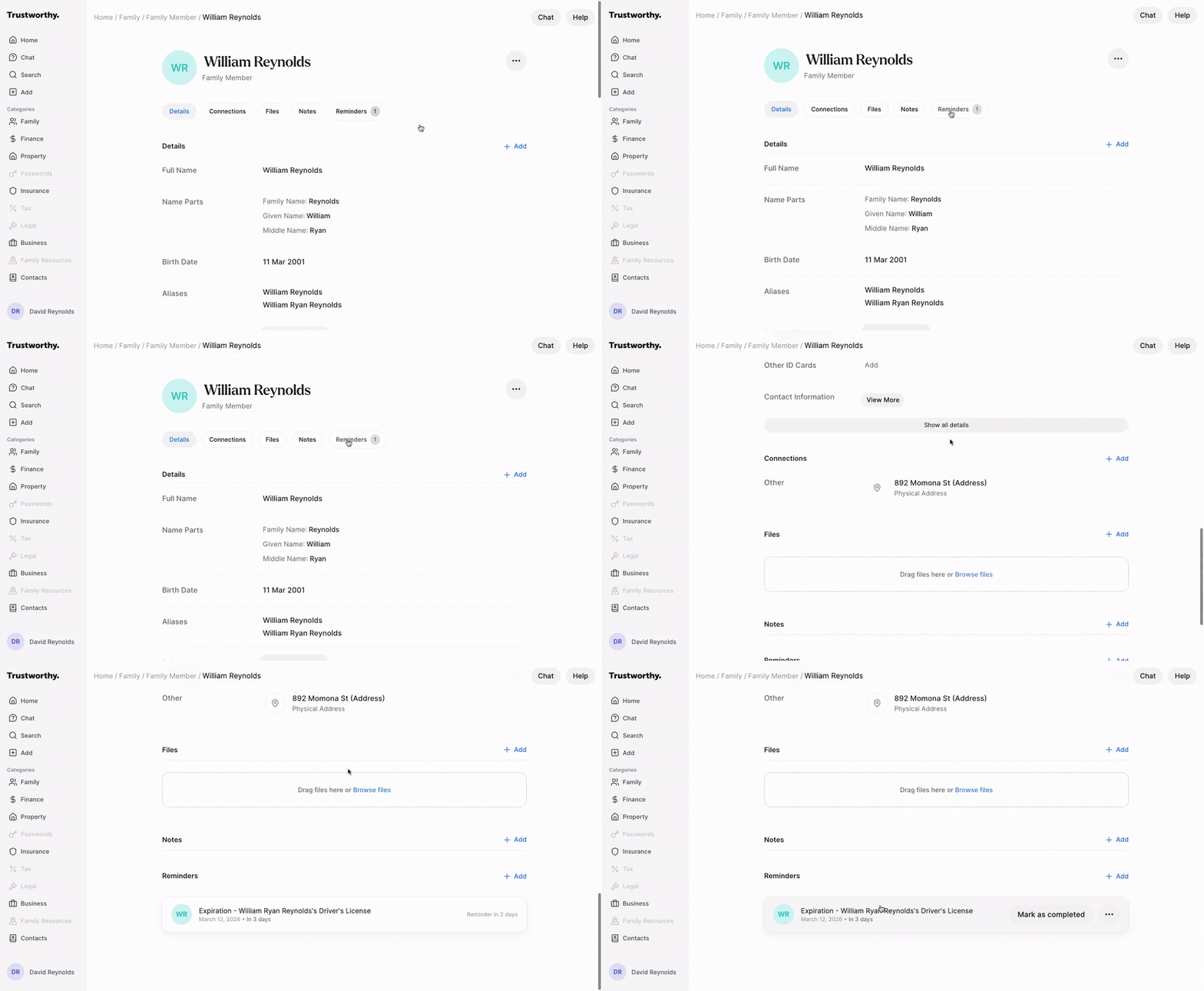
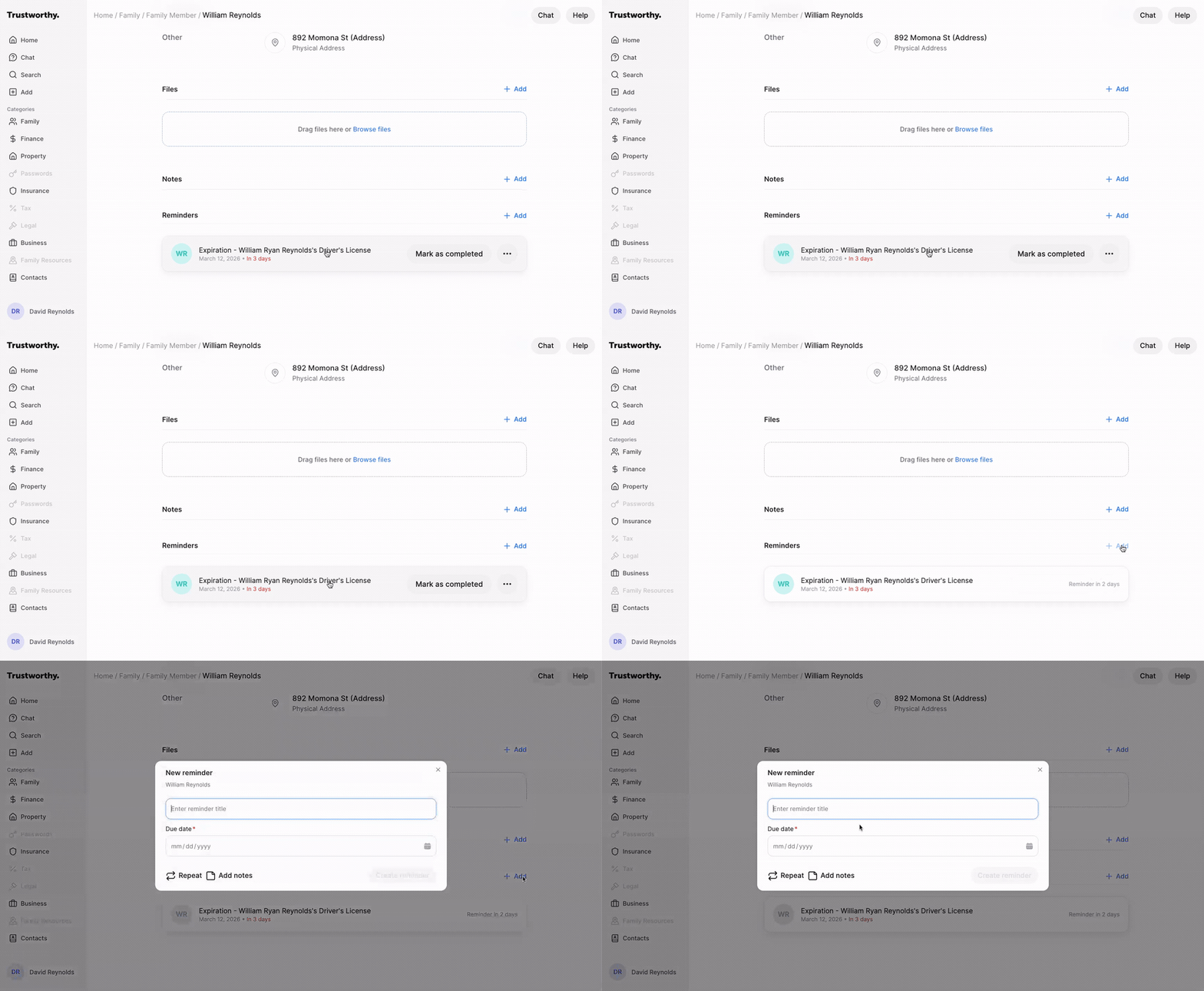
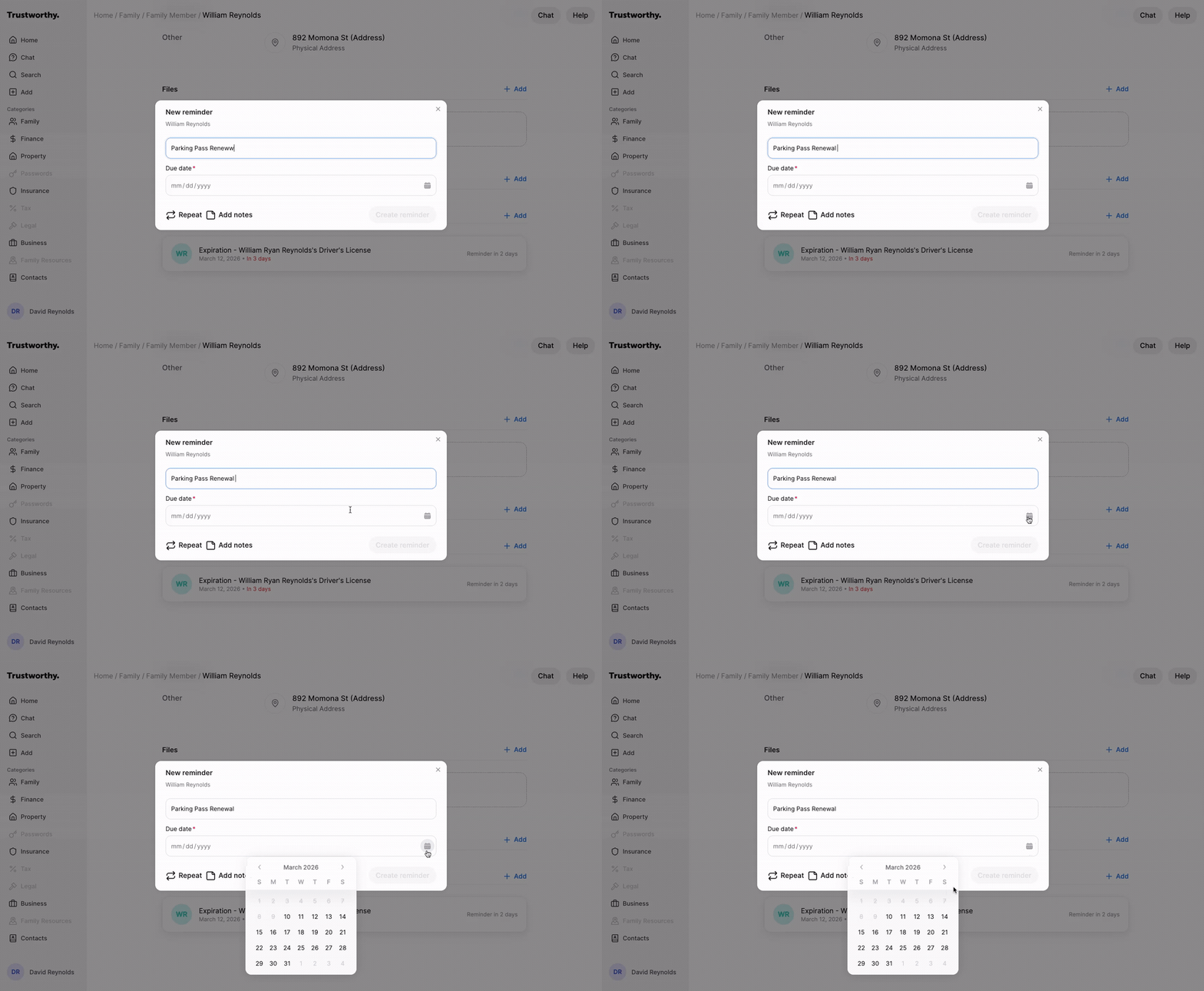
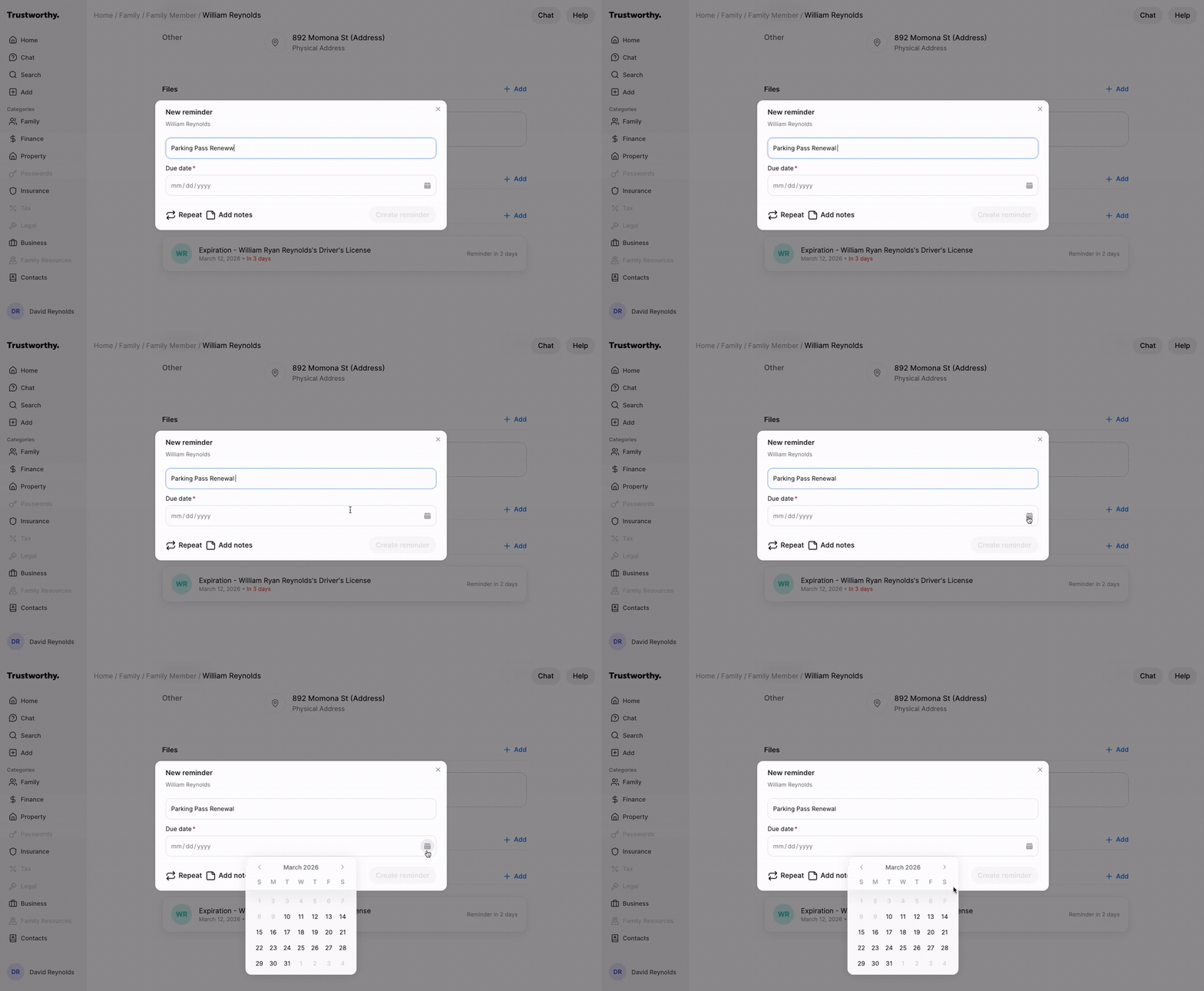
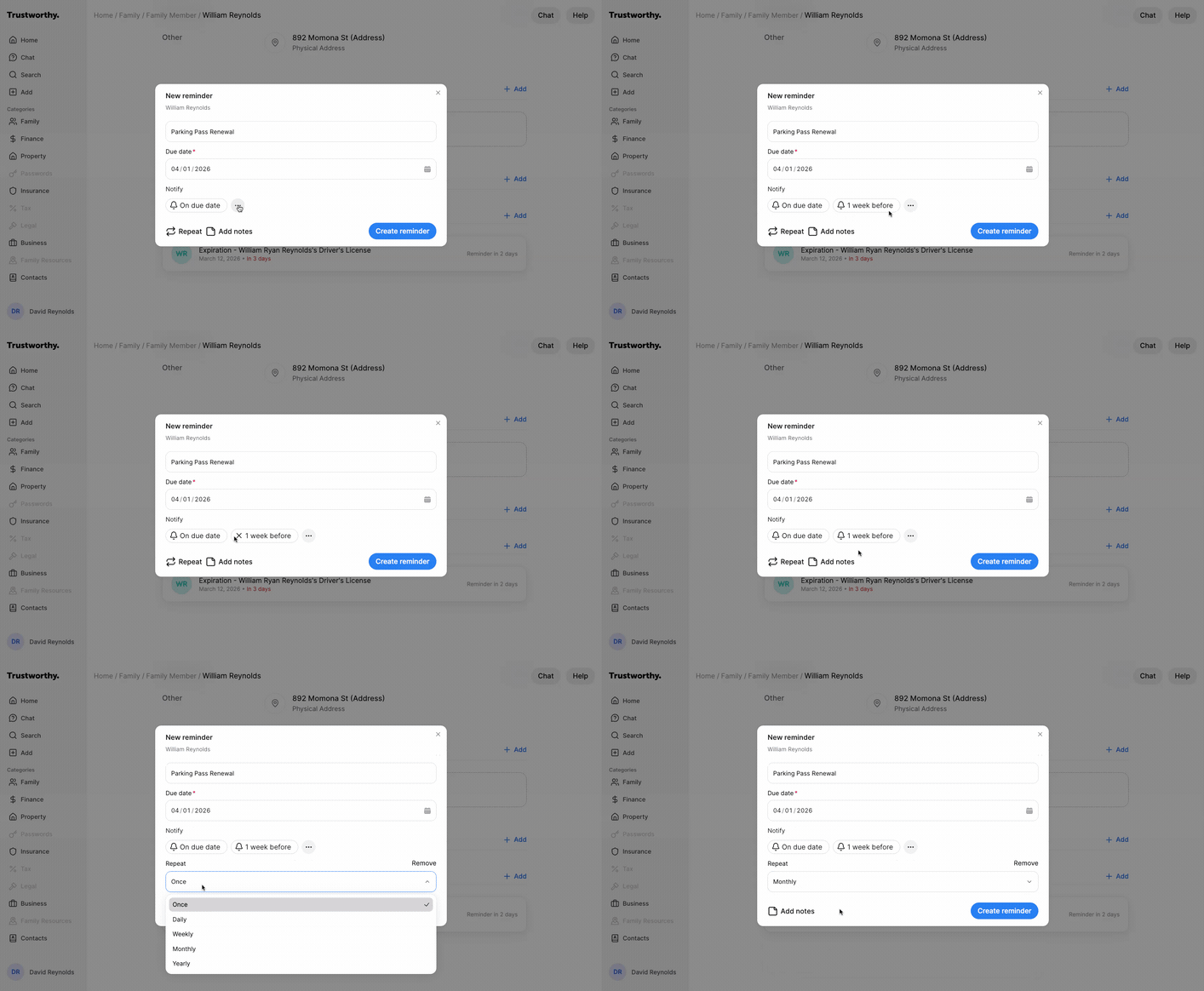
In the New reminder window, enter a descriptive title for your reminder in the text field.
Click the Due date field to select a date from the calendar.
Set your notification preferences. You can choose to be notified On due date or 1 week before.
(Optional) Click Repeat to set up a recurring reminder, such as daily, weekly, monthly, or yearly.
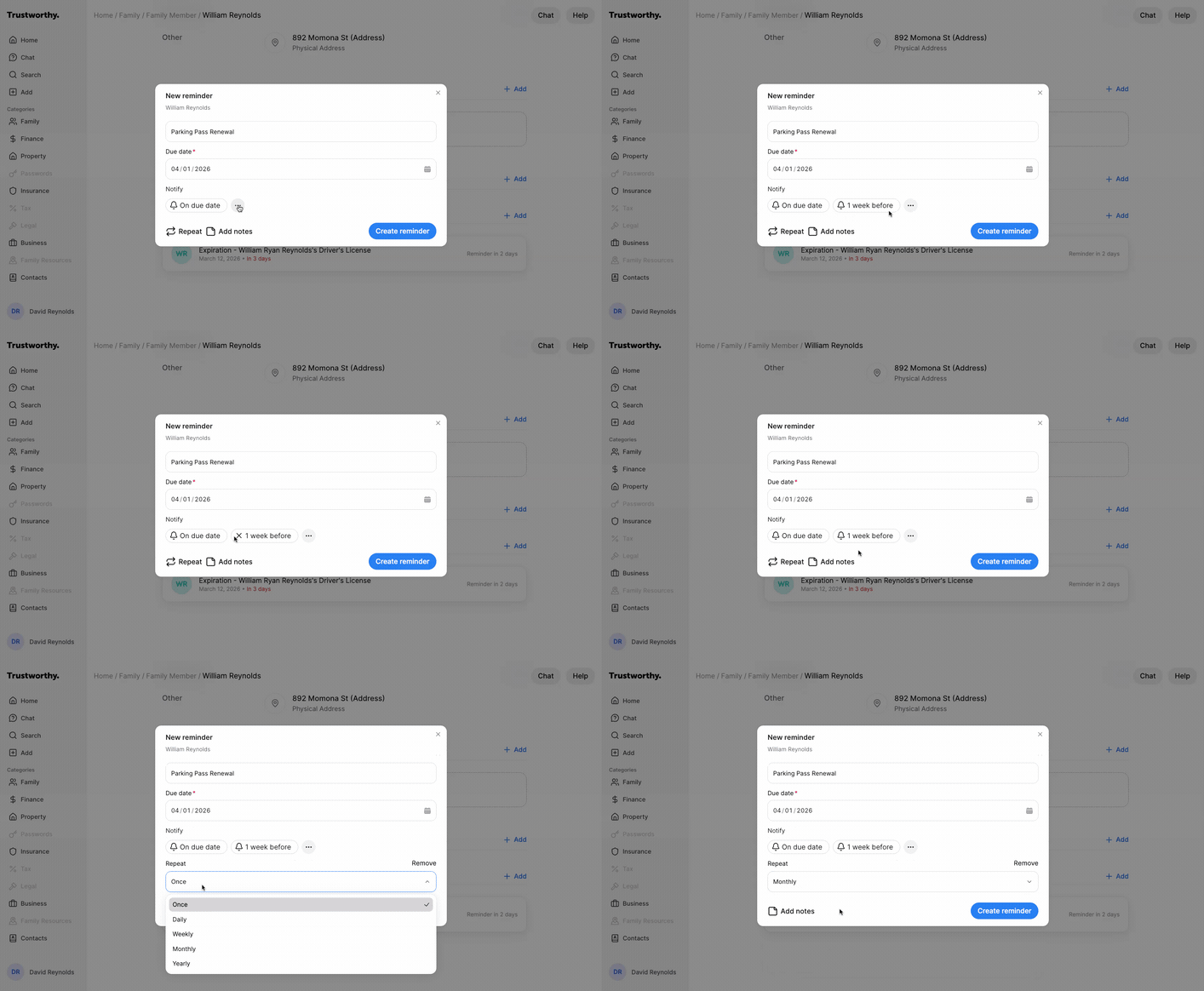
(Optional) Click Add notes to include any additional details or context for the reminder.
Click Create reminder to save. Your new reminder will appear in the list on the current page and also on your home screen under the Reminders tab.
Where You'll See Reminders
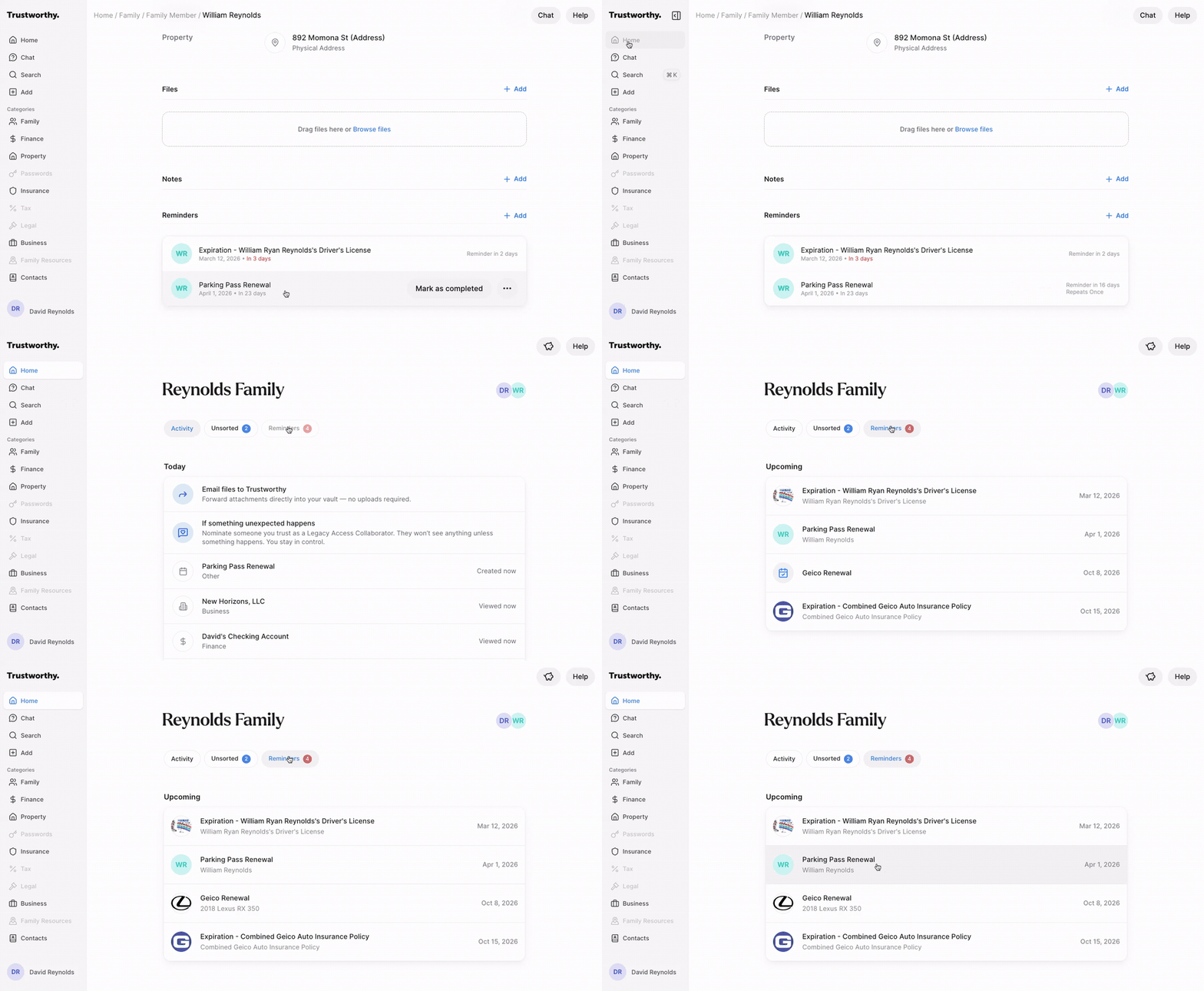
Your reminders appear in two places:
On your Dashboard, select Reminders to see everything due across your account in one list.
On any Page, reminders appear in the Reminders section — so a page like a vehicle can show several reminders together, right alongside the information they relate to.
Set a Reminder to Repeat
When you're creating or editing a reminder, select Repeat to have it recur automatically — no need to recreate it each time. Choose Daily, Weekly, Monthly, or Yearly, or leave it set to Never for a one-time reminder.
Recurring reminders are ideal for things you revisit on a schedule, like yearly policy reviews, quarterly financial check-ins, or annual document reviews.
Turning Off Reminders
There is no option at this time to disable, turn off, or unsubscribe from email-based notifications about your reminders. Full-access account members receive these reminder emails; partial-access and legacy-access members do not.
You do have a couple of options.
Delete reminders you no longer need
There are two ways to clear a reminder, and they do different things:
Mark as completed is for a task you have finished this time around. If the reminder repeats, it returns on its next date — which is what you want for something like an annual policy review.
Delete removes the reminder for good, along with any future dates and the emails that go with them.
The reminders worth deleting are usually the ones attached to something that is no longer part of your life — you sold the car, canceled the policy, closed the account. A repeating reminder keeps arriving until it is deleted, so these are easy to overlook.
To delete a reminder:
Go to the Reminders tab on your Dashboard, or the Reminders section of the page the reminder belongs to.
Hover over the reminder and select the … menu on the right.
Select Delete, then confirm.
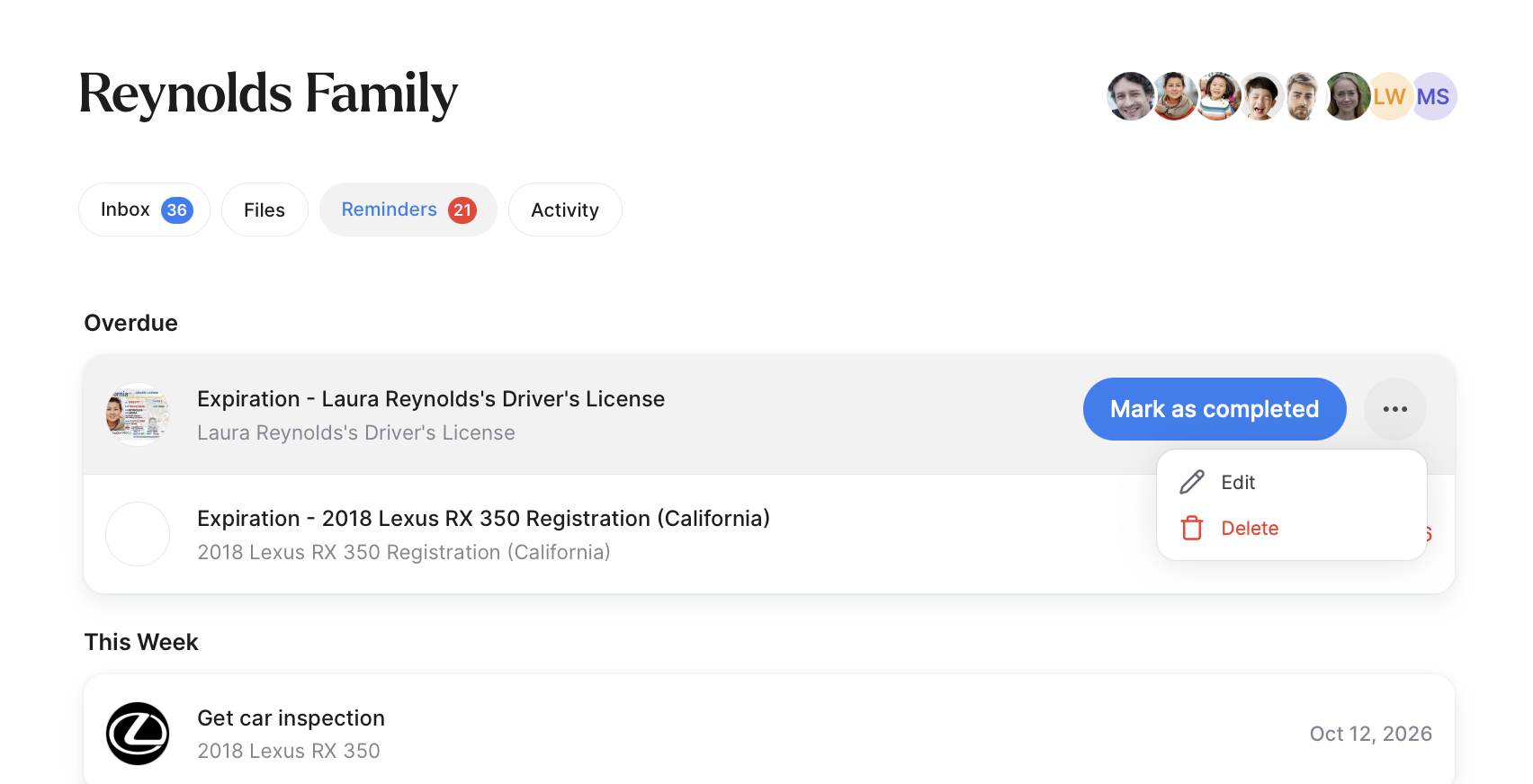
You can delete any reminder — one you created yourself, or one Trustworthy added automatically for a document expiration or renewal.
Deleting several reminders at once
There's no way to select multiple reminders and delete them in one go, and no option to delete all of your reminders at once. If you have a lot to clear out, the quickest route is to work down a single list rather than going page by page:
Go to your Dashboard and select the Reminders tab, which shows everything due across your whole account in one place.
Hover over a reminder, open the … menu on the right, and select Delete.
Confirm, then move to the next one.
The ones most worth deleting are attached to something no longer in your life — you sold the car, canceled the policy, closed the account. A repeating reminder keeps arriving until it is deleted.
Filter reminder emails in your inbox
You can create a rule in your email program so reminder emails are filed into a folder automatically. The reminders stay in your account where you can find them, and the emails stay out of your main inbox.
Filtering on the sender alone would catch every email we send, including ones you want. Match on both:
From: Trustworthy <support@trustworthy.com>
Subject contains: Reminder:
Reminder emails always begin with Reminder: — for example, Reminder: Expiration - Emily Reynolds’s Driver’s License. Most email providers, including Gmail, Outlook, and Apple Mail, offer this under a setting called Rules or Filters.
Get More Out of Reminders
Custom reminders in Trustworthy can do much more than simply mark a date on a calendar. You can configure reminders to help yourself — and your collaborators — stay organized, prepared, and informed over time.
Reminder notifications
When creating a reminder, you can choose to receive notifications before the reminder is due. For example, add an extra notification:
a reminder one week before a passport expires
a reminder several days before an insurance renewal
advance notice before a tax or estate planning deadline
Who receives reminder notifications
Reminder emails are sent to you and to any full-access collaborators on your account.
Partial-access collaborators don’t receive reminder emails. They can still see reminders in the app on any page shared with them — the reminder is there when they look, but nothing is sent to their inbox. Legacy-access collaborators don’t receive reminders at all.
If you’re counting on a collaborator to act on a reminder, it’s worth checking their access level first.
Adding notes and instructions
You can also add notes directly inside reminders to provide additional context or instructions. This can be especially valuable when collaborating with spouses, adult children, caregivers, or advisors.
Examples might include:
instructions for a renewal process
contact information
follow-up details after a meeting
notes about where related documents are stored
context about why the reminder matters
Full-access collaborators can also view these notes when they access the reminder.
Linked Resource On a Reminder
Reminders are connected directly to the pages or documents they relate to.
At the bottom of a reminder in edit mode, you will see a linked resource area showing where that reminder belongs within the account. Clicking this area will open the connected page or document.
This makes reminders especially useful because they do not exist separately from the information they relate to. They help guide you back to the exact resource that needs your attention.