
How to Add, Manage, and Remove Collaborators
Collaborators are trusted people — sometimes called trusted contacts — you invite into your Trustworthy account to help manage, organize, or access important information when needed.
This might include a spouse or partner, adult children, caregivers, attorneys, financial advisors, or other trusted individuals.
This guide shows you how to invite a collaborator and configure their specific access level. If you want to give someone the ability to see only certain documents, files, or categories — instead of your whole account — use the Partial access level and choose exactly what to share (Steps 3, 5, and 6 below).
Add a Collaborator. You can add Collaborators in two ways:
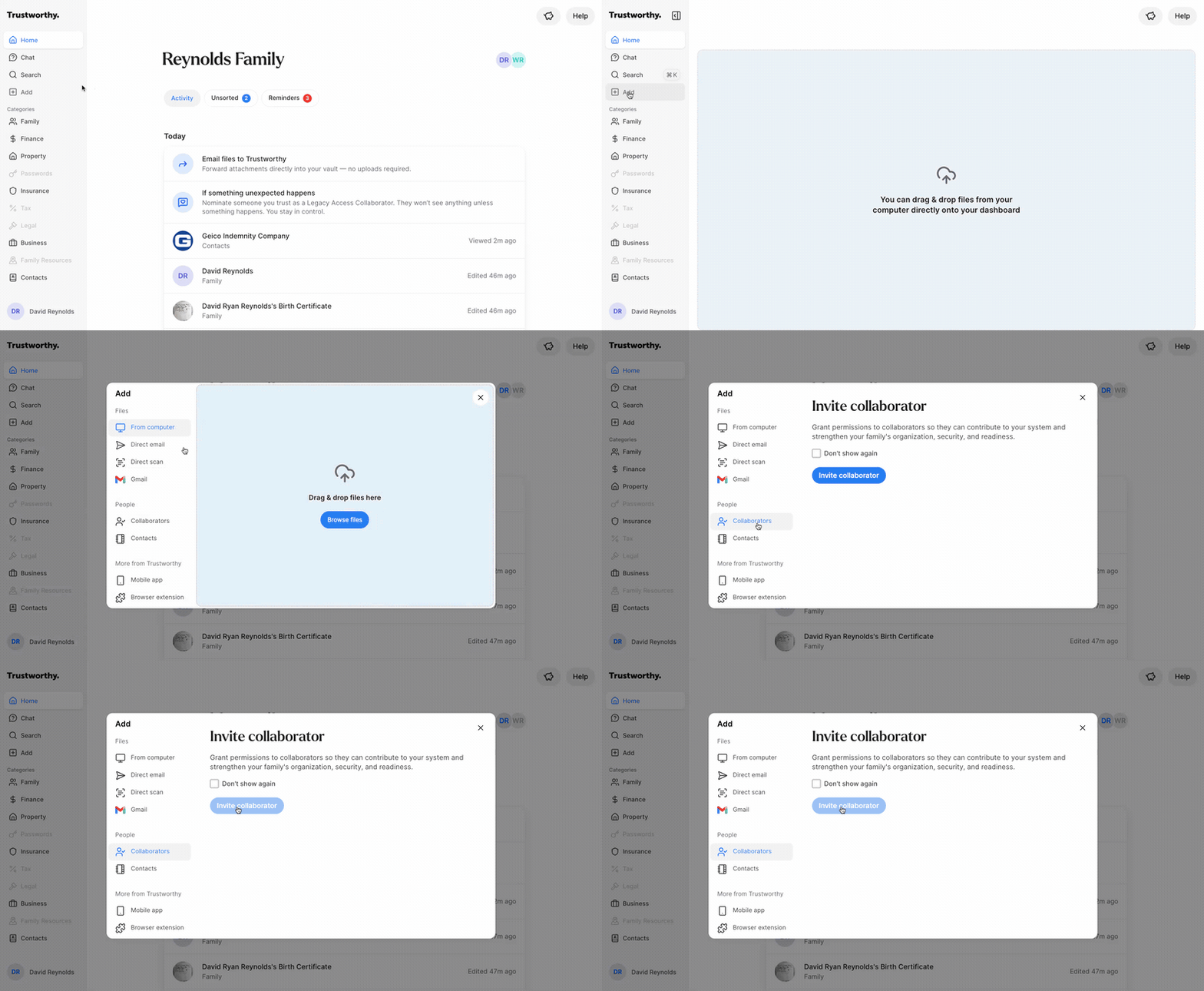
From the left-hand side of the Home screen click Add, then Collaborators.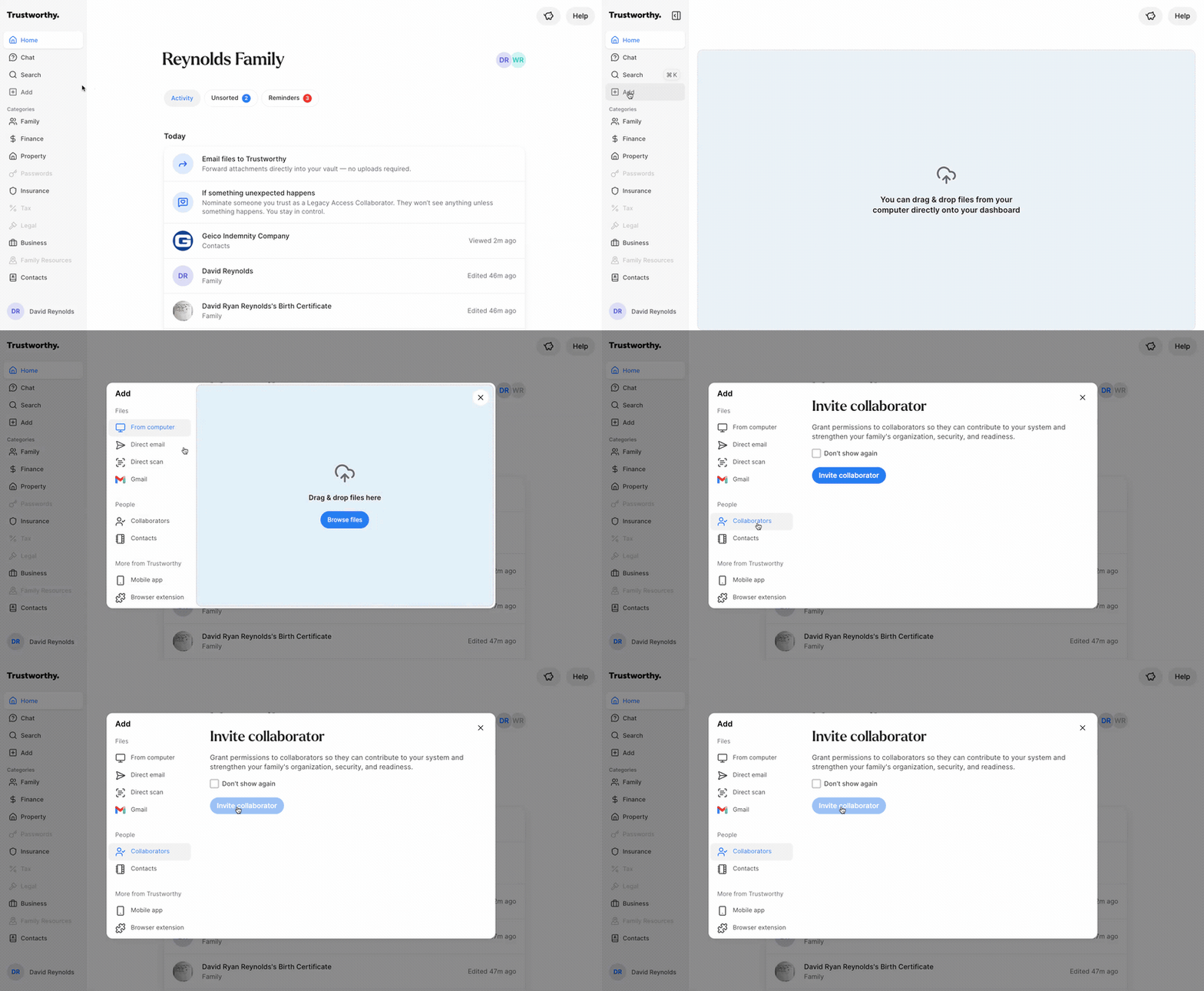
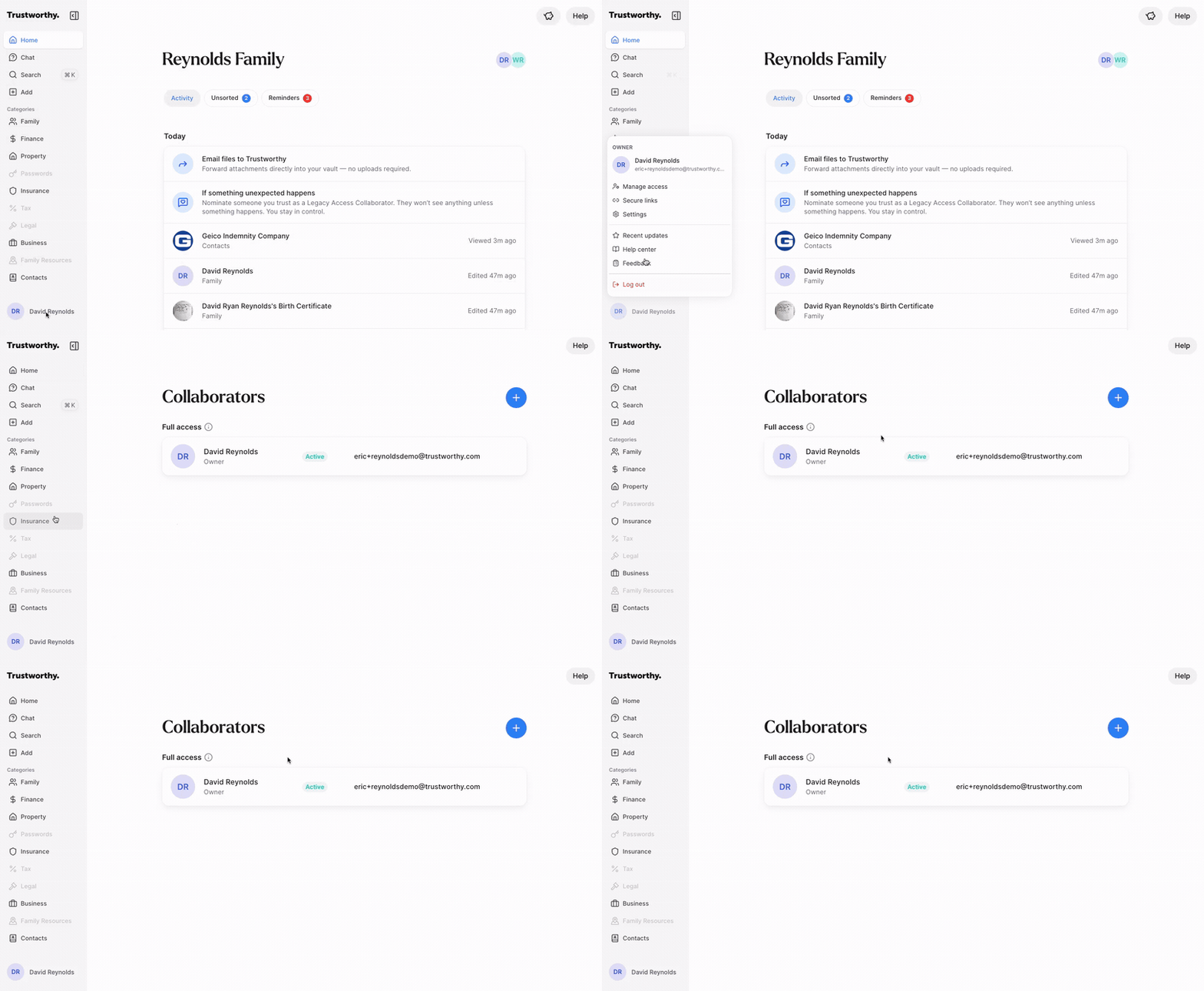
As an alternative, navigate to the bottom-left corner of the screen, click your Account Menu, and select Manage access from the menu.
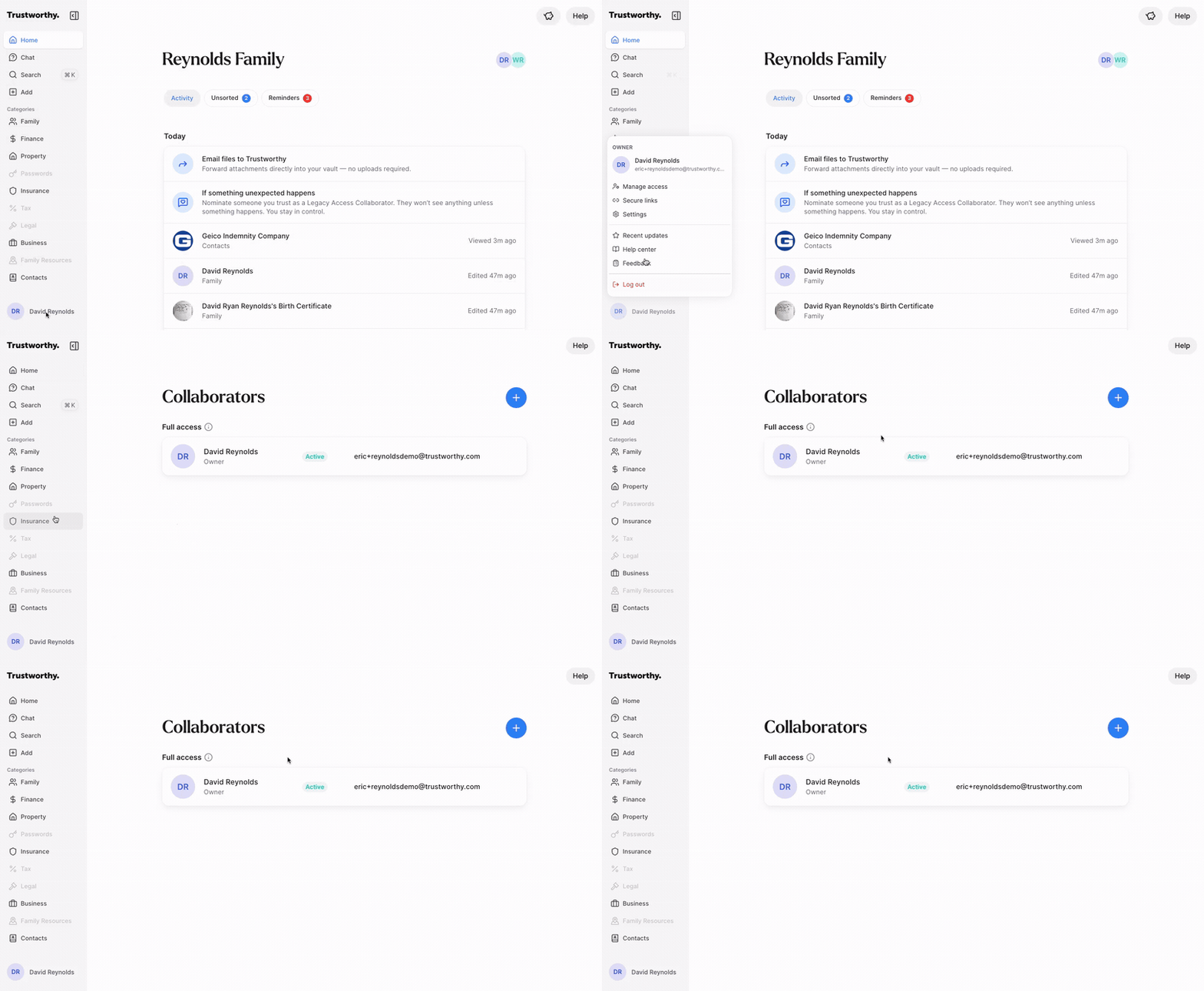
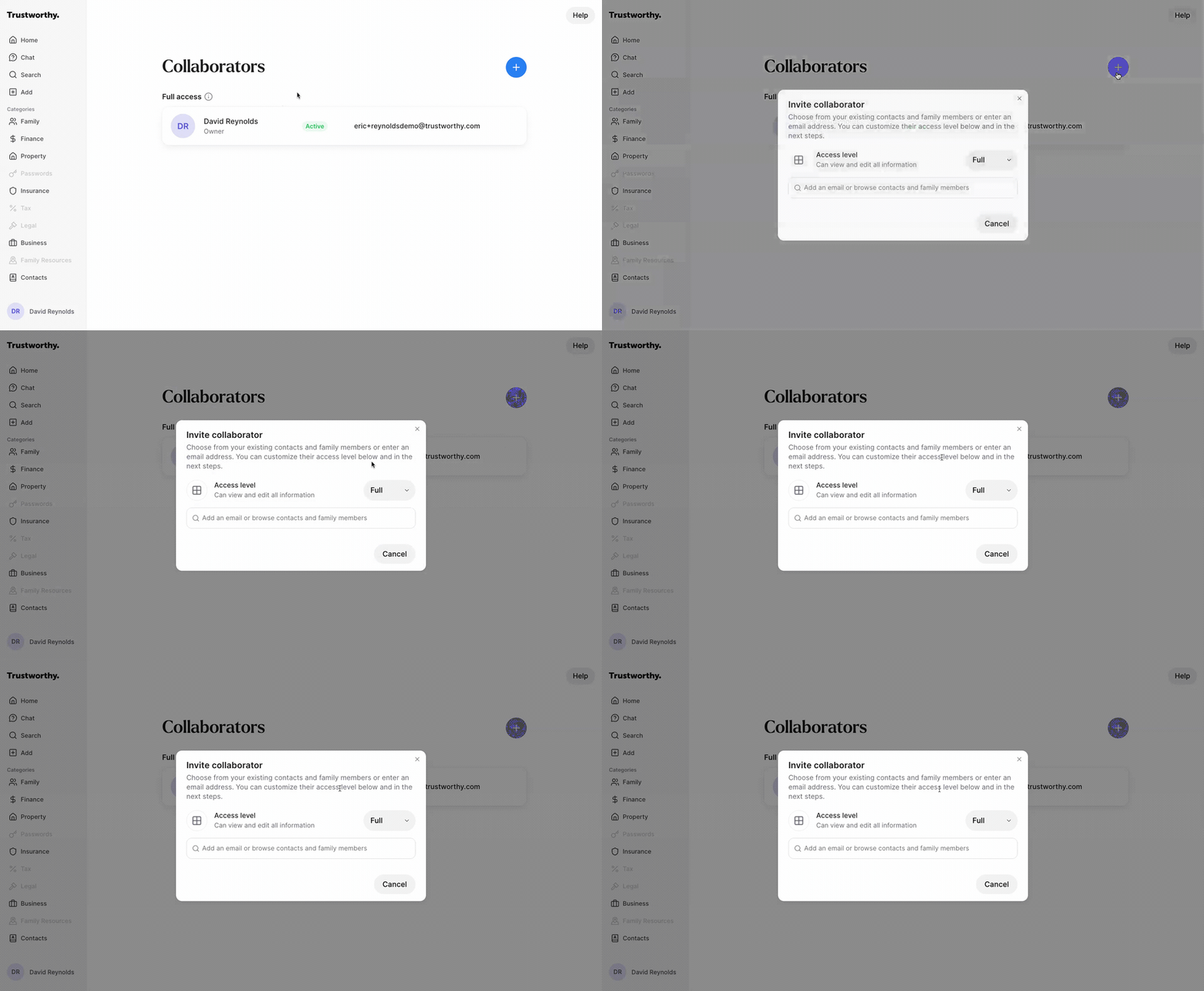
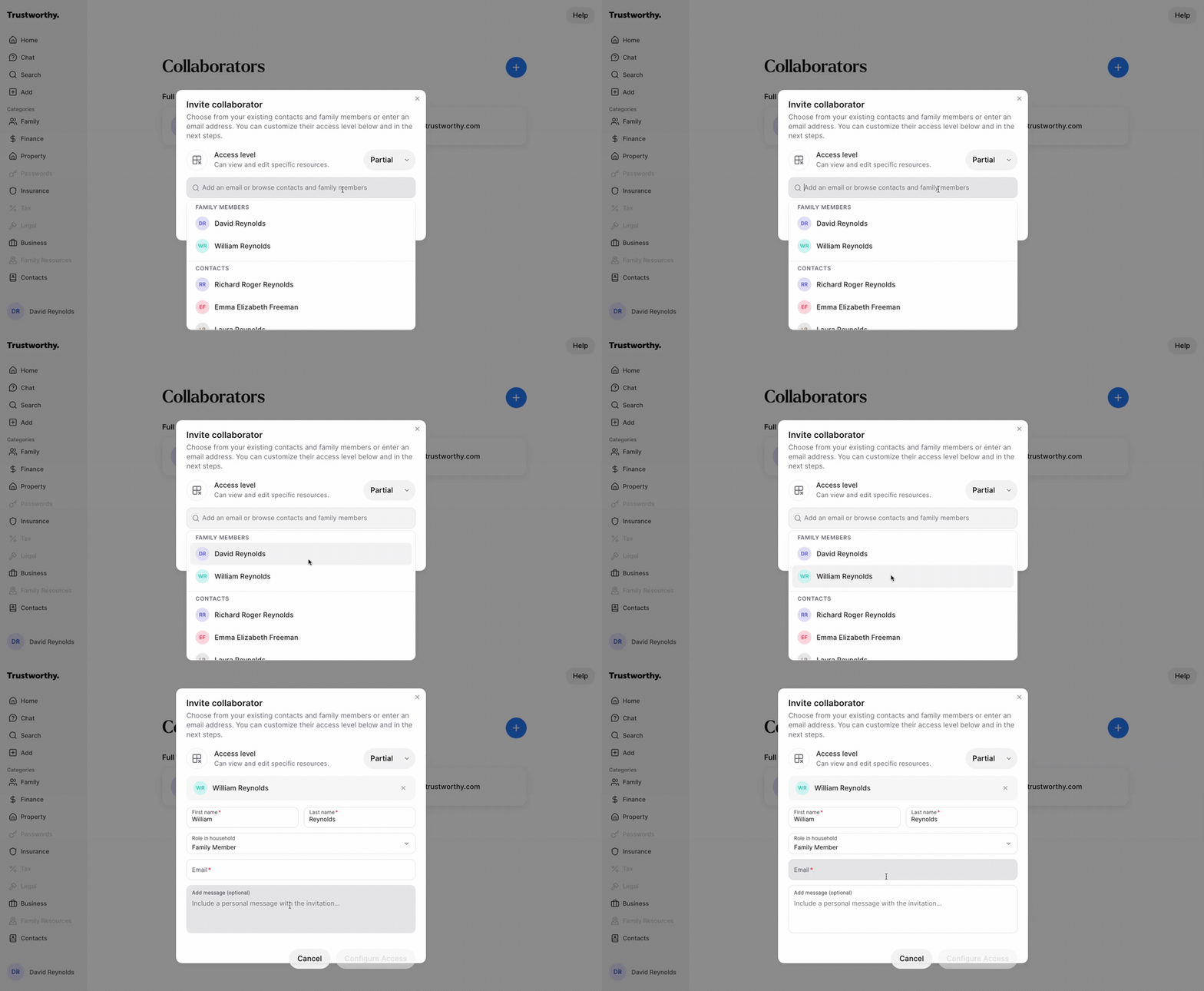
On the Collaborators screen, click the blue + icon in the top-right corner to open the invite window.
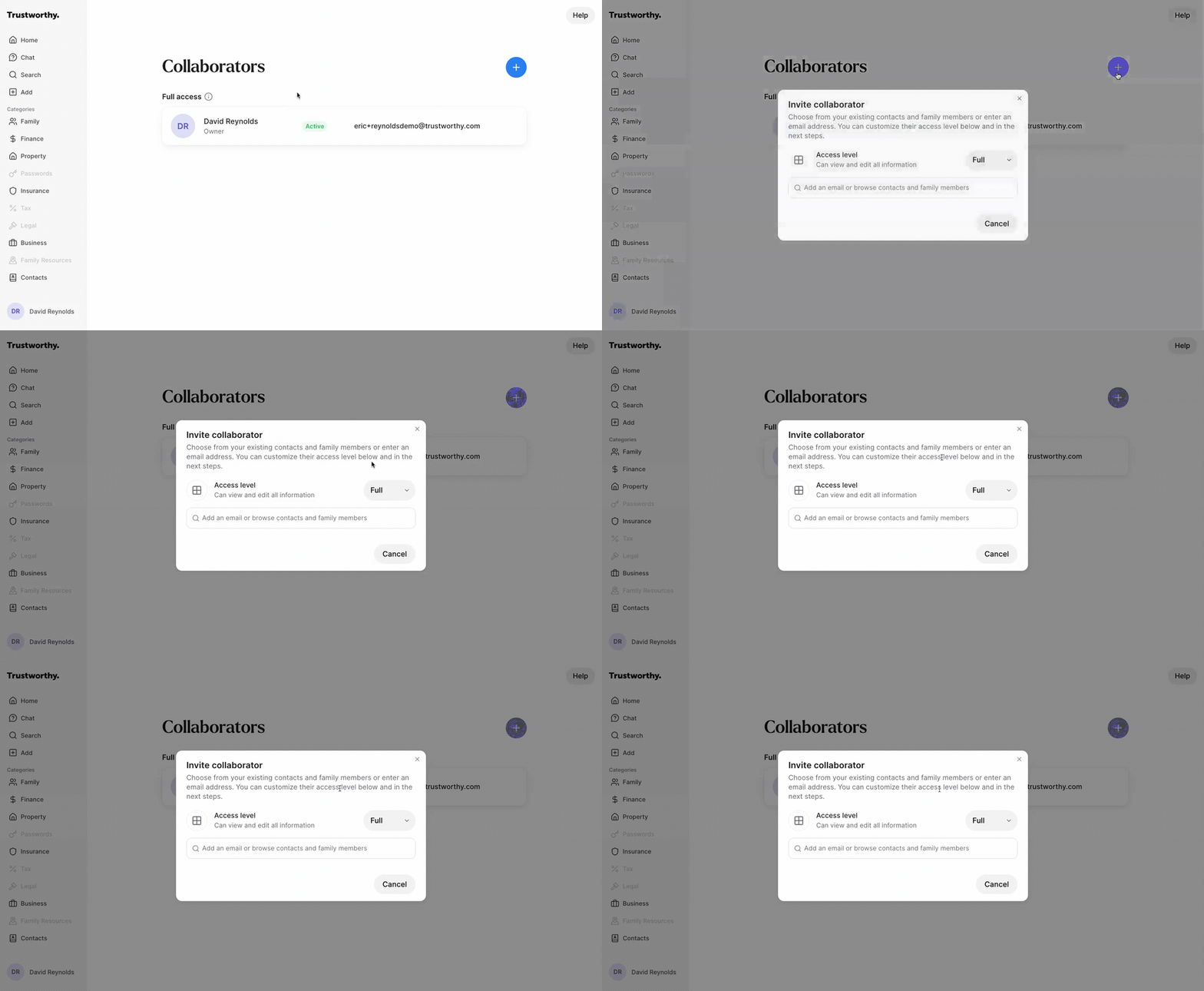
Different collaborators can have different levels of visibility and responsibility depending on how you want to share and manage information.
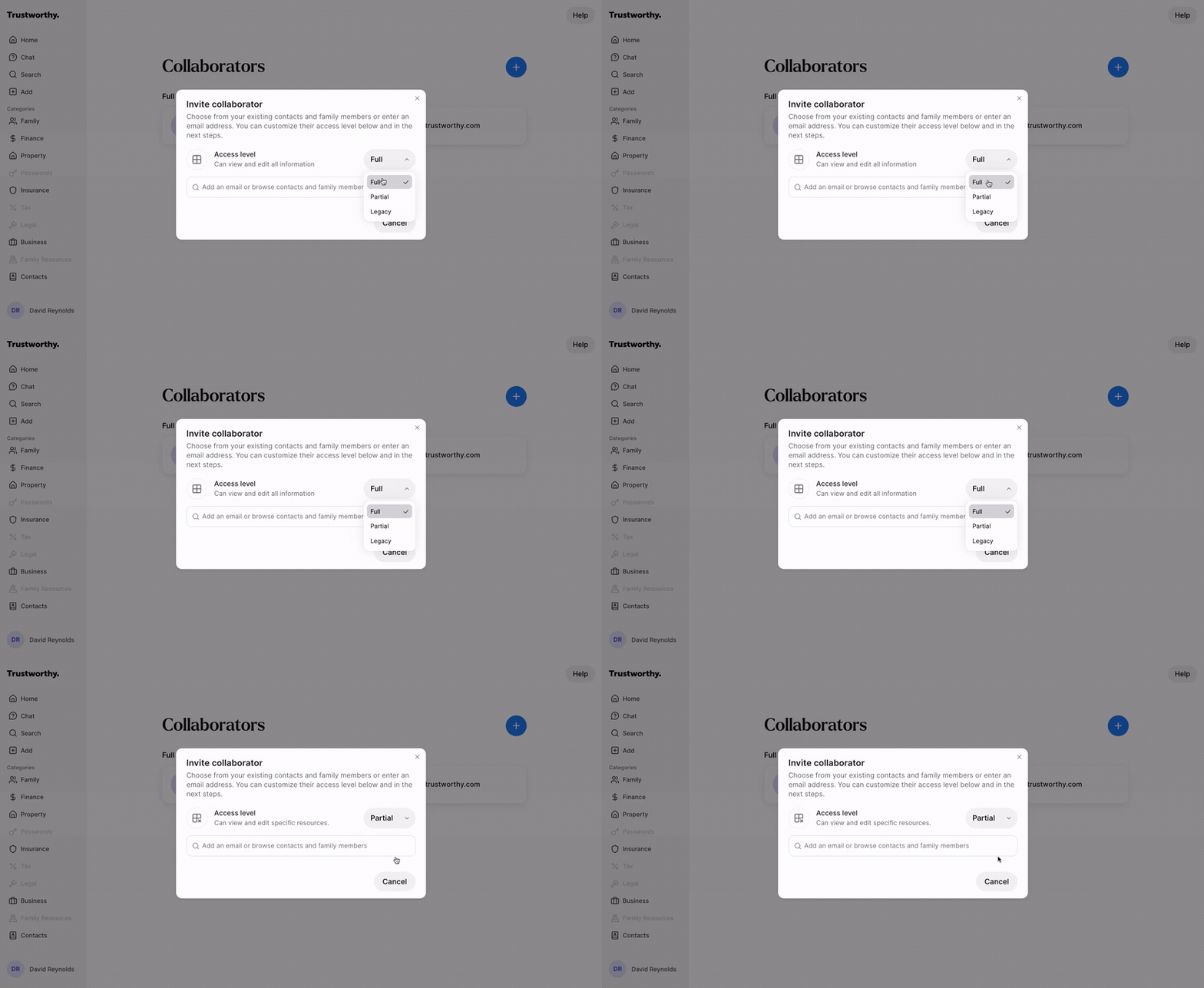
Choose an access level for your new collaborator from the Access level dropdown:
Full: Allows someone to actively participate in managing your Trustworthy account with you, including viewing, editing, organizing, and managing household information and account settings.Partial: Lets you share only specific categories or items with someone, giving you more selective control over what they can access.
Legacy: Does not provide ongoing access today unless separately added as a partial-access collaborator (see Step #7 below). Instead, this collaborator may receive access in the future after death, based on Trustworthy’s verification process.
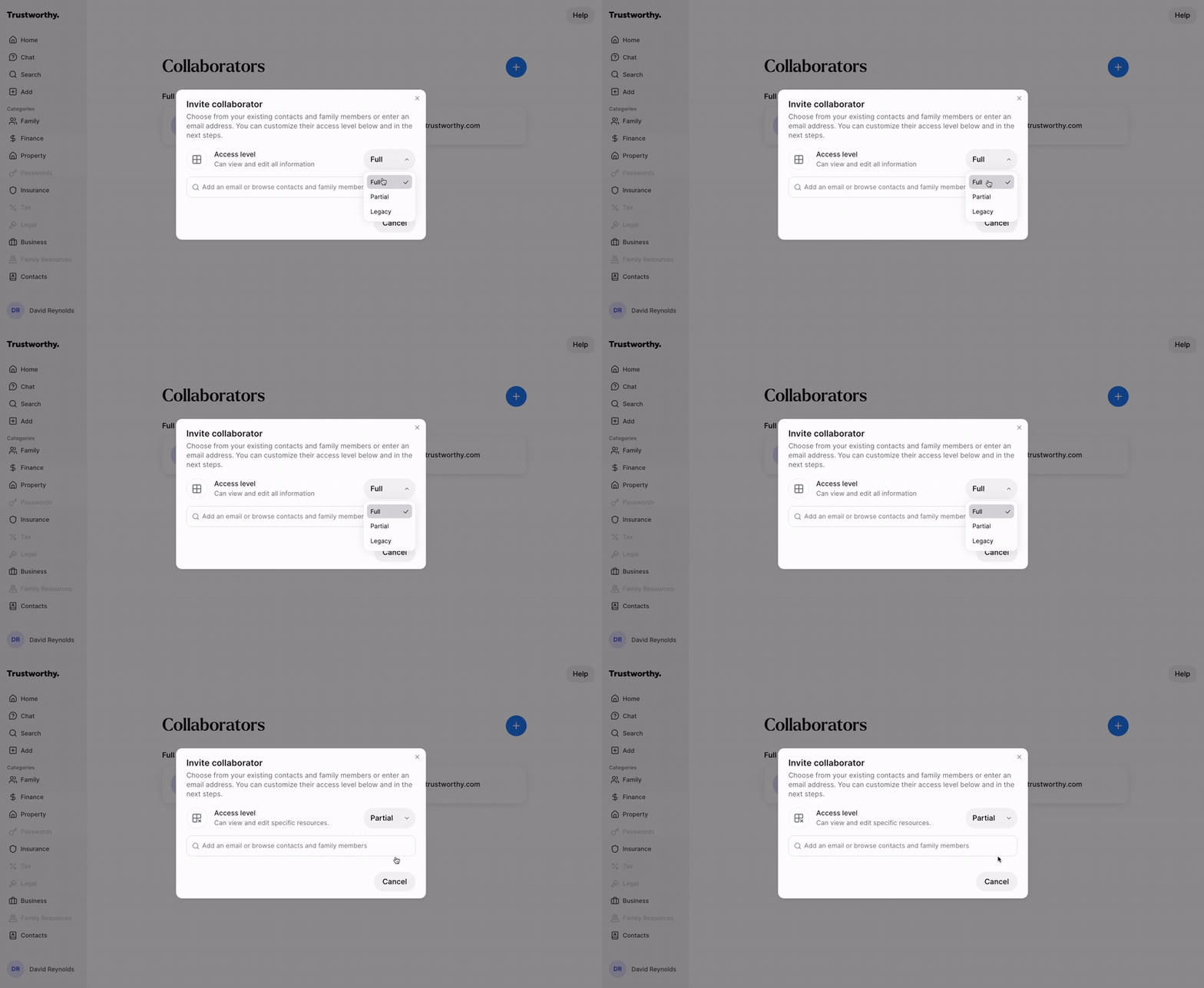
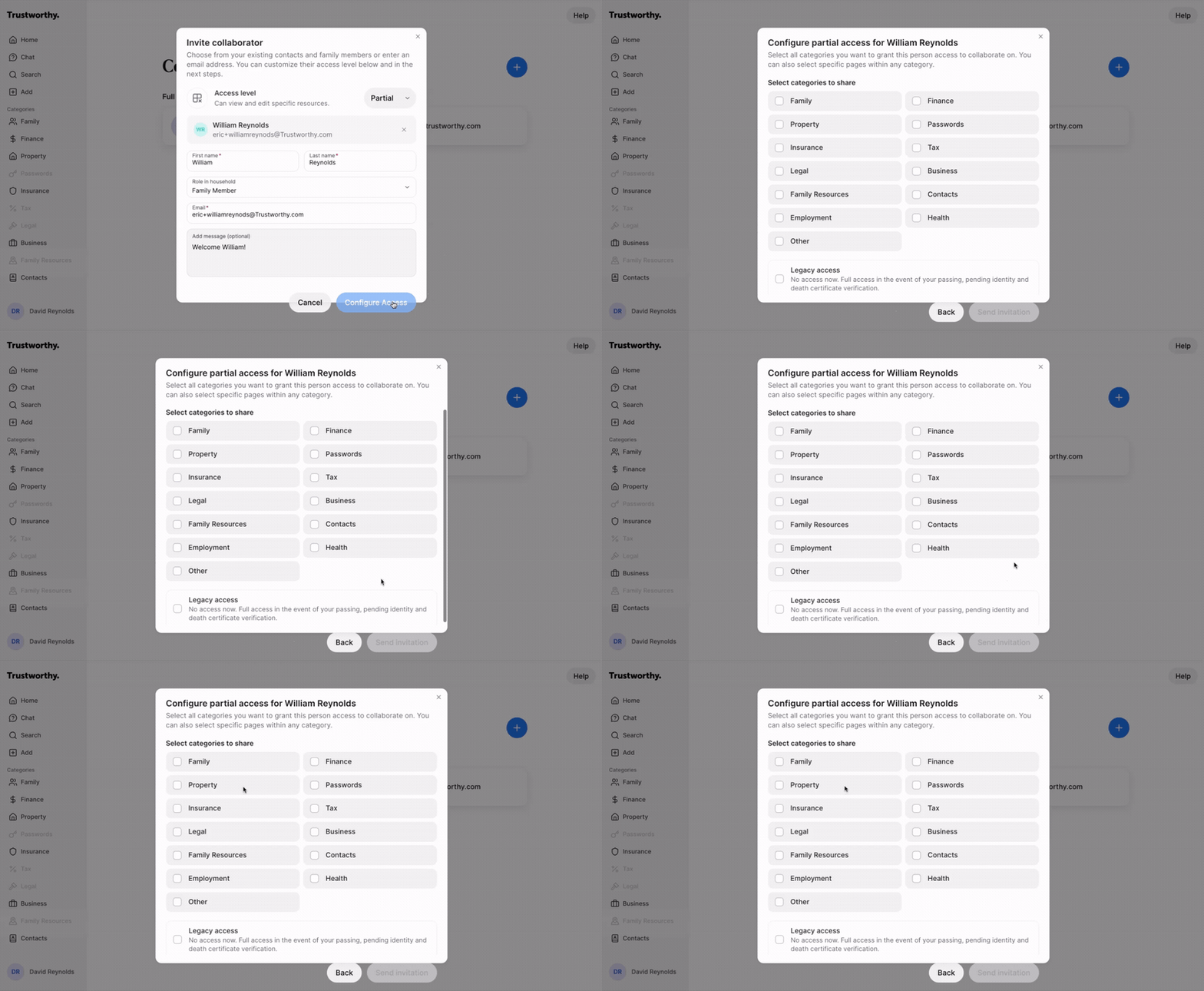
In the search bar, either select an existing family member or contact, or type a new email address. Fill in their name, role, and an optional personal message for the invitation.
If the person is already in your account, select them from the search results rather than typing their email address. Choosing them from the list connects the invitation to the page you already have. If you type an email address instead, Trustworthy creates a new page for that person in Contacts — so someone who is already in your Family category would end up listed in both places.
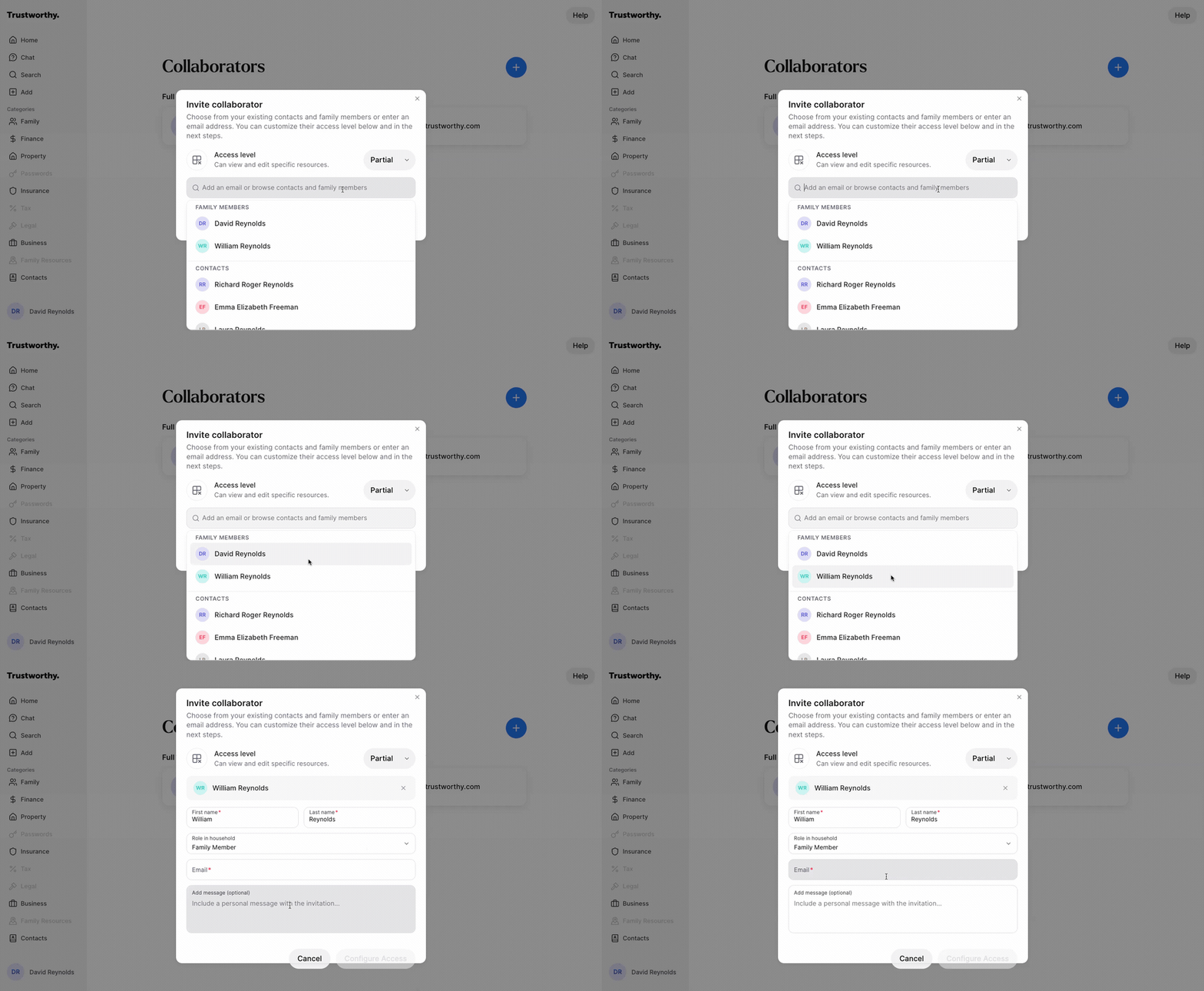
If you selected Partial access, click Configure Access. If you selected Full or Legacy, this button will say Send Invitation and you can proceed to the final step.
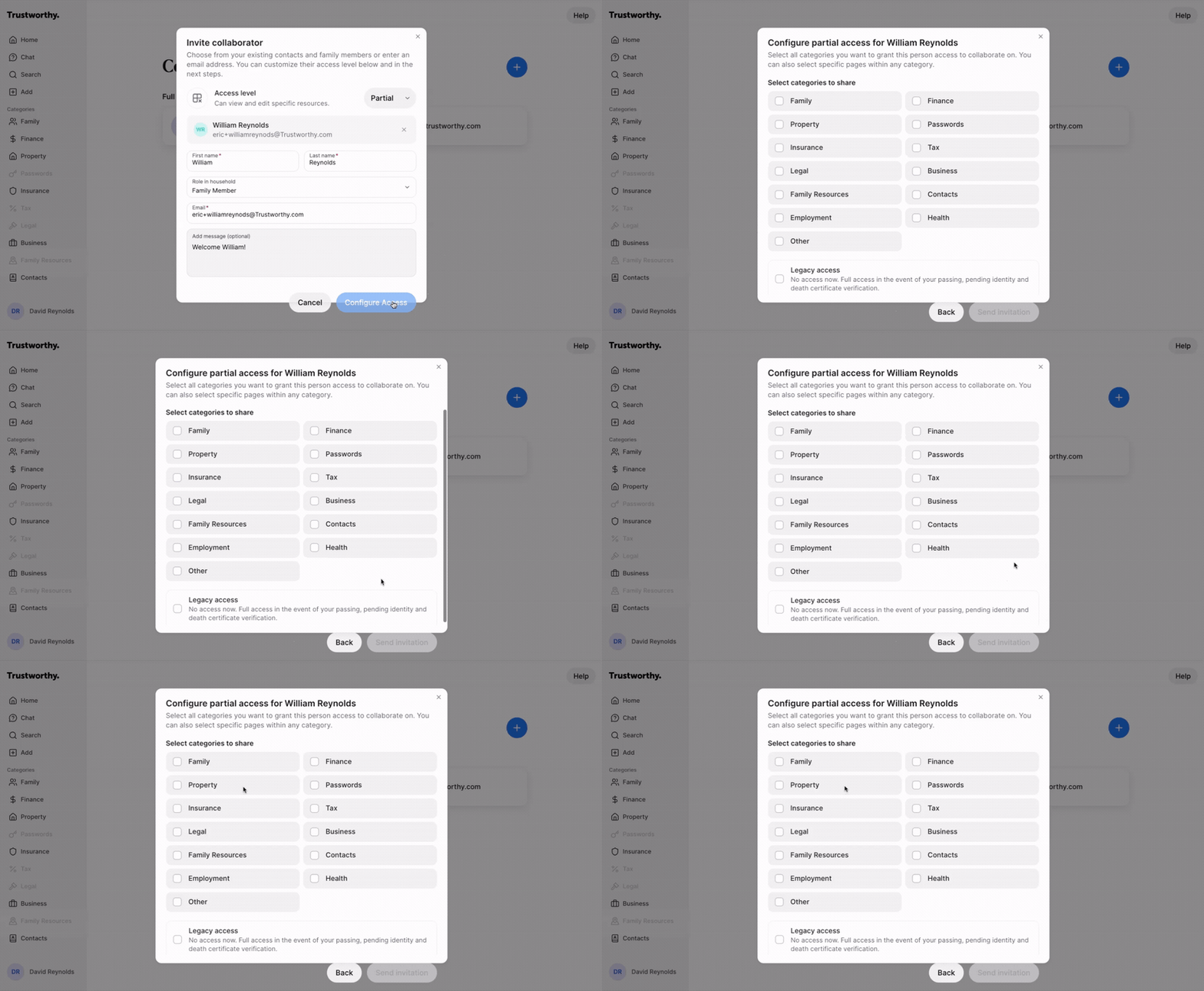
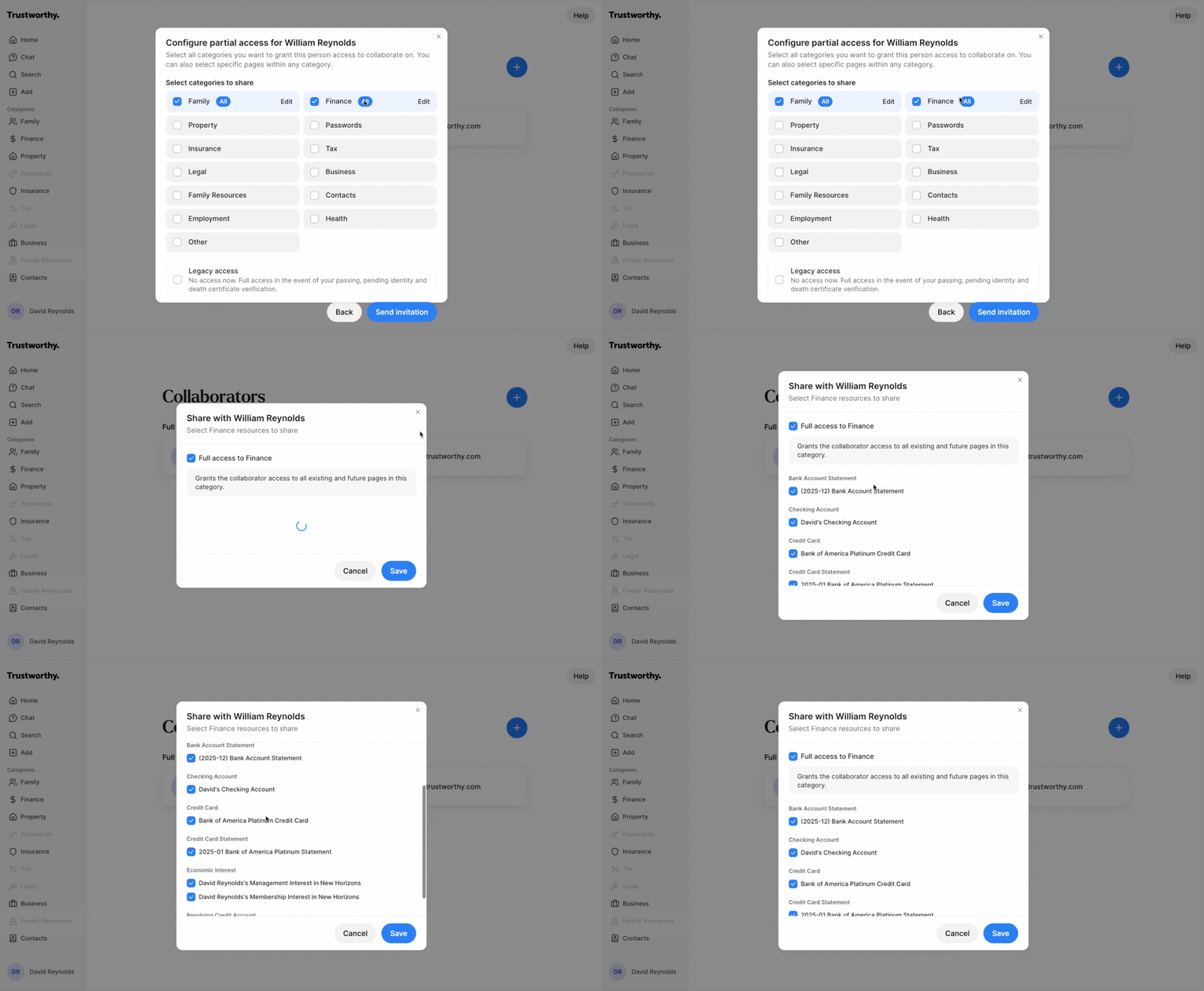
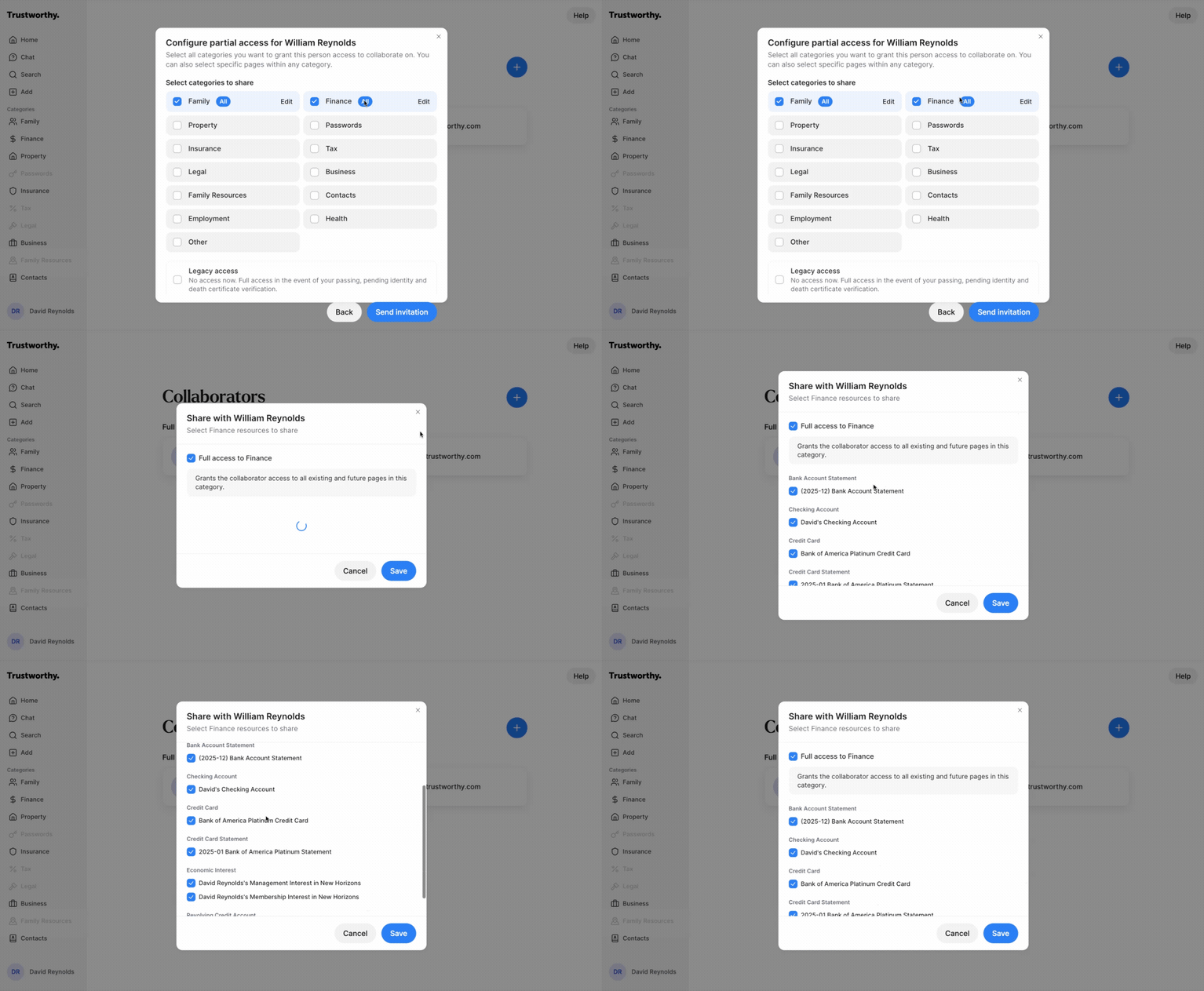
On the Configure partial access screen, check the boxes for the categories you want to share. To share only specific items within a category, click the pencil icon next to it and select the individual items. Each shared category shows a View or Edit badge for the level of access it grants; clicking that badge opens the same screen, where you can change it.
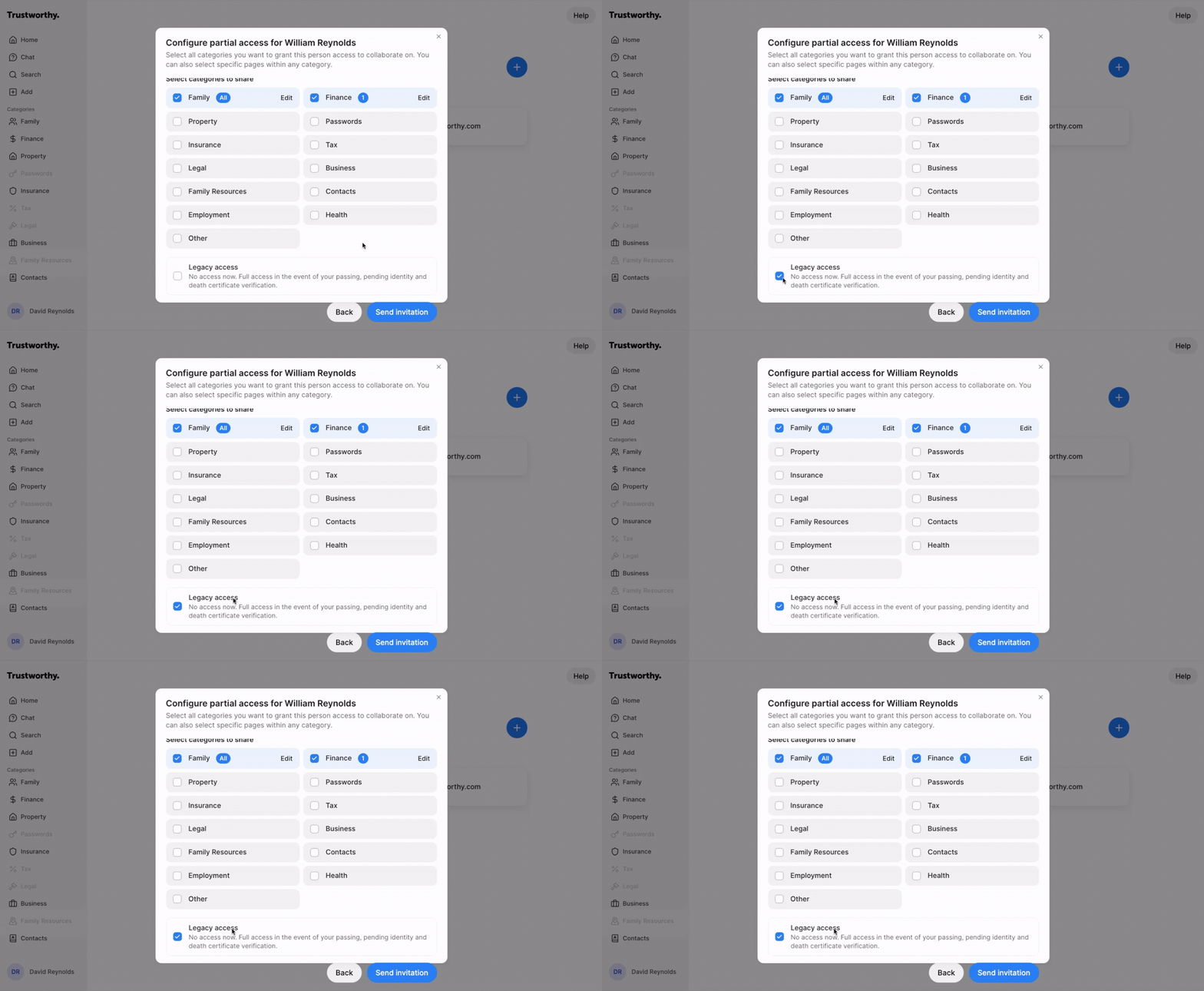
You can also grant Legacy access to a collaborator with partial access by checking the Legacy access box at the bottom. This allows the collaborator to maintain limited access today while also being designated for future full-account access in the event of death, following Trustworthy’s verification process.
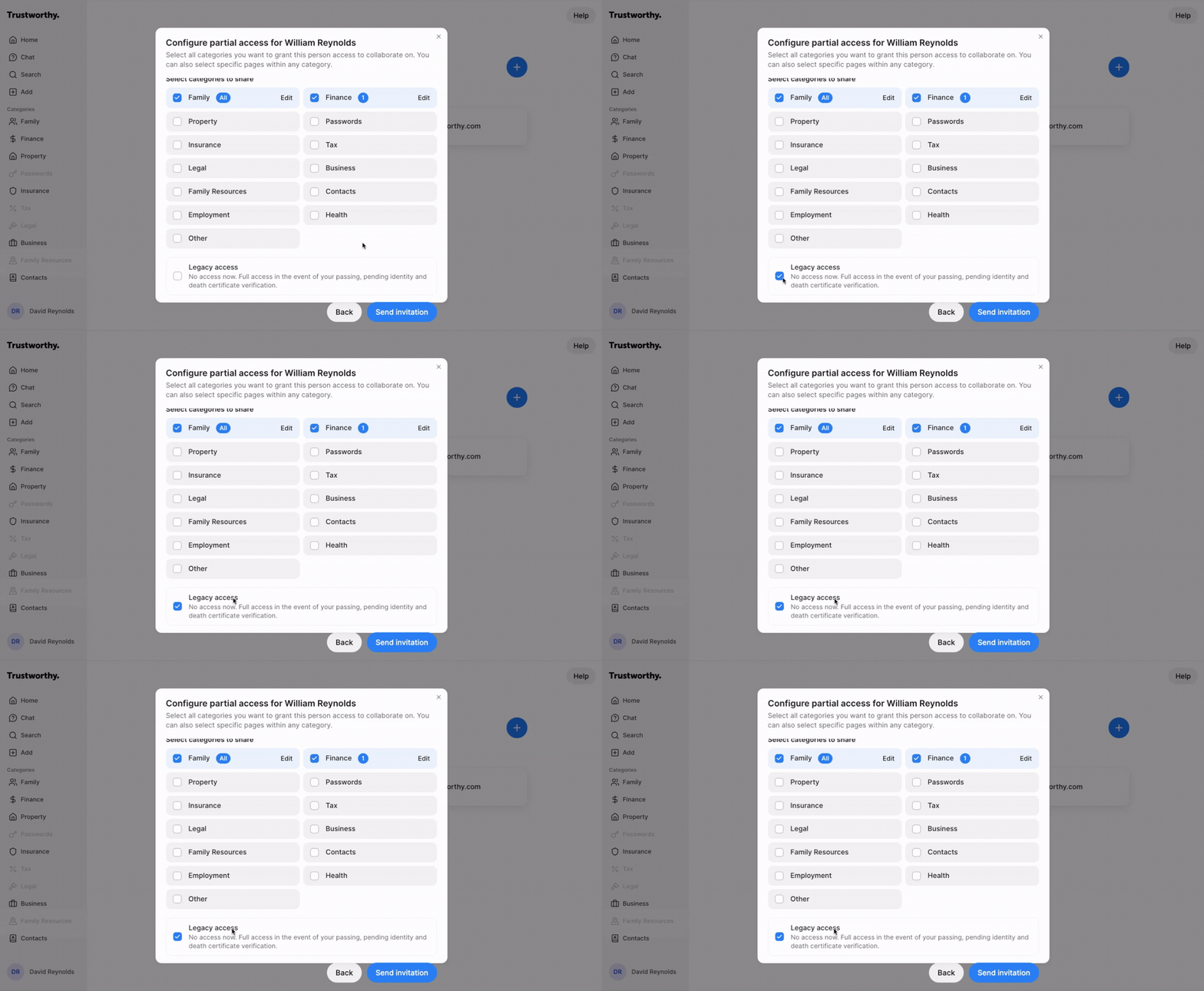
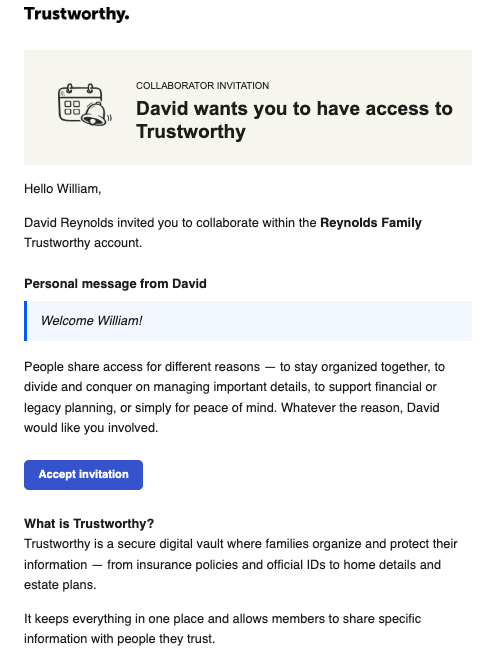
Click Send invitation to complete the process. Your collaborator will receive an email to accept the invitation and set up their account.
Email to Collaborator:
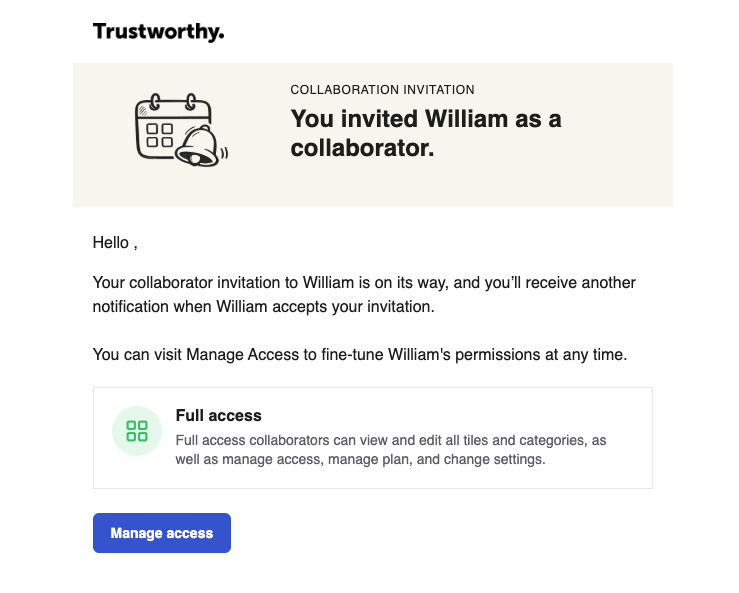
Email to Account Owner:
Remove a collaborator
If you no longer want someone to have access to your account, you can remove them at any time. Removing a collaborator revokes their access to your household immediately. The account owner and any Full access collaborator can remove anyone else; no one can remove the account owner.
On the web:
Go to the bottom-left corner of the screen, click your Account Menu, and select Manage access.
Find the person in your list of collaborators, click the three dots at the end of their row, and choose Manage access.
In the panel that opens, click the three dots next to their name and choose Delete collaborator.
Click Remove to confirm.
In the mobile app, open Settings, tap Manage access, tap the person's name, then tap the menu in the top-right corner and choose Remove collaborator. Tap Remove to confirm.
Their access ends as soon as you confirm, and for privacy they are not notified that they were removed. Nothing they added to your account is deleted, and if they are also listed in your Family category, that family member page stays.
An advisor who has access to your account appears in Manage access alongside your other partial access collaborators, and you remove their access the same way.
If they have not accepted the invitation yet
Someone who has not accepted shows as Pending. Rather than removing them, click the three dots on their row and choose Cancel invitation. Their invitation stops working and they can no longer join your account.
Remove Legacy access
Legacy collaborators are listed in their own Legacy access section of Manage access, and their access is removed separately. Click the three dots on that person's row and choose Remove legacy access. If they have not verified their email address yet, the option reads Cancel invitation instead.
For who can see and do what at each access level, see Understanding Collaborator Access in Trustworthy.