SecureLink Email Button is Not Working
If clicking the Email button for a SecureLink does not appear to do anything, the issue is usually related to either a browser pop-up blocker or your device not having a default email application configured yet.
The good news is that this is typically quick to resolve. Please try the troubleshooting steps below. Note: If you are a Gmail user, start with the troubleshooting tips for Gmail.
Allow Pop-Ups in Your Browser
Sometimes the browser blocks the email window from opening. If you look near the top-right corner of your browser’s address bar, is there a small pop-up warning icon (often with a red “X” or similar indicator)?
If yes, click the icon > Choose “Allow pop-ups” for this site > Click Email again.
If no, try one of the next options.
Try a Different Browser
This issue can sometimes be browser-specific just based on your settings. Please try the same action using another browser. Then if it works there, you'll know it's related to your browser settings.
Set up a Default Email Application In Your Preferred Browser
Your computer may not know which email application to use when opening email links. Devices are always changing, but some version of these steps should work:
For Windows:
• Open Settings
• Go to Apps → Default apps
• In the search box, type MAILTO
• Select the MAILTO result
• Choose your preferred email application (for example: Outlook or Windows Mail)
For Mac:
• Open the Apple Mail app
• Go to Mail → Settings (or Preferences) → General
• Under “Default email reader,” choose your preferred email application (for example: Outlook or Chrome)
Once the email app is set up, click Email again.
Allow Gmail to Open Email Links
If you use Gmail in your web browser, you may need to allow Gmail to handle email links (mailto: links) before the “Create Email” button will work correctly.
Step 1 — Open Gmail in your browser
Open Gmail in Chrome, Edge, or another supported browser and make sure you are signed in.
Step 2 — Enable Gmail as your email handler
In the browser address bar, look for the small “mail handler” icon near the right side of the address bar.
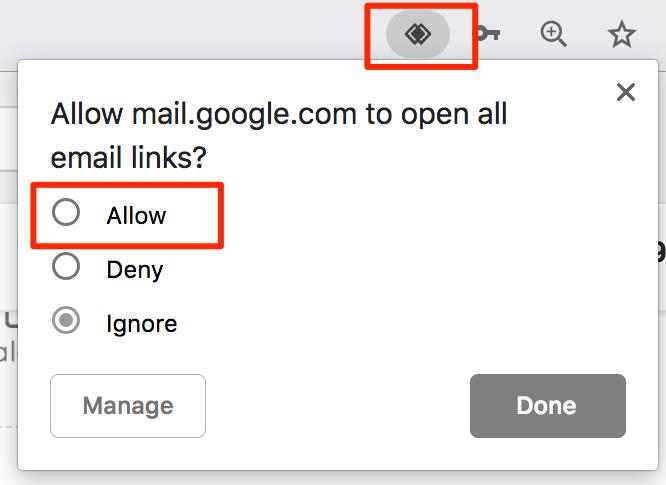
Click the icon and choose:
Allow
Then click Done
This allows Gmail to automatically open email draft links.
Step 3 — If the icon does not appear
Some browsers may previously have blocked Gmail from handling email links. Open this page in your browser:
Chrome:
chrome://settings/handlers
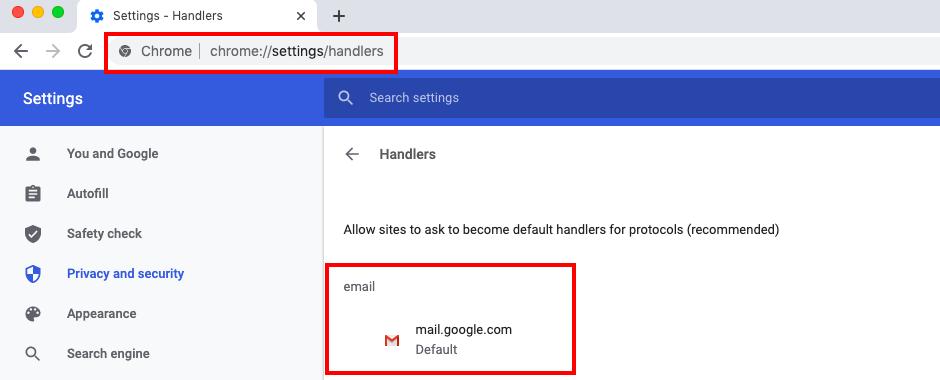
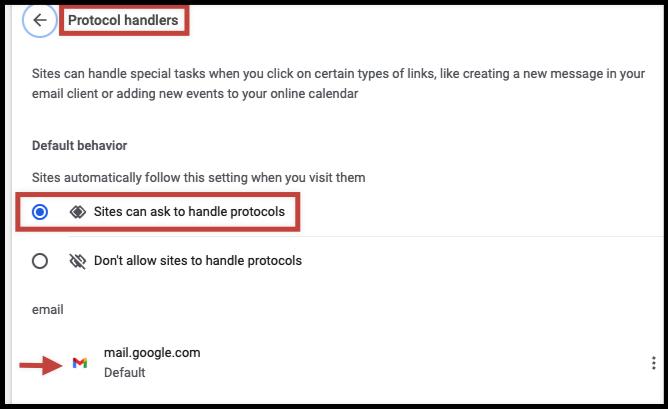
Then look under: Not allowed to handle protocols
If you see mail.google.com listed there, click the X to remove the restriction.
Step 4 — Reload Gmail
Refresh Gmail and repeat Step 2 above.
Once enabled, clicking “Create Email” should automatically open a Gmail draft in your browser.
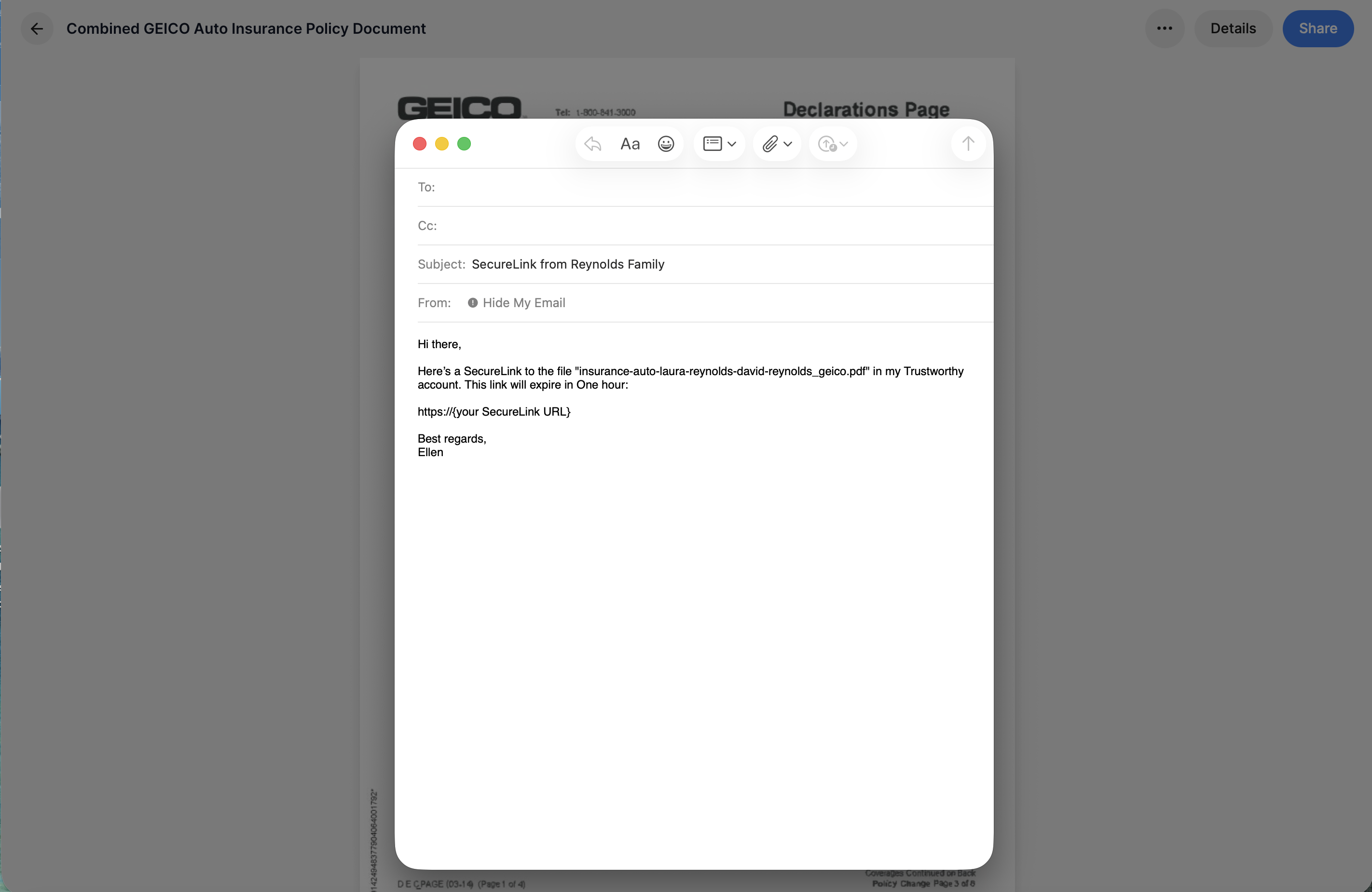
Sample of the Email Trustworthy Generates for SecureLinks
Once you have resolved this issue, the Email button will pop open an email prefilled for you and you can adjust it as you please.