Navigating Your Account
The Trustworthy Dashboard is the central hub for your account, providing a quick overview of recent activity, pending tasks, and upcoming reminders. When you sign in, you are brought to this page, which serves as the primary starting point for navigating and managing your information.
Main Dashboard View
The name across the top of the dashboard is your household name — the family name for your account. Everyone who shares the account sees the same name. The account owner and Full Access collaborators can change it from the Account Menu, described below.
The main area of your dashboard is organized into four key tabs that help you stay on top of your family's information. These tabs allow you to quickly filter the main view to see what's most important.
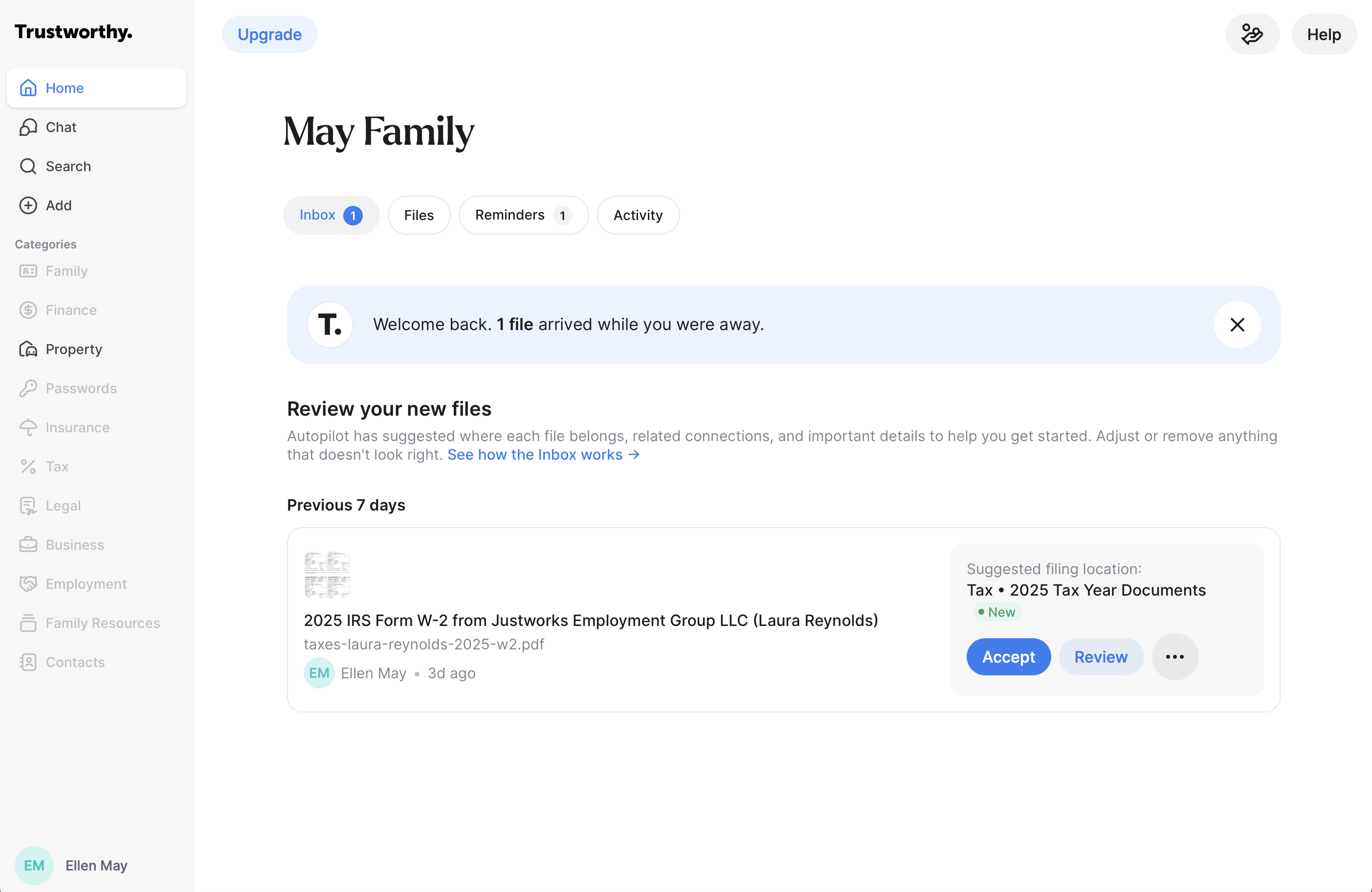
Inbox: This tab displays new files that have arrived in your account and are waiting for review. Review filing locations, suggested details, and reminders, make any adjustments needed, and accept files into your account.
Files: This tab gives you complete access to all Files across your entire Trustworthy account. You can search, sort, and filter to easily access any files which you have permission to access. Click on any File to preview it. Learn more about Files view.
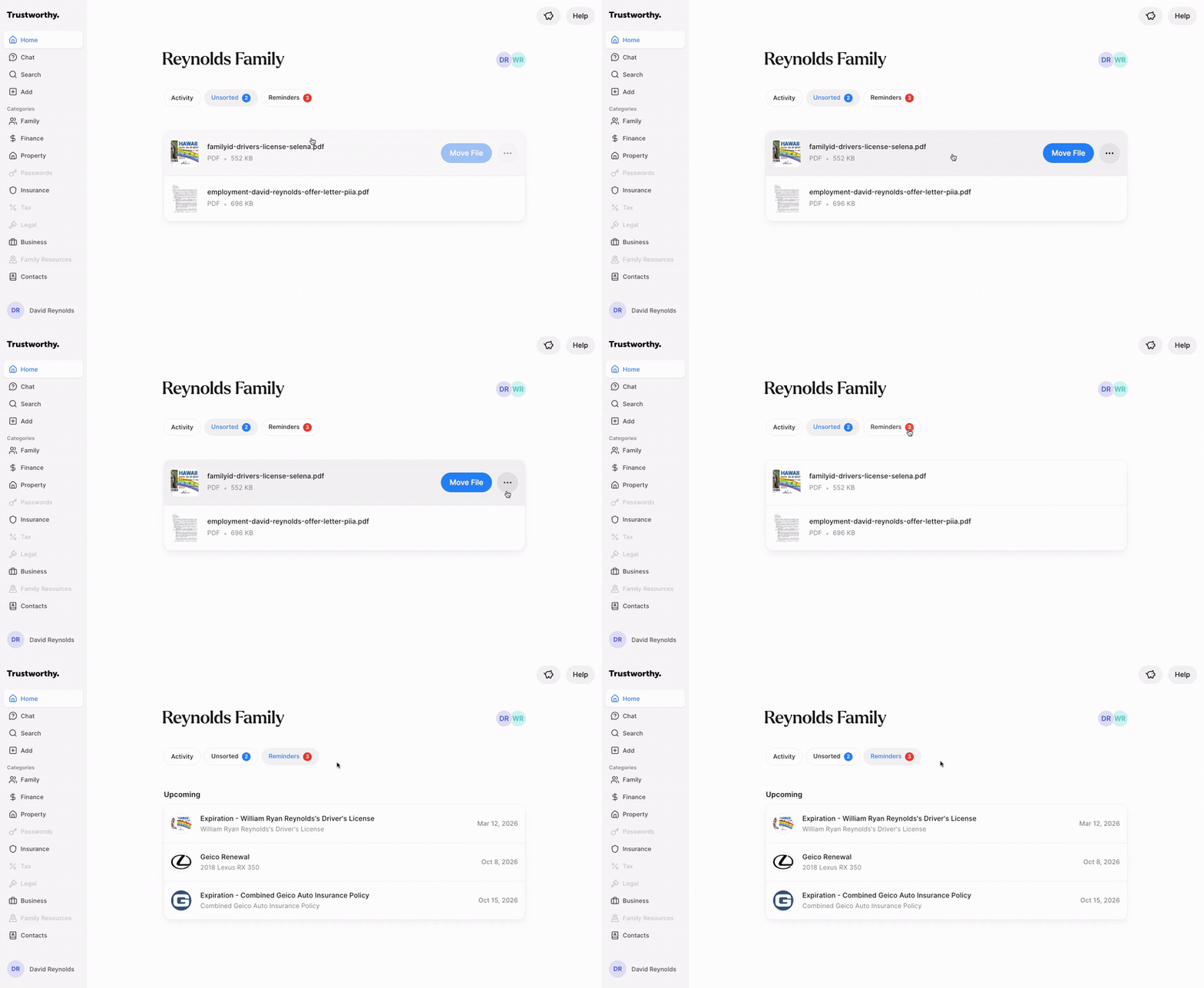
Reminders: Notifications for important dates, such as passport expirations, insurance policy renewals, or tax deadlines. It helps you stay ahead of important life events so nothing gets missed.
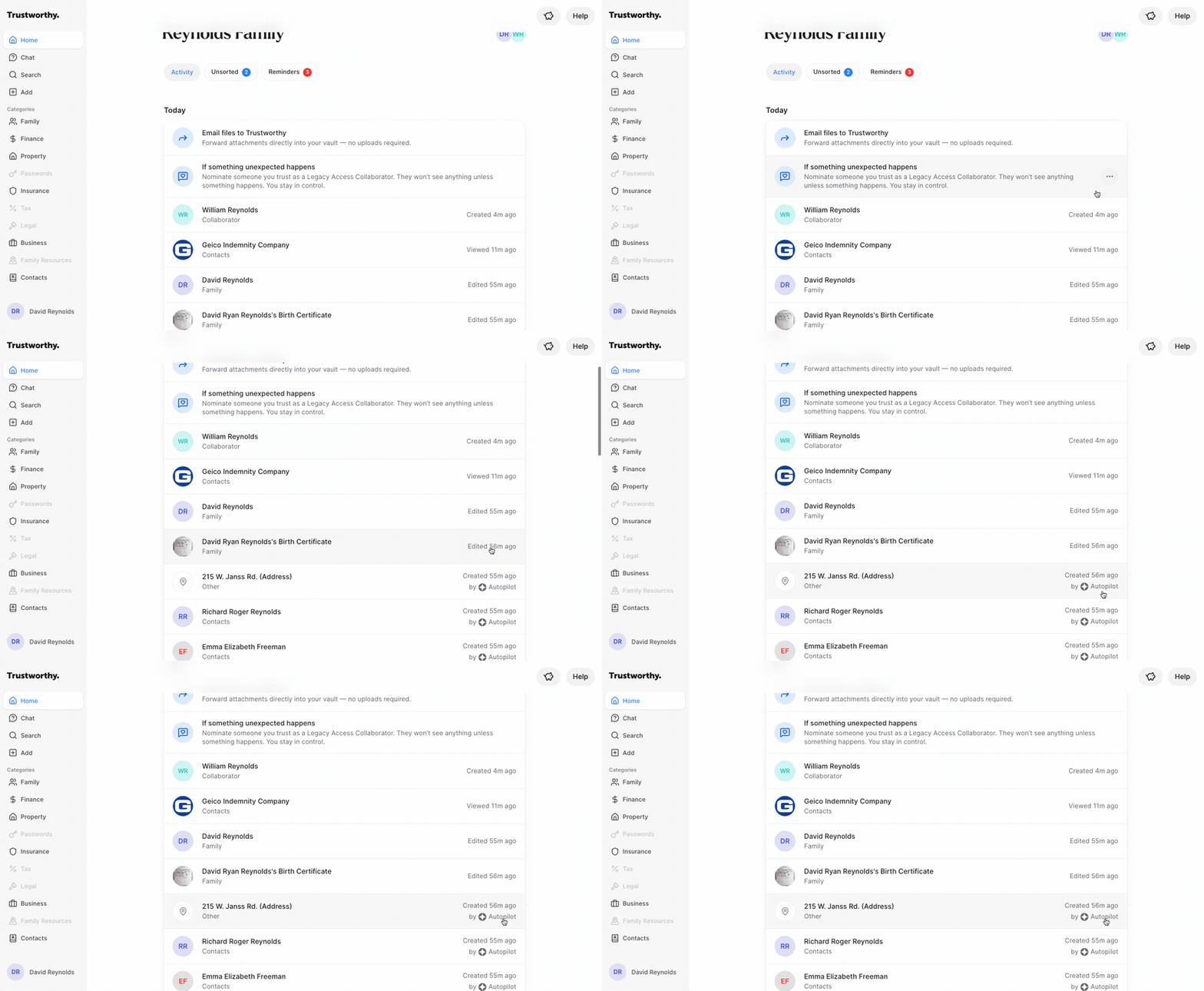
Activity: This is a chronological log of every action taken within your account. It shows when files were added, viewed, or edited, and by whom—including actions performed by automation. The feed provides a complete and transparent history of your account's usage.
💡TIP: to keep your account well-organized, make it a habit to regularly check the Inbox to file away new documents and Reminders to stay on top of important dates.
Left Navigation Bar
The navigation bar on the left side of the screen is your primary tool for moving throughout your Trustworthy account. It provides direct access to all major features and categories.
Home: Returns you to the main dashboard view from anywhere in the application.
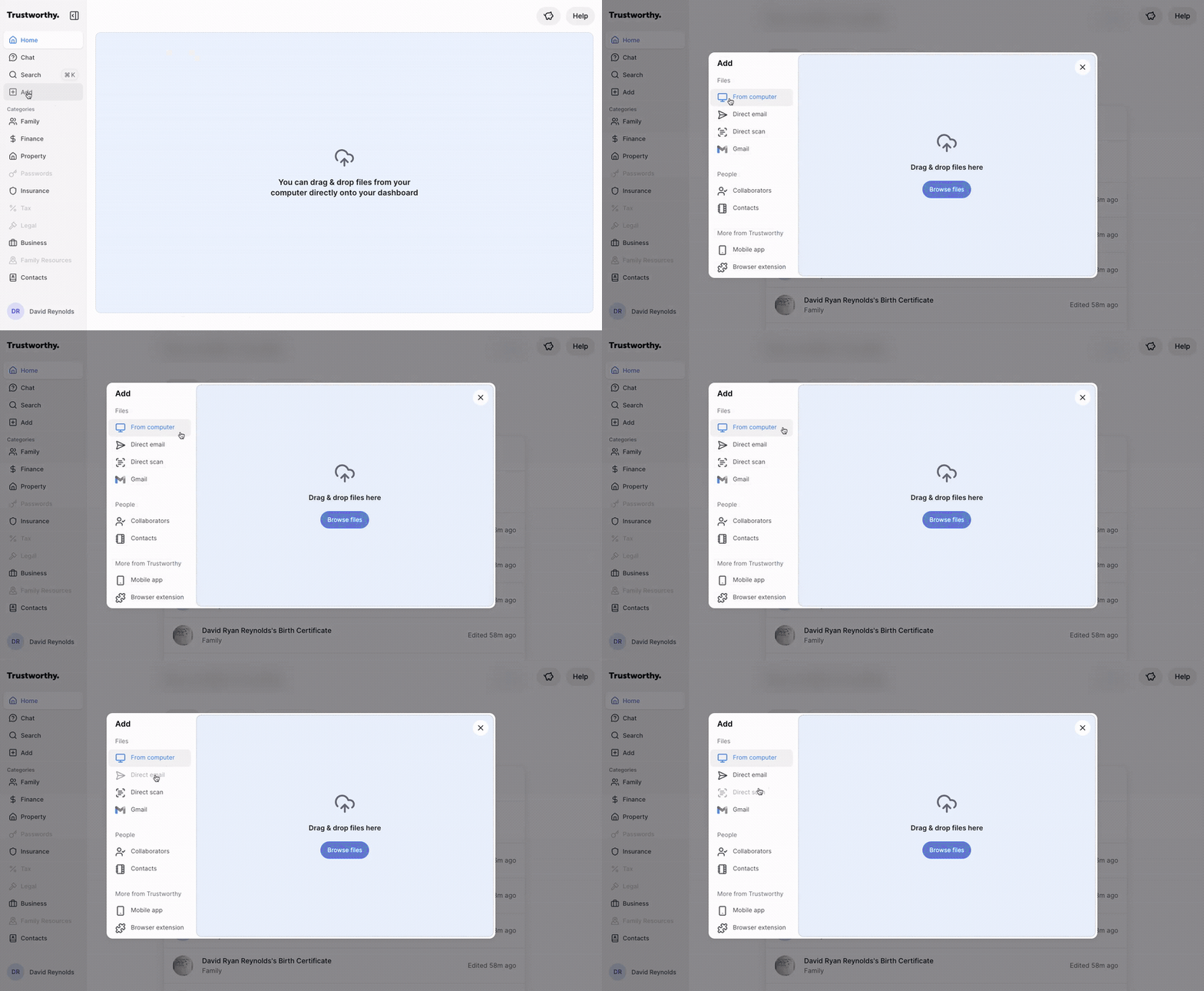
Chat: Opens Trustworthy Chat, where you can ask questions and get answers based on the information in your account.
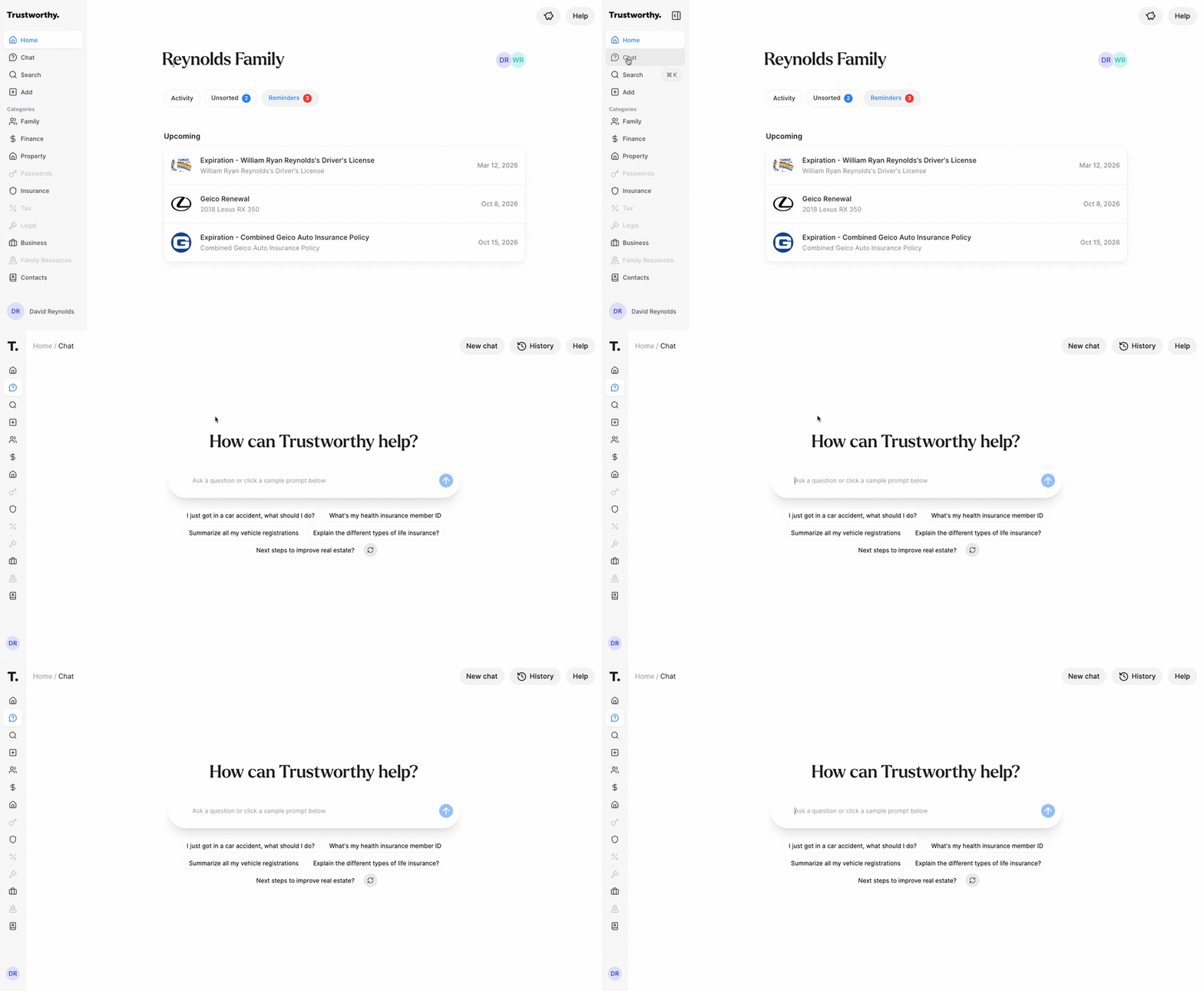
Search: Opens a search bar to help you quickly find specific files or details across all categories.
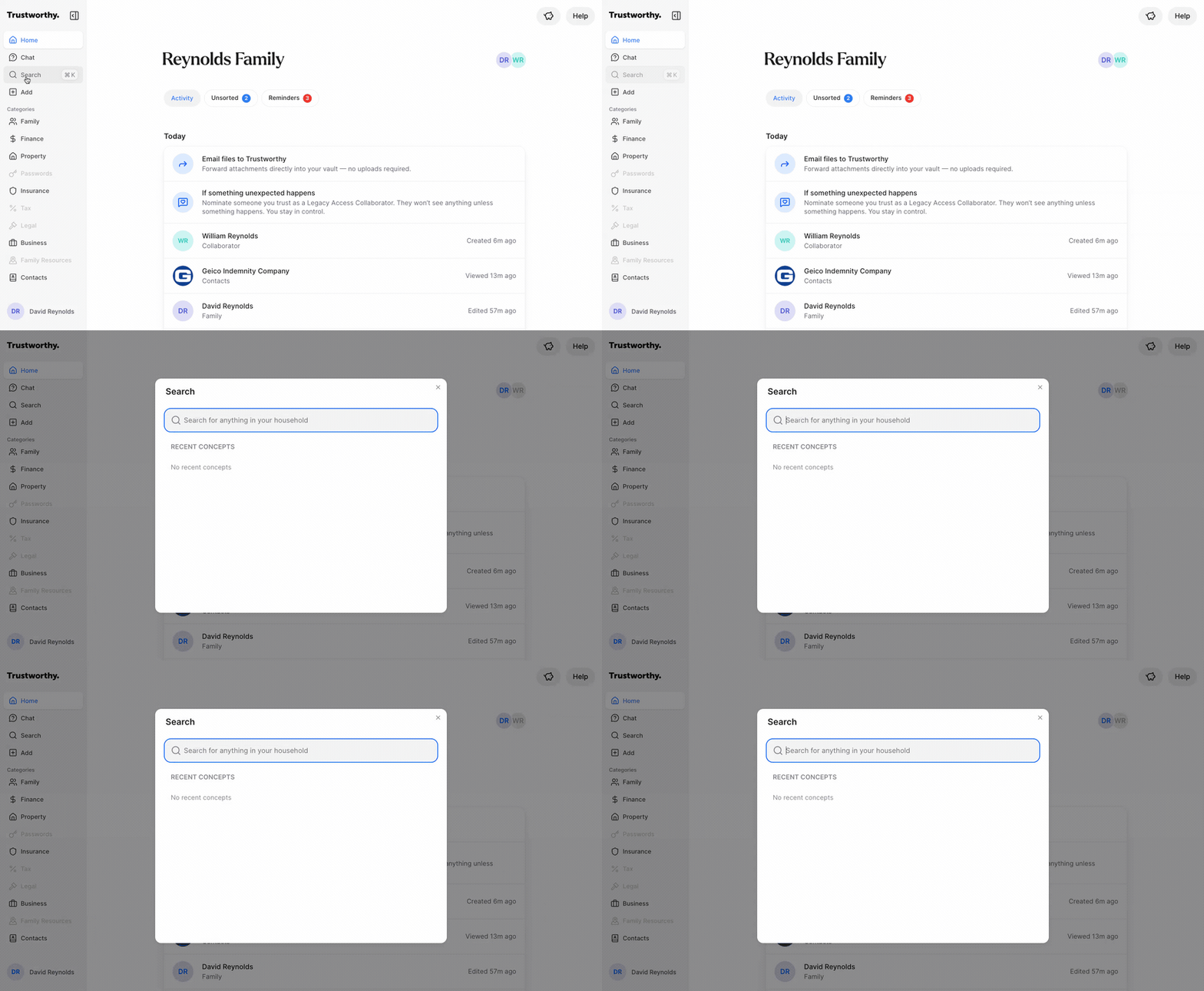
Add: Provides multiple options for adding new information to your account, such as uploading from your computer, forwarding emails, or using an integration.
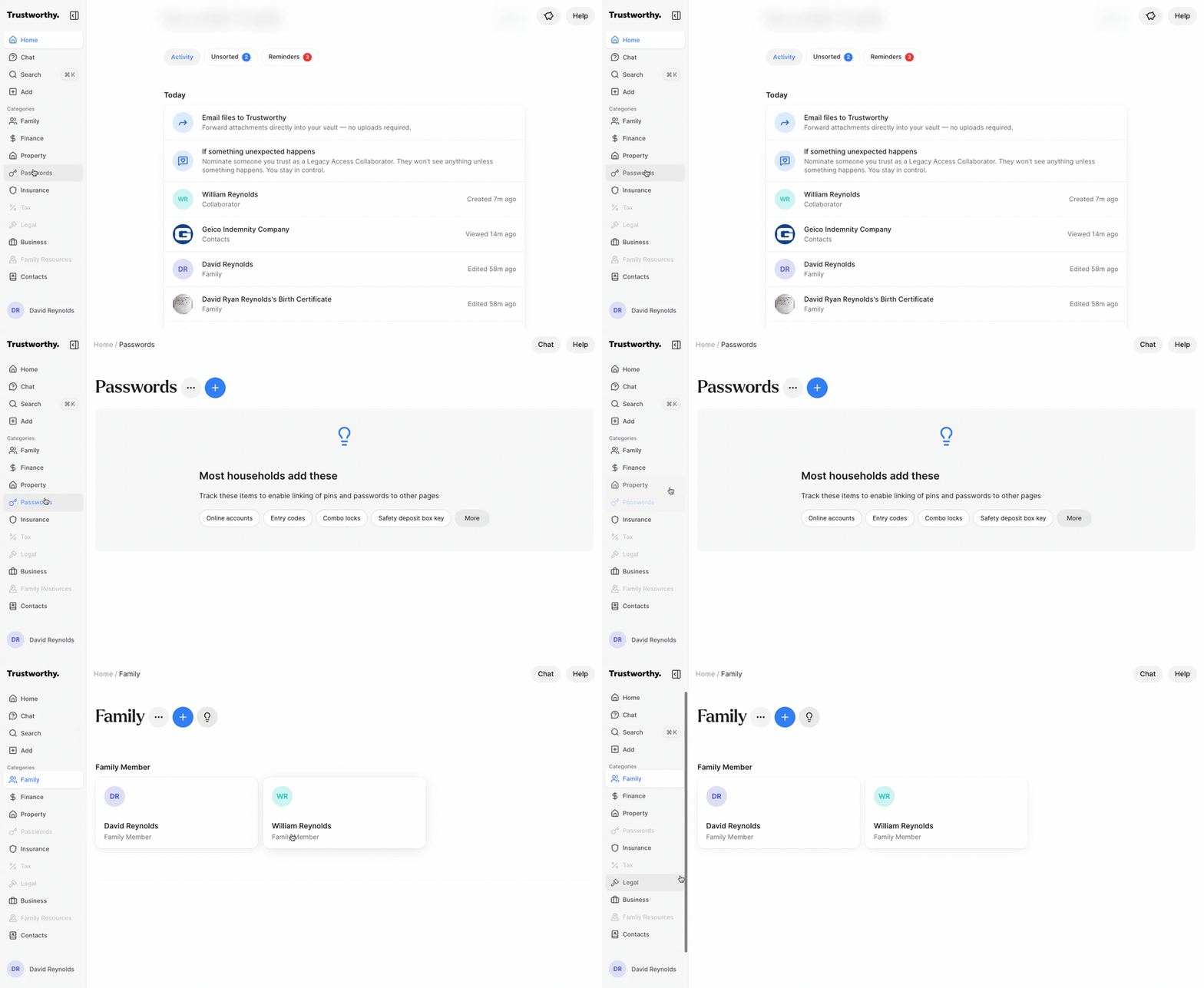
Below these primary controls, you will find your Categories. Categories that contain information appear in bold, while empty categories are grayed out. Click on any category name to view the Items stored within it.
Click here for more details on Categories and Items
Account Menu
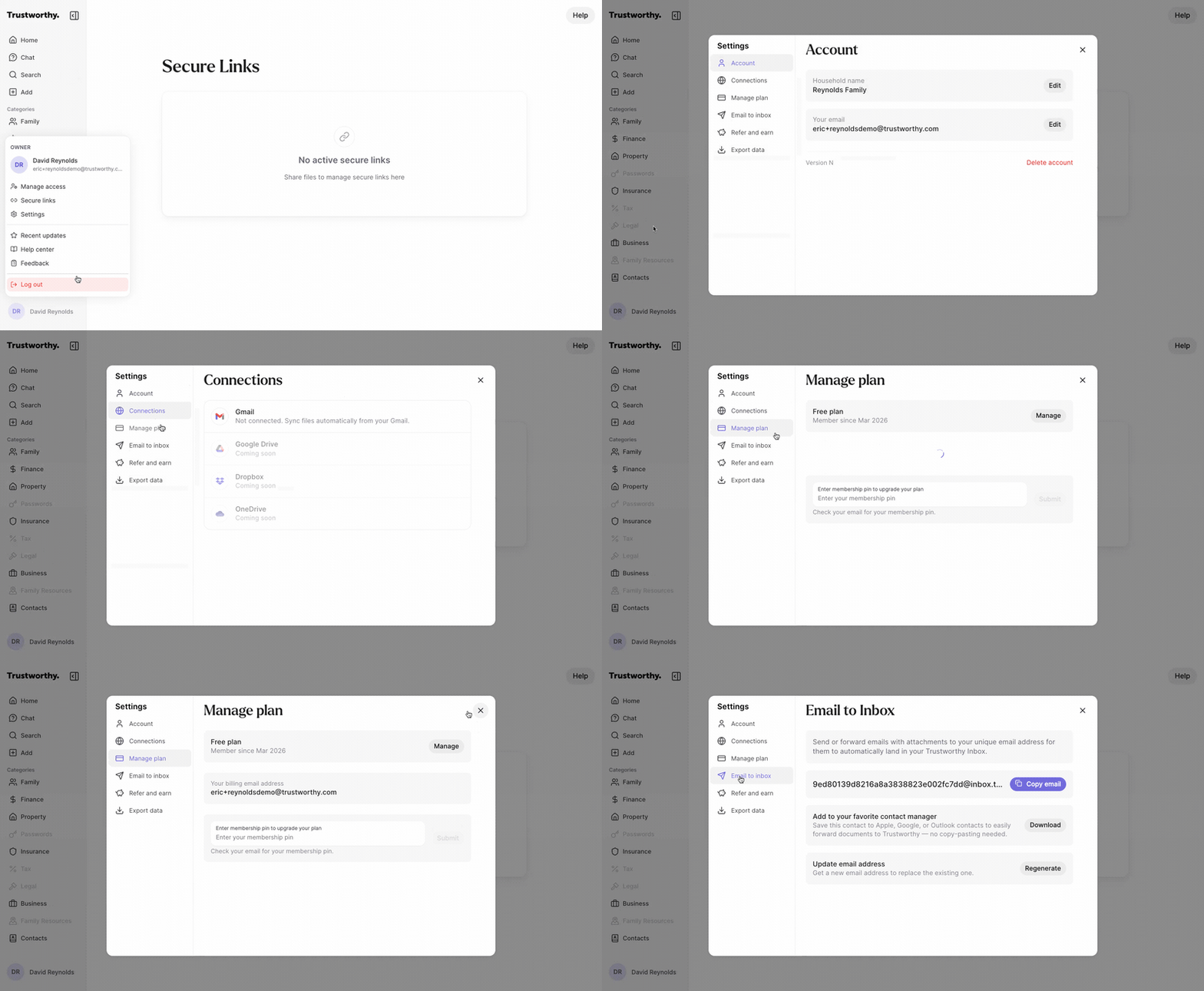
At the bottom of the left navigation bar, you can click on your name to open the account profile menu. This menu provides access to account-level settings and management tools. Only the account owner and Full Access collaborators have access to all of the account settings.
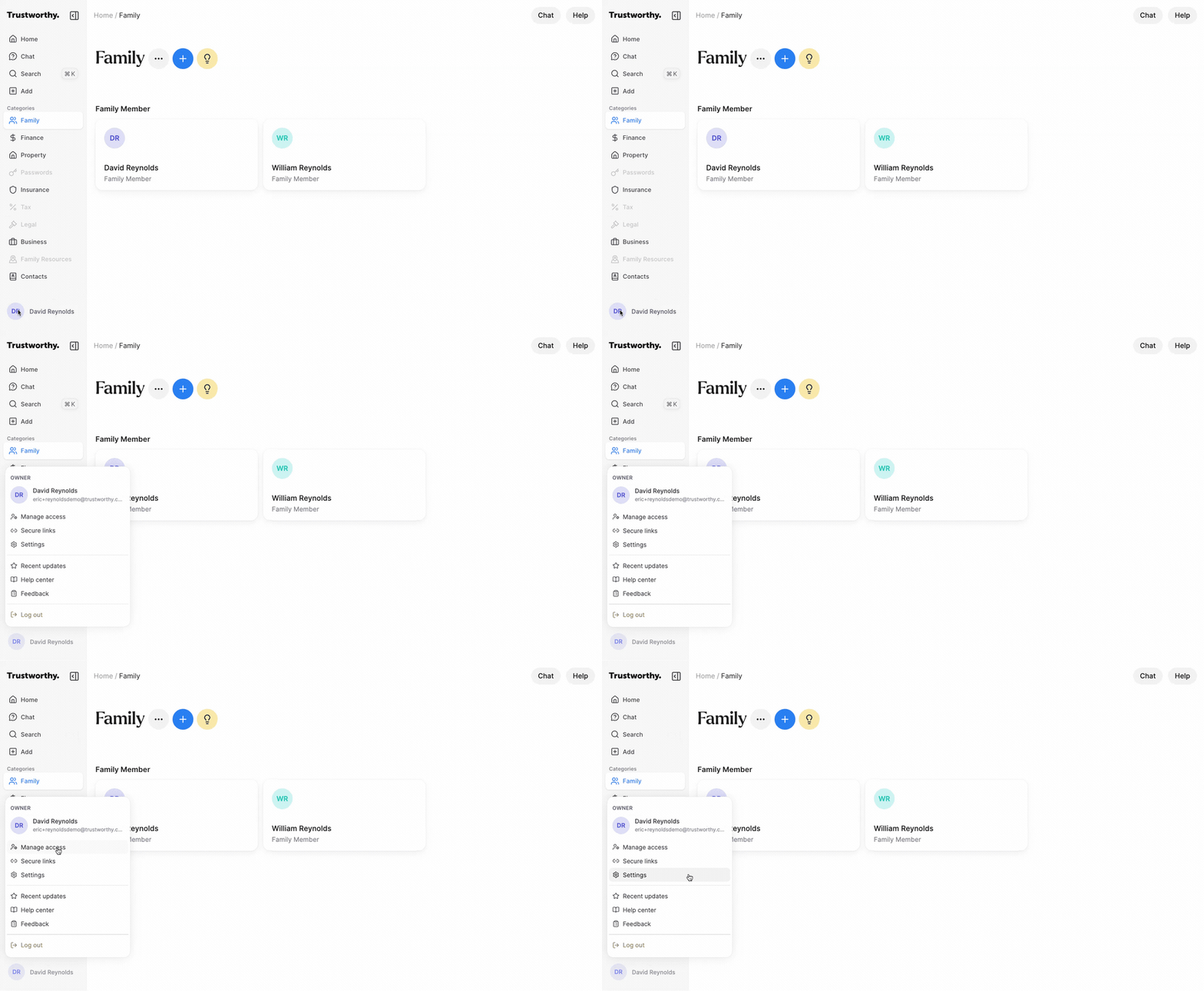
From here, you can:
Change your household name: On desktop, choose Settings. Your household name appears at the top of the Account tab — click Edit beside it, type the new family name, and click Save. The name you save is what appears across the top of the dashboard for everyone on the account.
Manage access: Invite and manage Collaborators who can view or edit information.
Copy or delete SecureLinks: View and manage any SecureLinks you have created to share files.
Adjust other settings: Access account details, manage your plan, view connections, manage your multi-factor authentication, and export your data. You can also delete your account from this section.