
Choosing a "File to" Location
When reviewing a file in your Inbox, Trustworthy suggests a filing location but also gives you the flexibility to choose an alternate location to store your file.
If you're new to Trustworthy, the available options may look a little confusing at first. This guide explains how files are organized so you can confidently choose the right location.
How Trustworthy Organizes Information
Think of your information as three levels: Category → Page → Files & Folders
For example:
Legal
Smith Family Trust
Estate Planning Documents
Signed Documents
Correspondence
Or:
Property
123 Main Street
Purchase Documents
Renovations
Receipts
Every file ultimately belongs to a page.
Step 1: Choose a Category
Start by selecting the broad category your file belongs in, such as:
Property
Legal
Finance
Insurance
Family
Business
Step 2: Choose or Create a Page
After selecting a category, you'll see existing pages you've already created.
If the right page already exists, simply select it.
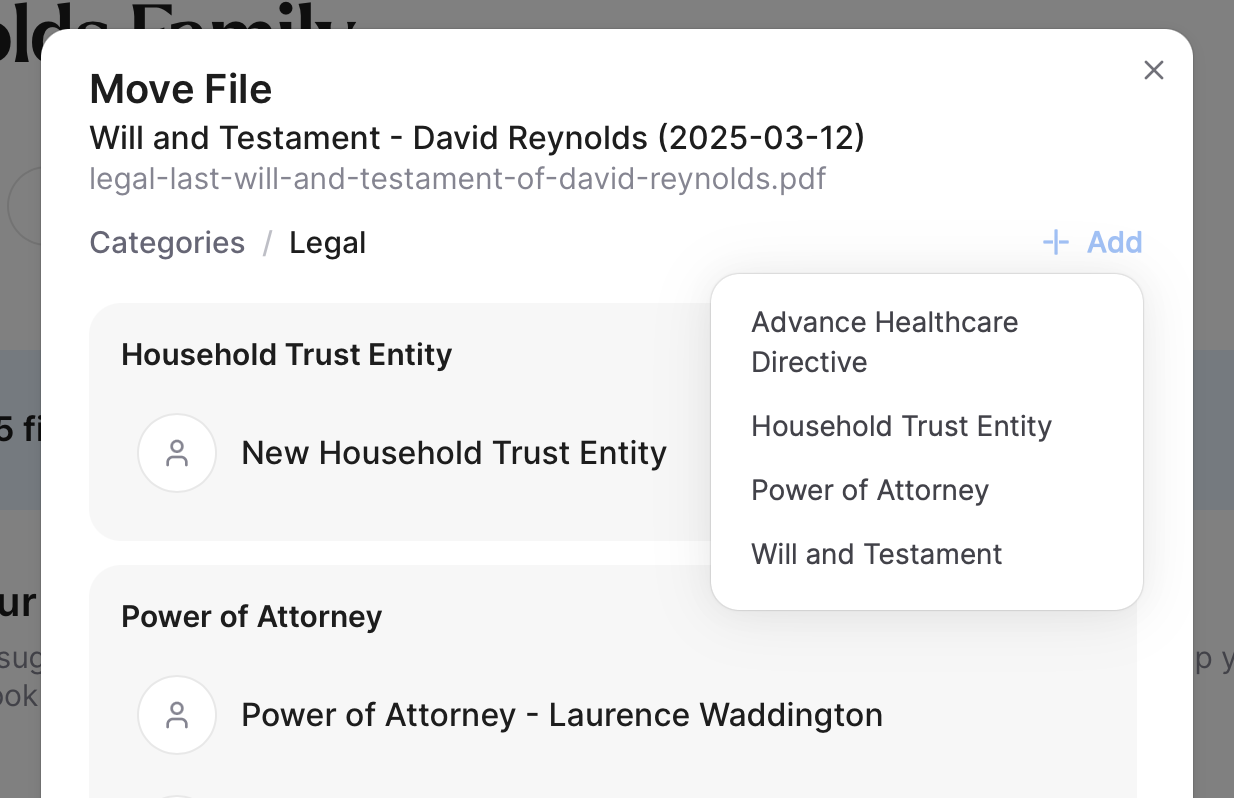
If not, click + Add in the upper-right corner to create a new page from the available page types for that category. These page types are what you'll also hear referred to at Trustworthy as Concepts. Explore other common Trustworthy terms.
For example, within the Legal category you might create a:
Advanced Healthcare Directive
Trust (aka Household Trust Entity)
Power of Attorney
Will and Testament
These are page types—not folders.
Once you've selected a concept, you'll name the page (for example, Smith Family Trust or Estate Planning with Johnson Law Firm).
Step 3: Choose Files or Folders
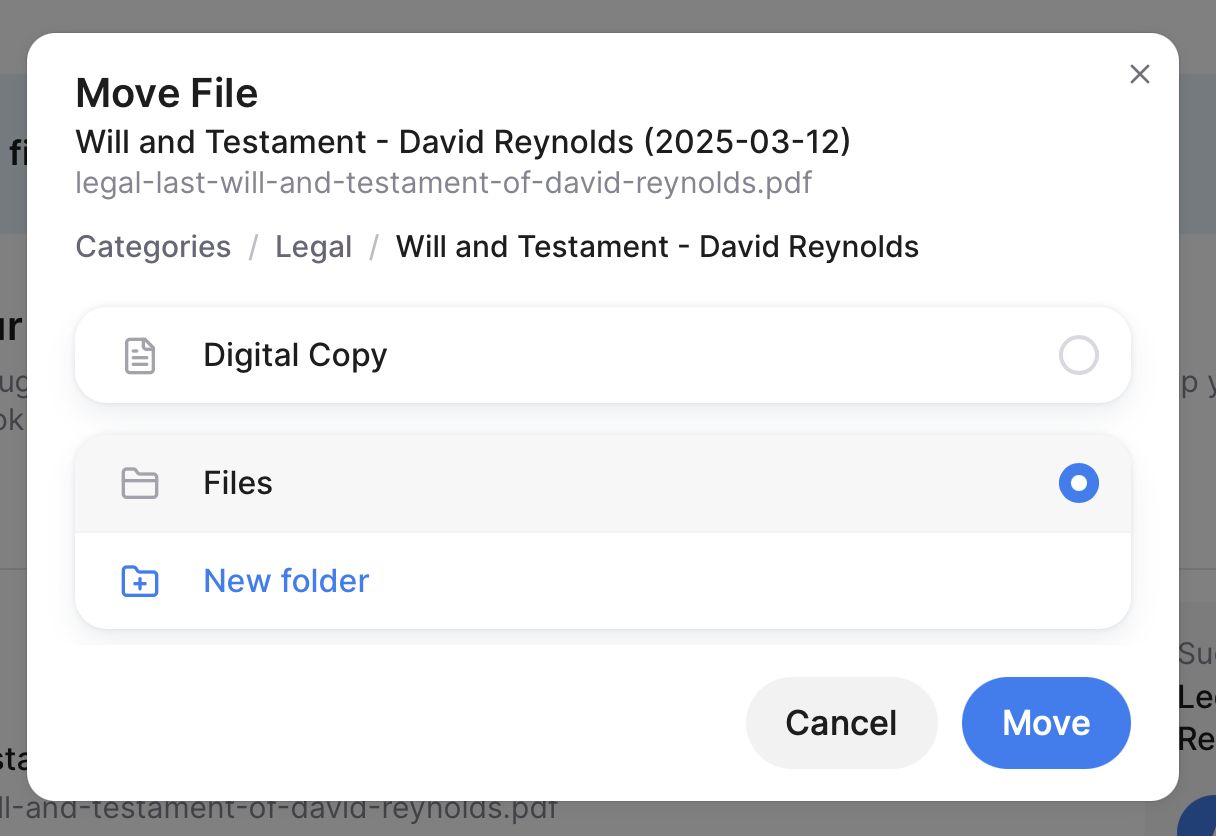
After selecting a page, you'll decide where the file should live.
If the page already has folders, you can choose one. Or select New Folder to create a new folder for that page. Folders are a great way to organize related documents together.
For example, on a page for your estate planning attorney, you might create folders such as:
Signed Documents
Drafts
Invoices & Receipts
Correspondence
You can also simply add the document to Files and organize it into a folder later.
Where Should General Documents Go?
Some files don't naturally deserve their own page.
For example, invoices or receipts from preparing your will probably don't need a separate Legal page.
Instead, create an Invoices & Receipts folder on the page related to that legal work and store them together there. Or, add the vendor to Contacts, and you can include the files there with the contact.
Tips
Categories contain pages.
Pages contain files and folders.
Every file is stored inside a page.
Use + Add to create a new page.
Use New Folder to organize related files within that page.
Related Resource
For a complete walkthrough of reviewing files in your Inbox, see Using the Trustworthy Inbox.