
Introducing the Trustworthy Inbox
The Trustworthy Inbox is where all of your new files arrive for review before they are added to your account. It combines automation with your judgment, helping you stay in control while spending less time organizing information.
When a new file arrives, Trustworthy can read the document, identify important information, suggest where it belongs, and uncover related items that may be helpful to create or connect. But your information is personal, and you should always have the final say.
The Inbox gives you one place to review new files, confirm what looks right, and make changes when needed.
You can spend as much time reviewing as you like—or simply accept a recommendation and move on. The choice is yours.
What Happens When a File Arrives?
New files can arrive in your Inbox in several ways, including:
Uploading files from your computer
Scanning documents with the mobile app
Forwarding files by email
Importing information from connected services such as Gmail
Gmail is the only one of these that brings files in on its own. If you would like to change what it imports, or stop it, see Gmail Connector: Automatically Importing Files into Your Inbox.
As each file is processed, Trustworthy may:
Suggest where the file belongs
Identify important details found in the document
Generate a summary
Recommend related pages that may be helpful to create
Suggest reminders
Nothing is added to your account until you review and accept the file.
Review and Accept
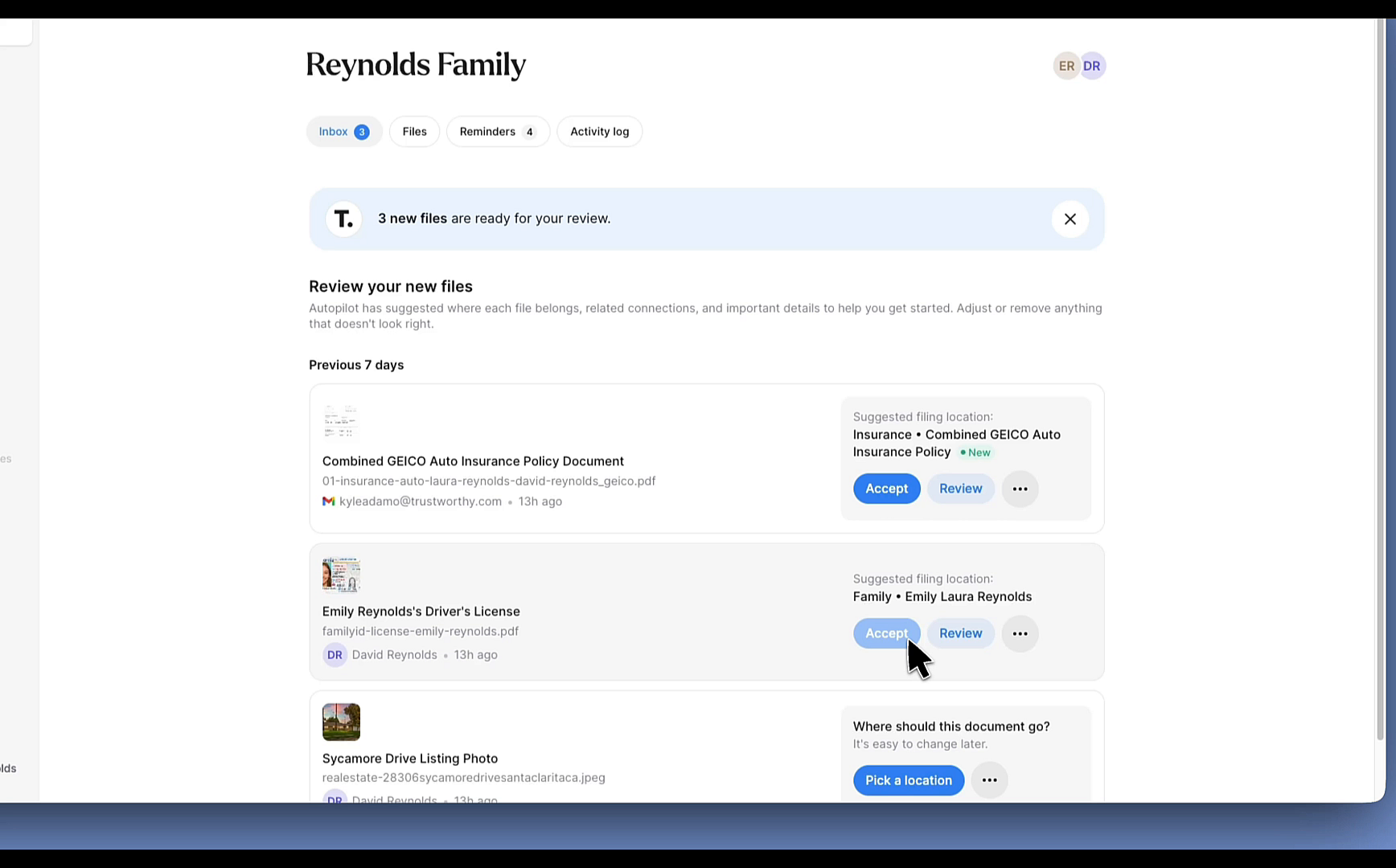
For many files, the suggested filing location may already be correct.
In that case, simply click Accept and Trustworthy will file the document in the suggested location. If a new page is needed for that filing location (look for the New icon), Trustworthy will create it automatically.
For many members, this quick review process is all that's needed.
Need a Different Location?
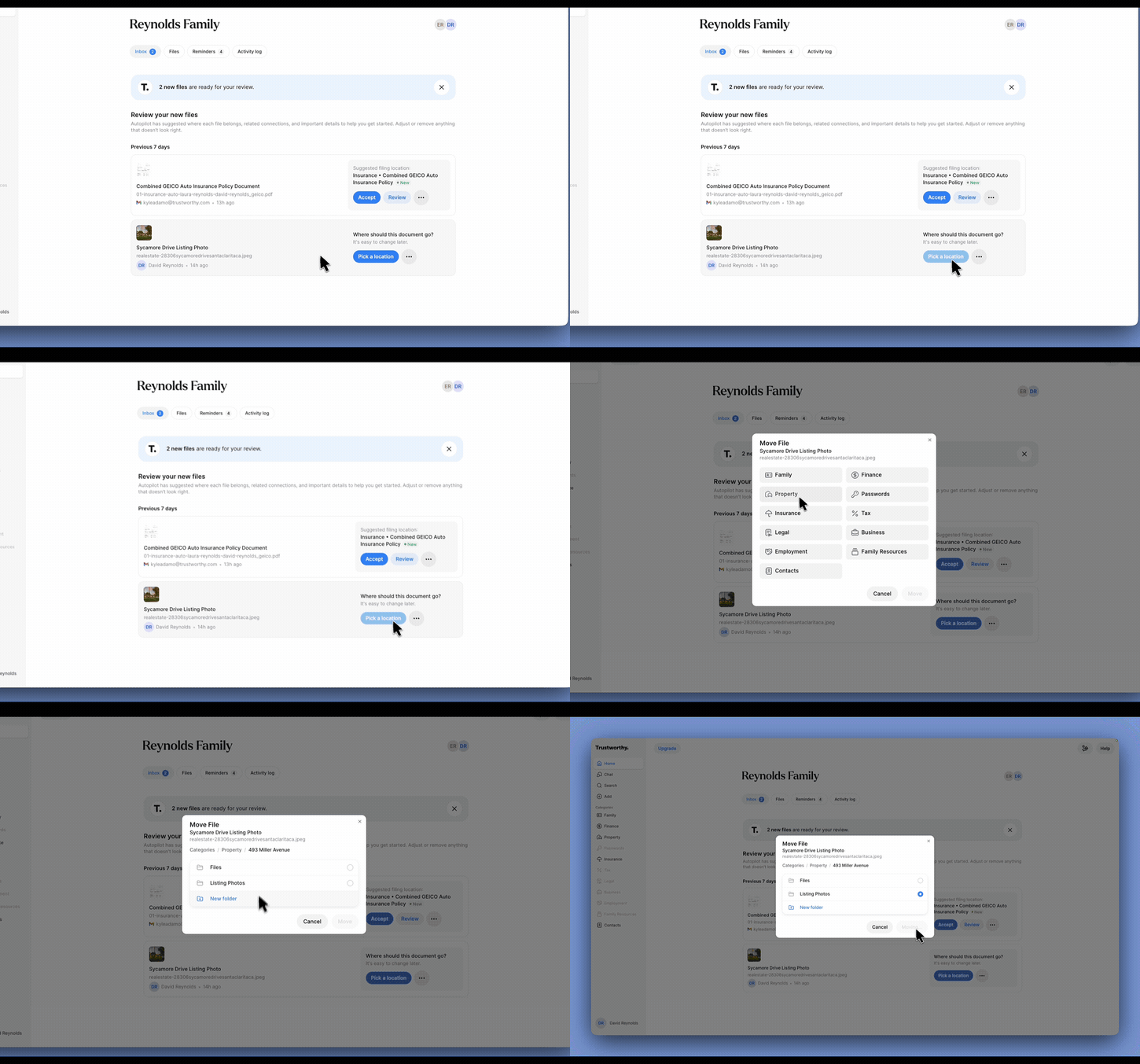
Most documents contain enough information for Trustworthy to suggest where they belong. In some cases, such as photos or general-purpose documents, you may be asked to choose a filing location yourself.
You can also choose a different location if you prefer somewhere other than the suggested destination.
Select the appropriate category and page, then continue filing the document as usual.
Open the Review Panel
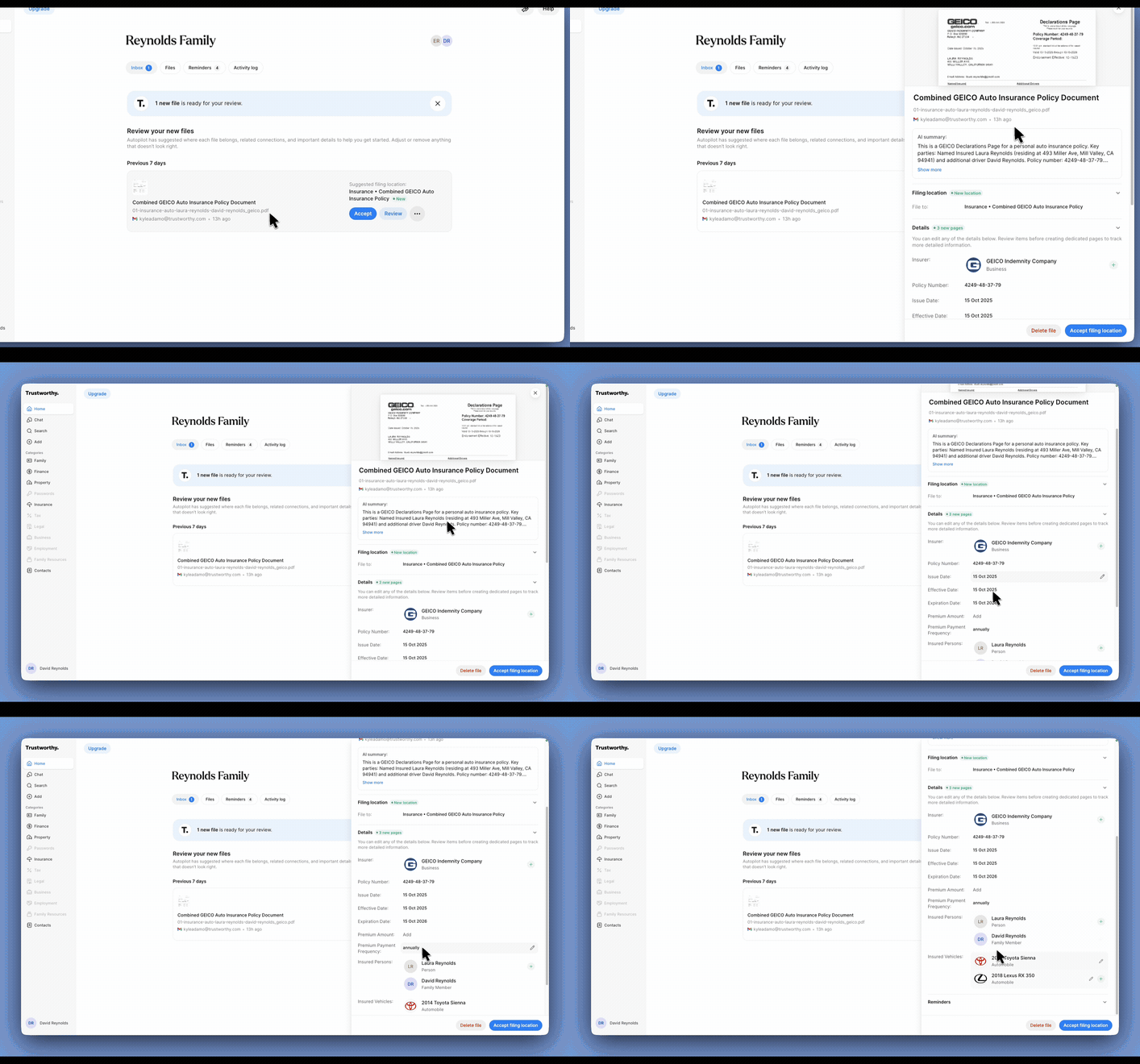
If you'd like to take a closer look before filing, click anywhere on the file row to open the review panel.
The review panel allows you to:
Preview the document
Read a summary
Review or change the filing location
Review and edit extracted details
Review suggested pages and connections
Review suggested reminders
You can accept, modify, or ignore any of these suggestions before filing the document.
Create Suggested Pages Now—or Later
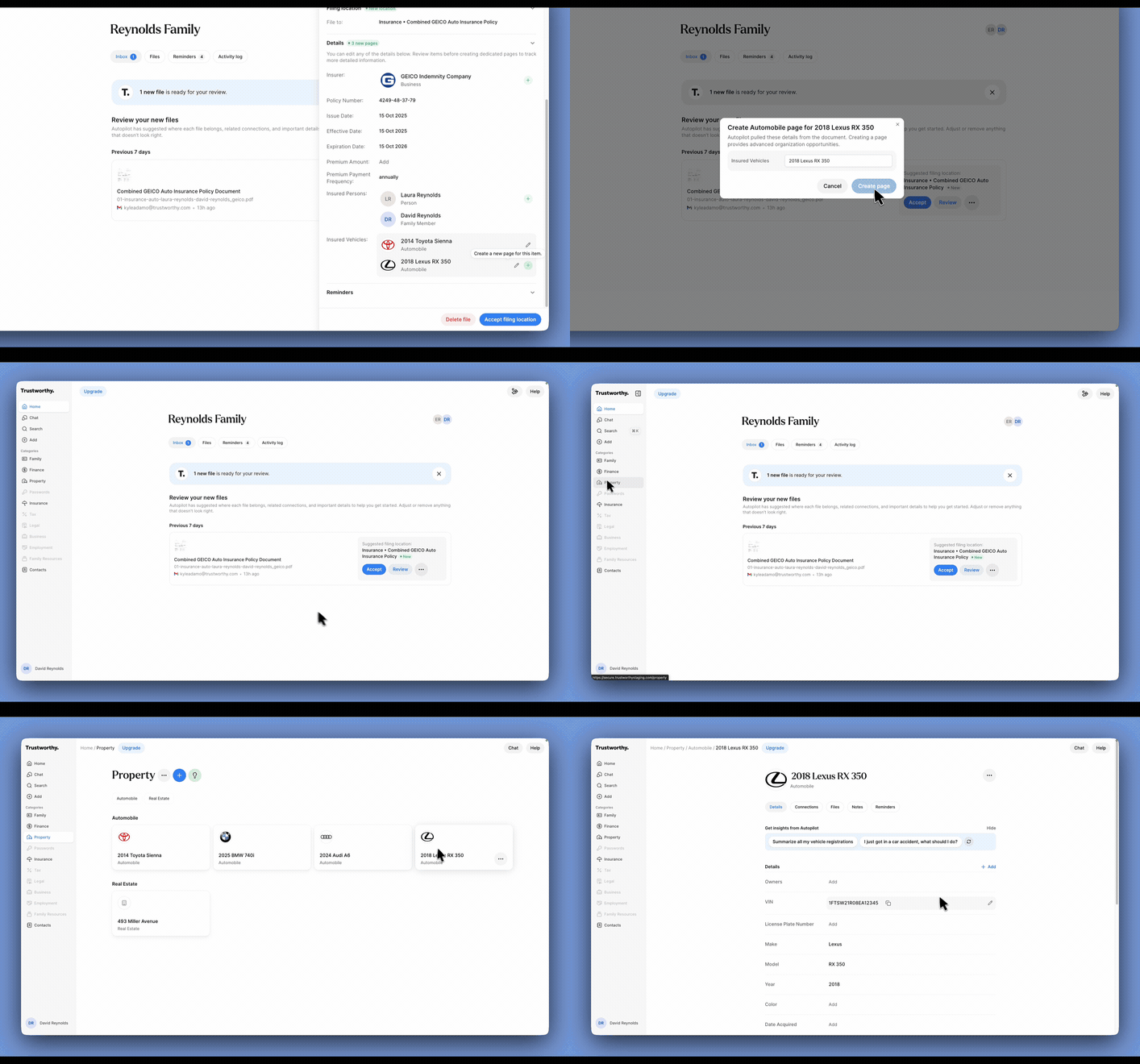
Sometimes Trustworthy identifies additional information that may deserve its own page. Pages come with benefits such as serving as an area for deeper organization of related files, as well as a place to which you can add reminders.
For example, a document may reference vehicles, family members, properties, accounts, policies, or other items that do not yet exist in your account.
You can create these pages directly from the review panel with a single click.
If you choose not to create them during Inbox review, that's okay. The information remains available on the destination page, where you can review and create those suggested items later.
Keeping Your Inbox Manageable
The goal is to keep files moving into your account, not sitting in your Inbox. Whether you take a moment to review every suggestion or simply confirm the filing location and click Accept, your information becomes organized and available when you need it.
You don't need to review every file immediately. Files remain in your Inbox until you accept them, so you can come back whenever it's convenient.
Deleting an Inbox File
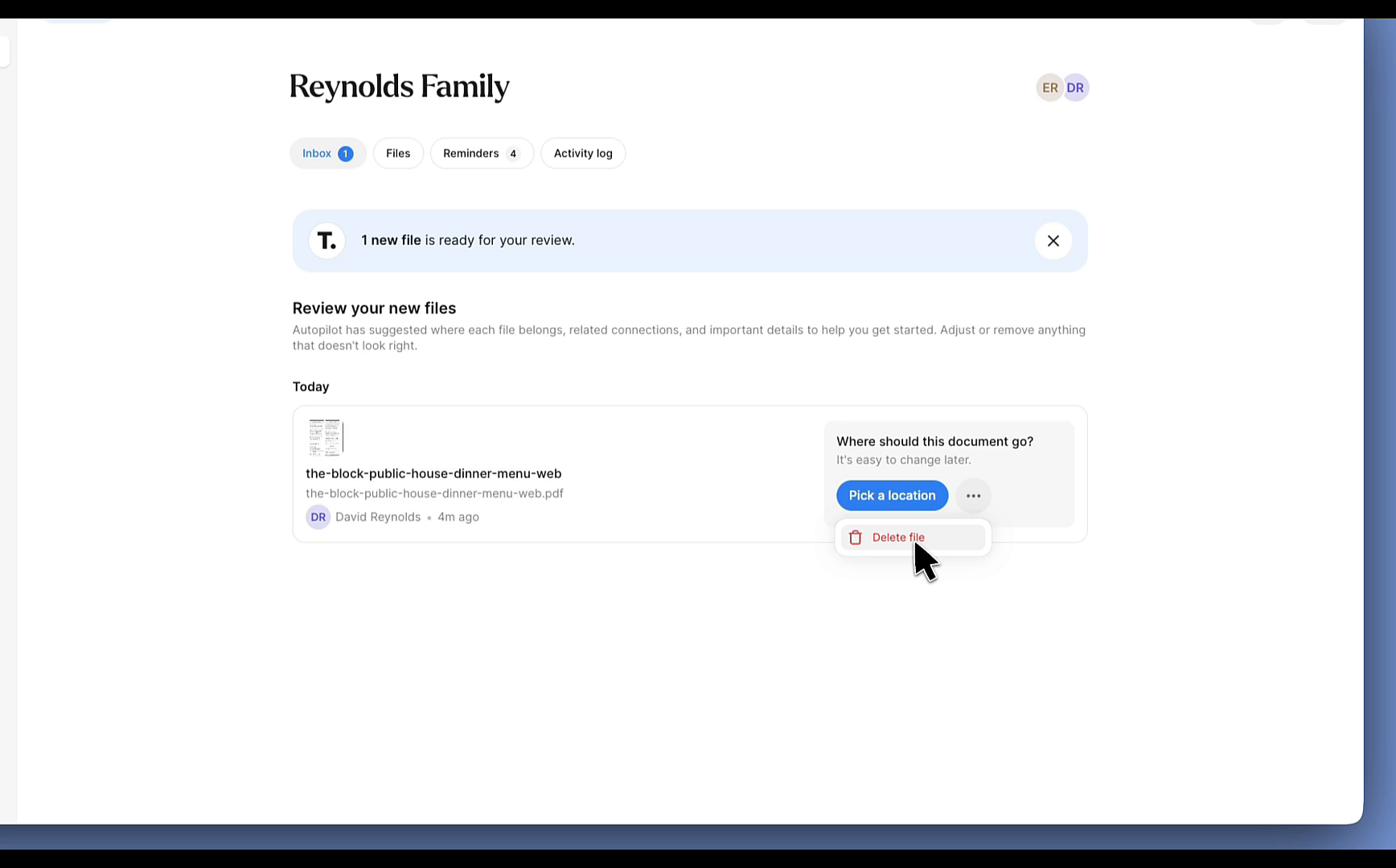
If you don't want to keep a file, open the file's menu (hover on the file row, and click the three dot menu) and select Delete file.
Deleted files are permanently removed from your account.
If the file came from a connected Gmail account, this removes it from Trustworthy only. The original email and its attachment remain in the Gmail account, and the file will not be imported again.
Using the Inbox on Mobile
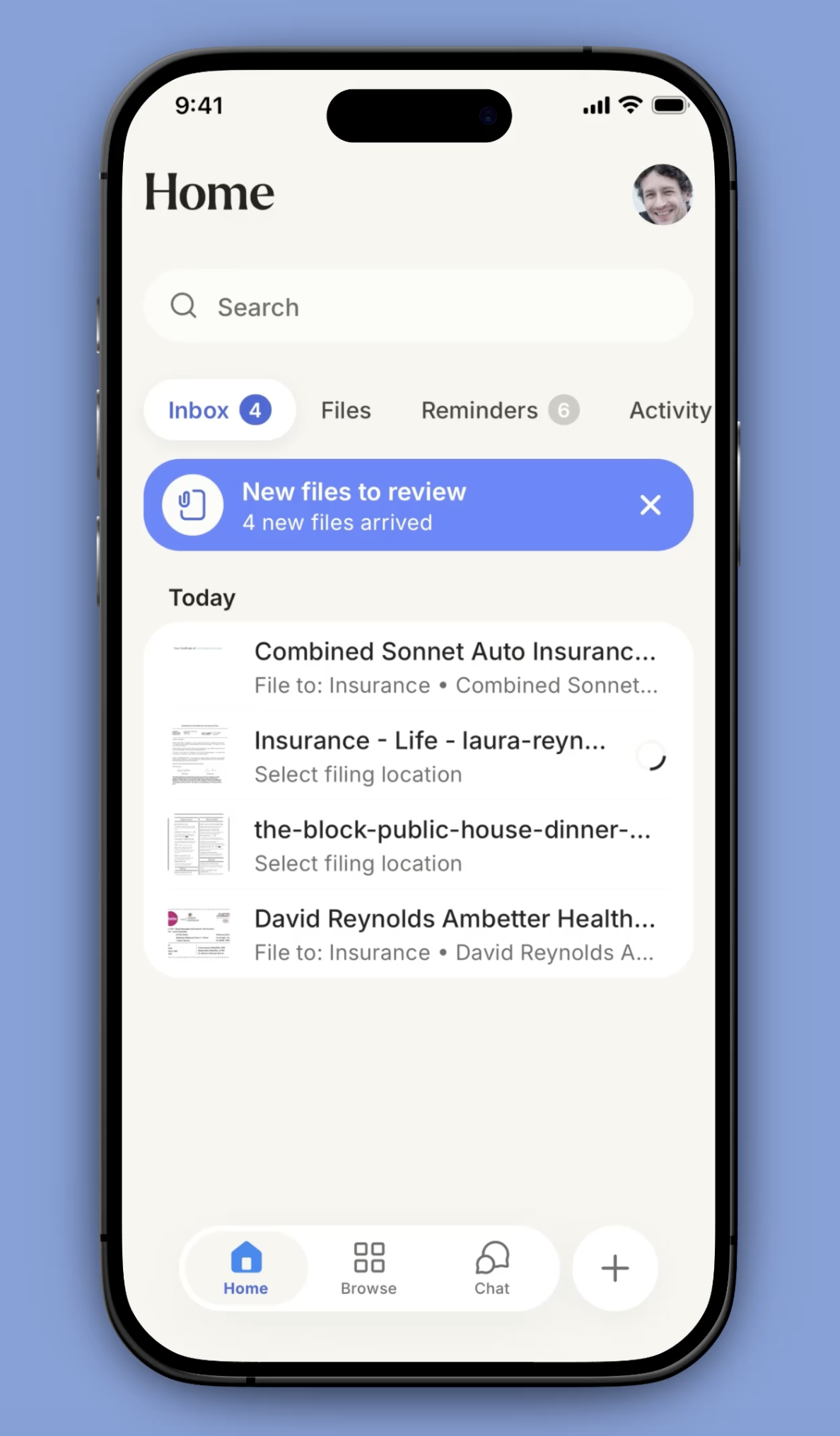
The Trustworthy Inbox works the same way in the mobile app as it does on the web, allowing you to review new files wherever you are.
Open the Inbox tab to see all files waiting for review. Tap any file to open the review screen, where you can:
Review the document preview.
Edit the suggested title, if needed.
Review and update extracted details.
Choose a different filing location if you do not like Trustworthy's suggested location.
Accept the file when you're satisfied with the details.
After you tap Accept, the file is added to your Trustworthy account and removed from your Inbox.
Also, keep in mind, that any new uploads you make directly in the app will appear in your Inbox for review before they become part of your organized account.
Looking for Unsorted?
Unsorted is now part of the Inbox. Any files you had waiting in Unsorted have been moved to the Inbox for your review.